Lab 1: Foundation & Security
Is lab mein tum ek secure AWS account ki poori foundation khud banaoge. Pehle root user ko lock karoge aur billing alarms lagaoge, taaki galti se bhi bada bill na aaye. Phir IAM users, groups aur roles banaoge, apni khud ki JSON policy likhoge, aur EC2 server ko bina ek bhi access key ke AWS access doge. Ant mein secrets ko code se bahar rakhna seekhoge aur Organizations ke SCPs se poore account pe guardrails lagaoge. Har step ke baad tum khud verify karoge ki cheez kaam kyun kar rahi hai, taaki sirf steps yaad na rahein balki concept samajh aaye.
- Lab conventions — pehle yeh padho
- Account, root security & cost safety-nets
- Cloud concepts hands-on: Regions, AZs, shared responsibility
- IAM: groups, admin user, CLI access
- Apni khud ki least-privilege policy + role assume karna
- EC2 + IAM Role + Session Manager (no SSH, no keys)
- Secrets Manager & Parameter Store
- AWS Organizations, OUs & SCPs
- Break & Fix, Challenge, Explain-it-back, Cleanup
- Tum root user, IAM user aur IAM role ka farak apne haath se dekh chuke hoge, sirf kitaab mein padha hua nahi.
- Tum ek JSON policy padh aur likh paoge, aur uske chaar hisson (
Effect,Action,Resource,Condition) ka matlab samjha paoge. - Tum samjha paoge ki AWS permission kaise decide karta hai: sab kuch by default deny hota hai, explicit Allow se access milta hai, aur explicit Deny hamesha jeet-ta hai.
- Roles ka sabse confusing hissa, yaani trust policy aur permission policy ka farak, tumhare liye clear ho jaayega.
- Tum jaanoge ki temporary credentials kahan se aate hain (STS aur instance metadata se).
- Tum secrets ko code se bahar rakhna aur SCP guardrails se poore account ko limit karna seekh jaoge.
0 Lab conventions — poore course ke liye
- Region hamesha
us-east-1(N. Virginia) rahega. Billing metrics, CloudFront ke certificates aur Bedrock ke naye models ya toh sirf yahin milte hain ya sabse pehle yahin aate hain. Console ke top-right mein region selector ko baar-baar check karte raho, kyunki "mera resource dikh nahi raha" wali zyaadatar problems galat region select hone ki wajah se hoti hain. - Har resource ka naam
deepdive-se shuru hoga. S3 bucket ke naam poori duniya mein unique hone chahiye, isliye bucket names mein hum tumhara account ID bhi jodenge, jaisedeepdive-<purpose>-<account-id>. - Jahan bhi tag lagane ka option ho,
Project = deepdivetag lagao. Lab 7 mein tum isi tag se filter karke dekhoge ki is course ne kitna kharcha kiya. - Instance launch karte waqt woh type chuno jispe console mein "Free tier eligible" label ho. July 2025 ke baad bane accounts mein yeh aam taur pe
t3.microhota hai aur purane accounts meint2.micro. Commands meint3.microlikha hai; agar tumhara account purana hai toh use badal dena. - Har lab ke end mein cleanup zaroor karo. Jo resource tum chalta hua bhool jaoge, wahi tumhara bill banayega.
Jo accounts 15 July 2025 ke baad bane hain, unhe sign-up ke waqt Free plan ya Paid plan mein se ek chunna padta hai. Free plan mein tumhe credits milte hain — kuch sign-up pe aur kuch onboarding activities poori karne pe, kul milake $200 tak — aur yeh plan lagbhag 6 mahine ya credits khatam hone tak chalta hai. Free plan pe kuch services ya features band ho sakte hain. Agar kisi lab mein "not available on the free plan" jaisa error aaye, toh Billing console se Paid plan pe upgrade karna padega; upgrade ke baad bhi tumhare bache hue credits pehle use honge. Purane accounts pe classic 12-mahine wala free tier chalta hai. Dono cases mein sabse pehla kaam Part A ka billing alarm aur budget lagana hai; baaki sab uske baad.
Agar tum saare labs apne personal account mein kar rahe ho, toh yeh box aur steps 0.1 aur 0.2 skip kar do. Agar tumhare paas company ka sandbox account bhi hai, toh dono ko mila ke use karna ek achha setup hai. Personal account mein woh kaam karo jo sirf account ka owner kar sakta hai, aur sandbox mein woh mehngi cheezein chalao jinka charge ghante ke hisaab se lagta hai (jaise NAT, EKS, Aurora ya Transit Gateway), taaki tumhara paisa na lage. Har lab ke upar "🏢 Account" wali line batati hai ki kaunsa part kahan karna hai.
| Sirf personal account mein | Kyun sandbox mein nahi hoga |
|---|---|
| Root user, MFA, account alias, Free plan | Sandbox ka root user aur ownership company ke paas hoti hai. |
| Billing alarm, Budgets, Cost Explorer, cost allocation tags | Billing ka access aam taur pe company ke management account (finance team) ke paas hota hai. |
| Organizations, SCPs, Control Tower, IAM Identity Center | Sandbox khud kisi organization ka member account hota hai. |
| Lambe samay tak rehne wale portfolio projects | Sandboxes aksar raat ko ya har hafte automatic saaf kar diye jaate hain. |
Company sandboxes mein aam taur pe kuch restrictions hoti hain, jo company ke SCPs se lagti hain: sirf kuch regions allowed hote hain, sirf chhote instance types chalte hain, kuch services (jaise Bedrock, EKS ya Marketplace) band hoti hain, IAM roles sirf permission boundary ya ek fixed naming prefix ke saath bante hain, access keys band hoti hain aur sirf SSO login chalta hai, aur resources apne aap delete ho jaate hain. Agar kisi error mein "explicit deny in a service control policy" likha ho, toh samajh jao ki yeh company ka guardrail hai; us part ko personal account mein karo aur workaround dhoondhne ki koshish mat karo.
Company ke rules sabse pehle aate hain. Sandbox admin ya IT team se pooch lo ki learning labs chalane ki permission hai ya nahi. Company account mein personal data ya personal GitHub connections mat daalo, aur do accounts ke beech kabhi cross-account trust ya role mat banao jab tak IT approve na kare. Sandbox ka bill company bharti hai, isliye wahan bhi cleanup utna hi zaroori hai.
Personal account ka CLI setup tum Part C mein aws configure se karoge. Company sandbox mein login aam taur pe SSO se hota hai, isliye uske liye tumhe company ka "AWS access portal" URL aur uska region IT team se lena padega. Uske baad yeh commands chalao:
aws configure sso --profile sandbox
# SSO session name: company
# SSO start URL:    https://<company>.awsapps.com/start   (IT se)
# SSO region:       <IT batayega>
# → browser mein login → account + role chuno → default region us-east-1 → output json

aws sts get-caller-identity --profile sandbox
aws sso login --profile sandbox          # token expire hone pe (usually 8-12 ghante)
Labs ke saare commands default profile use karte hain. Agar kisi terminal mein tumhe sandbox account pe kaam karna hai, toh neeche wali pehli line chalao; wapas personal account pe aane ke liye doosri line chalao:
export AWS_PROFILE=sandbox     # is terminal ke saare aws/boto3/cdk commands ab sandbox pe
export AWS_PROFILE=default     # wapas personal
Console mein bhi kaam shuru karne se pehle top-right mein account ID aur role zaroor dekh lo, kyunki galat account mein resource bana dena sabse common galti hai.
aws sts get-caller-identity --profile sandboxchalane pe company ka account ID dikh raha hai.- Tum
echo $AWS_PROFILEse bata sakte ho ki is terminal mein abhi kaunsa profile active hai.
Is step mein tum ek script chalaoge jo har lab ki services ke liye permission test karti hai aur har service ke aage ✅, ⚠️ ya ❌ dikhati hai.
Kisi lab ke beech mein 40 minute kaam karne ke baad "AccessDenied" milna bahut frustrating hota hai. Isliye shuru mein hi pata kar lena behtar hai ki kaunsa part kis account mein karna padega. Yeh script zyaadatar sirf read-only calls karti hai. EC2 ke liye yeh --dry-run use karti hai, jisse koi server launch nahi hota. Sirf ek test S3 bucket aur ek test IAM role banti hai, aur dono turant delete ho jaate hain.
Neeche wali script ko sandbox_check.sh naam ki file mein save karo:
#!/usr/bin/env bash
# DEEPDIVE account capability check.
# Usage: bash sandbox_check.sh             (current login — CloudShell, or your default setup)
#        bash sandbox_check.sh <profile>   (a named profile, e.g. sandbox)
R=us-east-1
if [ -n "$1" ]; then A="aws --profile $1 --region $R"; else A="aws --region $R"; fi
DENY='AccessDenied|UnauthorizedOperation|explicit deny|not authorized|is not authorized'

t() {   # t "<label>" <aws args...>
  local name=$1; shift
  local out; out=$($A "$@" 2>&1)
  if [ $? -eq 0 ]; then printf "  ✅ %s\n" "$name"
  elif echo "$out" | grep -qE "$DENY"; then printf "  ❌ %s  → %s\n" "$name" "$(echo "$out" | grep -oE "($DENY)[^.]{0,60}" | head -1)"
  else printf "  ⚠️  %s  → %s\n" "$name" "$(echo "$out" | tail -1 | cut -c1-100)"; fi
}
dry() { # EC2 dry-run: DryRunOperation = allowed
  local out; out=$($A ec2 run-instances --dry-run --image-id "$AMI" --instance-type "$1" 2>&1)
  if echo "$out" | grep -q DryRunOperation; then printf "  ✅ EC2 launch %s (dry-run)\n" "$1"
  else printf "  ❌ EC2 launch %s  → %s\n" "$1" "$(echo "$out" | tail -1 | cut -c1-100)"; fi
}

echo "== Identity =="; $A sts get-caller-identity --query '[Account,Arn]' --output text || exit 1
AMI=$($A ssm get-parameter --name /aws/service/ami-amazon-linux-latest/al2023-ami-kernel-default-x86_64 --query Parameter.Value --output text 2>/dev/null)

echo "== Regions =="
t "us-east-1"  ec2 describe-availability-zones
t "ap-south-1" ec2 describe-availability-zones --region ap-south-1

echo "== Lab 1: account, IAM, secrets =="
t "Billing: Cost Explorer" ce get-cost-and-usage --time-period Start=$(date -u +%Y-%m-01),End=$(date -u +%Y-%m-%d) --granularity MONTHLY --metrics UnblendedCost
t "Billing: Budgets" budgets describe-budgets --account-id $($A sts get-caller-identity --query Account --output text)
t "Organizations" organizations describe-organization
t "IAM list roles" iam list-roles --max-items 1
ROLE=deepdive-probe-$RANDOM
if $A iam create-role --role-name $ROLE --assume-role-policy-document '{"Version":"2012-10-17","Statement":[{"Effect":"Allow","Principal":{"Service":"ec2.amazonaws.com"},"Action":"sts:AssumeRole"}]}' >/dev/null 2>&1; then
  printf "  ✅ IAM create role\n"; $A iam delete-role --role-name $ROLE
else printf "  ❌ IAM create role (labs need roles — ask IT about naming prefix / permission boundary)\n"; fi
t "IAM access keys (list own)" iam list-access-keys
t "Secrets Manager" secretsmanager list-secrets --max-results 1
t "SSM Parameter Store" ssm describe-parameters --max-results 1

echo "== Lab 2: compute =="
dry t3.micro; dry t3.small; dry m7i.large
t "Lambda" lambda list-functions --max-items 1
t "ECR" ecr describe-repositories --max-items 1
t "ECS" ecs list-clusters
t "EKS" eks list-clusters
t "Batch" batch describe-compute-environments
t "Elastic Beanstalk" elasticbeanstalk describe-applications
t "Auto Scaling" autoscaling describe-auto-scaling-groups --max-items 1

echo "== Lab 3: storage & databases =="
B=deepdive-probe-$RANDOM-$RANDOM
if $A s3 mb s3://$B >/dev/null 2>&1; then printf "  ✅ S3 create bucket\n"; $A s3 rb s3://$B >/dev/null; else printf "  ❌ S3 create bucket\n"; fi
t "EFS" efs describe-file-systems --max-items 1
t "RDS / Aurora" rds describe-db-instances --max-records 20
t "DynamoDB" dynamodb list-tables --max-items 1
t "ElastiCache" elasticache describe-cache-clusters --max-records 20

echo "== Lab 4: networking =="
t "VPC" ec2 describe-vpcs
t "NAT Gateways" ec2 describe-nat-gateways --max-results 5
t "Load balancers" elbv2 describe-load-balancers
t "ACM" acm list-certificates
t "Route 53" route53 list-hosted-zones
t "CloudFront" cloudfront list-distributions
t "API Gateway" apigatewayv2 get-apis

echo "== Lab 5: DevOps =="
t "CloudFormation" cloudformation list-stacks --max-items 1
t "CodeBuild" codebuild list-projects
t "CodePipeline" codepipeline list-pipelines
t "CodeDeploy" deploy list-applications
t "CodeConnections (GitHub)" codeconnections list-connections
t "EventBridge" events list-rules

echo "== Lab 6: AI/ML =="
t "Bedrock" bedrock list-foundation-models --by-provider amazon --query 'modelSummaries[0].modelId'
t "SageMaker" sagemaker list-notebook-instances --max-results 1
t "Comprehend" comprehend detect-sentiment --language-code en --text "test"
t "Translate" translate translate-text --source-language-code en --target-language-code hi --text "hello"

echo "== Lab 7: observability =="
t "CloudWatch" cloudwatch describe-alarms --max-records 1
t "CloudWatch Logs" logs describe-log-groups --limit 1
t "CloudTrail" cloudtrail describe-trails
t "Synthetics" synthetics describe-canaries --max-results 1
t "Compute Optimizer" compute-optimizer get-enrollment-status

echo "== Lab 8: security =="
t "KMS" kms list-keys --limit 1
t "IAM Identity Center" sso-admin list-instances
t "Cognito" cognito-idp list-user-pools --max-results 1
t "WAF" wafv2 list-web-acls --scope REGIONAL
t "GuardDuty" guardduty list-detectors
t "Security Hub" securityhub describe-hub
t "AWS Config" configservice describe-configuration-recorders
t "Access Analyzer" accessanalyzer list-analyzers

echo "== Lab 9: integration & networking+ =="
t "SQS" sqs list-queues
t "SNS" sns list-topics
t "Step Functions" stepfunctions list-state-machines
t "Kinesis" kinesis list-streams
t "Firehose" firehose list-delivery-streams
t "X-Ray" xray get-sampling-rules
t "Transit Gateway" ec2 describe-transit-gateways
t "Site-to-Site VPN" ec2 describe-vpn-connections

echo; echo "✅ = allowed (list/read; create usually bhi, lekin guarantee nahi)  ⚠️ = allowed but service off / not set up  ❌ = blocked → personal account"
Laptop pe sandbox profile ke saath pehli line chalao. CloudShell mein, ya Part C ke baad apne default login ke saath, doosri line chalao:
bash sandbox_check.sh sandbox | tee sandbox-report.txt     # laptop pe, "sandbox" profile ke saath
bash sandbox_check.sh | tee report.txt # CloudShell mein, ya default login ke saath (Part C ke baad)Is script ke pehle version mein profile ka naam dena zaroori tha, isliye CloudShell mein yeh error aata tha. Agar tumhare paas purani file hai, toh use theek karne ke liye yeh ek line chalao aur phir script ko bina profile ke run karo:
sed -i 's/^P=${1:-default}; R=us-east-1$/R=us-east-1/; s/^A="aws --profile $P --region $R"$/A="aws --region $R"/' sandbox_check.sh
bash sandbox_check.sh | tee report.txt
macOS pe sed -i ke baad khaali quotes dene padte hain, yaani sed -i '' 's/.../.../' sandbox_check.sh. Isse bhi aasaan tareeka yeh hai ki purani file delete karke upar se script dobara copy kar lo.
Yeh script lagbhag 60 services ko ek ke baad ek call karti hai, aur restricted account mein unme se kaafi calls pe AccessDenied aayega. Har call CloudTrail mein tumhare naam se record hoti hai. Kisi user ka kuch hi minutes mein bahut saari services try karna aur baar-baar deny milna bilkul waisa hi dikhta hai jaisa kisi attacker ka account ko explore karna, isliye GuardDuty aur company ke security tools is pattern pe alert bhej sakte hain. Script ek test IAM role aur ek test S3 bucket bhi banati aur delete karti hai. Isliye company sandbox pe ise chalane se pehle sandbox admin ya security team ko batao ki tum kya chala rahe ho aur kyun, aur unki permission lo. Usse bhi aasaan yeh hai ki unse seedha allowed services ki list maang lo. Apne personal account mein ise chalane mein koi dikkat nahi hai.
Report dekh ke har lab ke parts ko "sandbox" ya "personal" mark kar lo. Dhyan rakho ki kisi service ka ✅ sirf yeh batata hai ki usko padhne ki permission hai; create karne ki permission bhi ho, yeh zaroori nahi, kyunki kuch SCPs sirf naye resources ya bade sizes ko rokte hain. Agar kisi lab ke beech mein AccessDenied aaye, toh wahi part personal account mein kar lo.
- Sandbox report file mein save ho gayi hai aur tumne ❌ wali services note kar li hain.
- Tum bata sakte ho ki kaunse labs ya parts tum personal account mein karoge.
A Account, root security & cost safety-nets
Is step mein tum naya AWS account banaoge aur uske root user pe multi-factor authentication (MFA) chalu karoge.
Root user woh identity hai jo account ke saath hi ban jaati hai, aur IAM policies se isko restrict nahi kiya ja sakta. Root user account band kar sakta hai, billing details badal sakta hai aur account ki har cheez delete kar sakta hai. Agar sirf password leak ho jaaye aur MFA laga na ho, toh poora account attacker ke haath mein chala jaata hai. MFA lagane ke baad login ke liye password ke saath-saath tumhare phone pe aane wala 6-digit code bhi chahiye hota hai, isliye sirf password chura lena kaafi nahi rehta.
- aws.amazon.com pe jao aur Create an AWS Account pe click karo. Email daalo, account ka naam
deepdive-labrakho, email pe aaya OTP verify karo aur password set karo. Uske baad contact details bharo, card verify karo, phone verify karo aur apna plan chuno. - Root user se sign in karo. Top-right mein apne account ke naam pe click karo aur Security credentials kholo. Wahan Multi-factor authentication (MFA) section mein Assign MFA device pe click karo.
- Device ka naam
root-phonerakho aur Authenticator app (ya passkey) chuno. Apne phone pe Google Authenticator ya Microsoft Authenticator se QR code scan karo, app mein aaye do lagataar codes bharo aur Add MFA pe click karo. - Ab sign out karo aur root user se dobara login karo. Is baar password ke baad tumse MFA code maanga jaana chahiye.
- Root user se login karte waqt MFA code maanga ja raha hai.
- IAM ke Dashboard pe "Root user has MFA" wala check green dikh raha hai.
Is step mein tum ek alarm banaoge jo tumhara estimated monthly bill $5 se upar jaate hi tumhe email bheje.
AWS mein koi automatic "spending limit" nahi hoti. Agar koi resource chalta reh gaya, toh bill badhta hi rahega jab tak tum use band na karo. Billing alarm ek smoke detector ki tarah kaam karta hai jo problem shuru hote hi tumhe bata deta hai. Ek zaroori baat yaad rakho: billing metrics (AWS/Billing → EstimatedCharges) sirf us-east-1 region mein publish hote hain, chahe tumhare resources kisi bhi region mein hon. Bahut log alarm banane jaate hain aur unhe metric milta hi nahi, kyunki woh Mumbai region mein dhoondh rahe hote hain.
- Billing and Cost Management console kholo aur Billing preferences mein jao. Alert preferences ke aage Edit dabao, Receive CloudWatch billing alerts pe tick lagao aur Save karo. Metric aane mein kuch ghante lag sakte hain; agar abhi na dikhe toh pehle A3 kar lo aur yeh step baad mein poora karo.
- Region selector se US East (N. Virginia) us-east-1 chuno.
- CloudWatch console mein Alarms → All alarms → Create alarm pe jao. Select metric dabao, phir Billing → Total Estimated Charge kholo,
USDwali line pe tick lagao aur Select metric dabao. - Statistic ko Maximum aur Period ko 6 hours rakho. Condition mein Greater than 5 set karo.
- Notification section mein Create new topic chuno, topic ka naam
deepdive-billing-alertsrakho, apna email daalo aur Create topic dabao. Next dabao, alarm ka naamdeepdive-billing-over-5usdrakho aur Create karo. - Apne inbox mein "AWS Notification - Subscription Confirmation" naam ka email dhoondho aur usme Confirm subscription link pe click karo. Jab tak tum confirm nahi karoge, SNS tumhe koi email nahi bhejega.
Amazon SNS ek publish/subscribe messaging service hai. Alarm ek "topic" pe message publish karta hai, aur us topic ke jitne bhi subscribers hain (email, SMS, Lambda function, ya webhook ke through Slack), sabko woh message mil jaata hai. Alarm ko yeh pata hi nahi hota ki email kis-kis ko jaayega, aur isi alagaav ko decoupling kehte hain. Yeh pattern tumhe Lab 5 (EventBridge) aur Lab 7 mein dobara dikhega.
- Alarm
deepdive-billing-over-5usdus-east-1 region mein dikh raha hai. Uska state "OK" ho ya "Insufficient data", dono theek hain. - SNS ke Subscriptions page pe tumhare email ka status "Confirmed" hai.
Is step mein tum do budgets banaoge. Pehla budget tumhe pehla ek cent kharch hote hi bata dega, aur doosra budget $5 ke 85% aur 100% pe, aur forecast pe bhi, alert bhejega.
Billing alarm sirf yeh dekhta hai ki ab tak kitna kharcha ho chuka hai. Budgets forecast bhi dekh sakte hain, yaani "agar isi raftaar se kharcha hota raha toh mahine ke end tak $12 ho jaayega". Iska fayda yeh hai ki problem bill badhne se pehle hi pakad mein aa jaati hai. Free tier pe seekhne walon ke liye zero-spend budget sabse achhi early warning hai.
- Billing and Cost Management mein Budgets → Create budget pe jao. Use a template (simplified) chuno aur Zero spend budget select karo. Naam
deepdive-zero-spendrakho, apna email daalo aur Create karo. - Dobara Create budget dabao, template chuno aur is baar Monthly cost budget select karo. Naam
deepdive-monthly-5usdrakho, amount5daalo, email daalo aur Create karo. Yeh template apne aap 85% actual, 100% actual aur 100% forecasted kharche pe alerts laga deta hai.
- Budgets ki list mein dono budgets dikh rahe hain.
deepdive-monthly-5usdbudget ke andar actual aur forecasted, dono tarah ke alert thresholds dikh rahe hain.
B Cloud concepts hands-on: Regions, AZs, shared responsibility
Is step mein tum console se, aur Part C mein CLI setup hone ke baad command line se, regions aur Availability Zones explore karoge.
Region ek geographic area hota hai; jaise ap-south-1 Mumbai hai. Har region mein kam se kam teen Availability Zones (AZs) hote hain. Har AZ ek ya zyada alag data centers ka group hai jinki bijli, cooling aur network alag-alag hote hain, lekin sab AZs aapas mein tez fiber connection se jude hote hain. "Multi-AZ" design ka matlab hai ki agar ek building mein aag lag jaaye, toh doosri building se tumhara app chalta rahe. Region chunte waqt chaar cheezein dekhi jaati hain: latency (region tumhare users ke kitne paas hai), compliance (data kis desh mein rehna chahiye), service availability (har service har region mein nahi hoti), aur price (alag regions ke rates alag hote hain).
Console mein EC2 kholo aur top-right ka region dropdown dekho. Phir EC2 Dashboard pe Zones ya "Service health" section dekho. Part C3 mein CLI setup karne ke baad yeh commands chalana:
# Saare regions jo tumhare account mein enabled hain
aws ec2 describe-regions --query 'Regions[].RegionName' --output table

# Mumbai ke AZs — ZoneName aur ZoneId dono
aws ec2 describe-availability-zones --region ap-south-1 \
--query 'AvailabilityZones[].[ZoneName,ZoneId]' --output tableTumhare account ka ap-south-1a aur mere account ka ap-south-1a alag-alag physical AZ ho sakte hain. AWS load ko barabar baantne ke liye har account ke liye AZ ke naamon ko alag tarah se shuffle karta hai. Asli physical AZ ZoneId batata hai, jaise aps1-az1. Isliye jab do alag accounts ke resources ko ek hi physical AZ mein rakhna ho, toh naam nahi balki ZoneId compare kiya jaata hai.
- Tum bata sakte ho ki us-east-1 mein kitne AZs hain.
- Tum ek-do sentences mein samjha sakte ho ki ZoneName aur ZoneId mein kya farak hai.
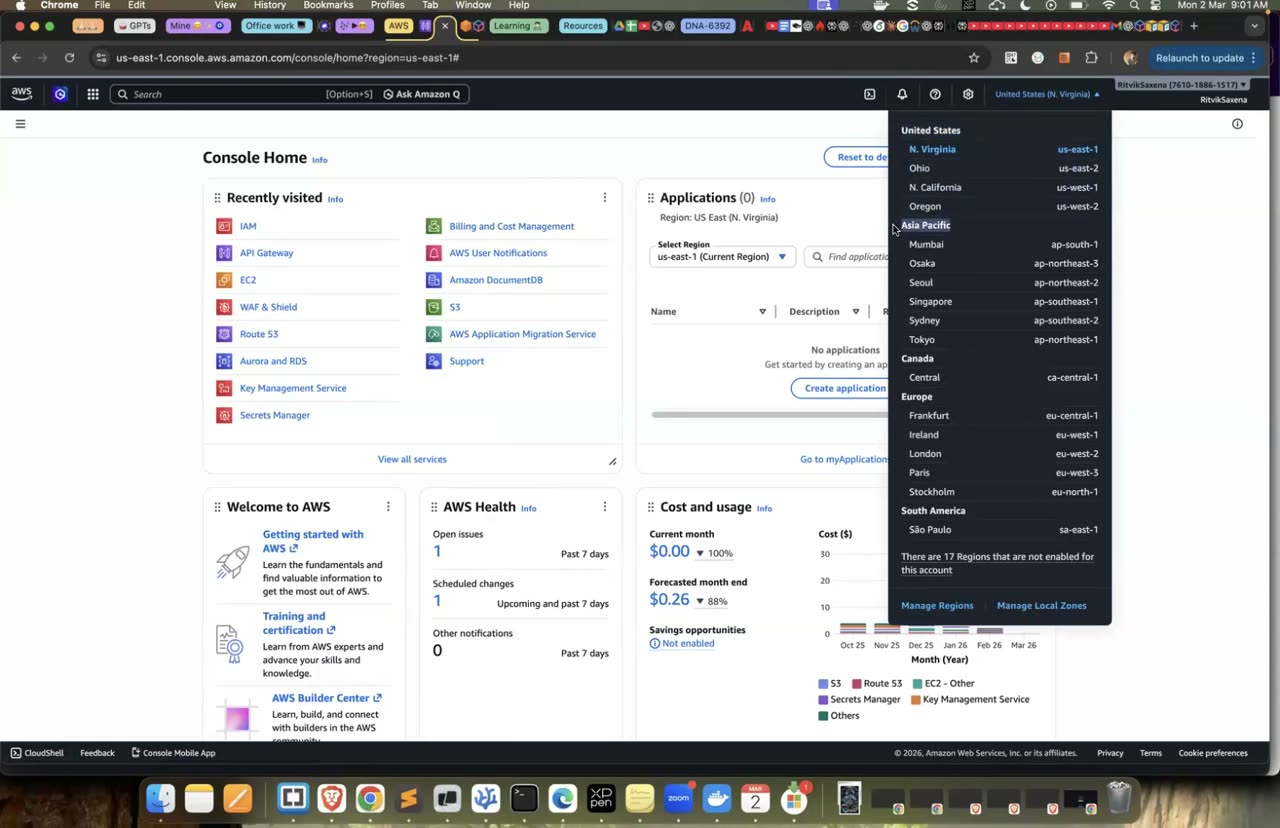
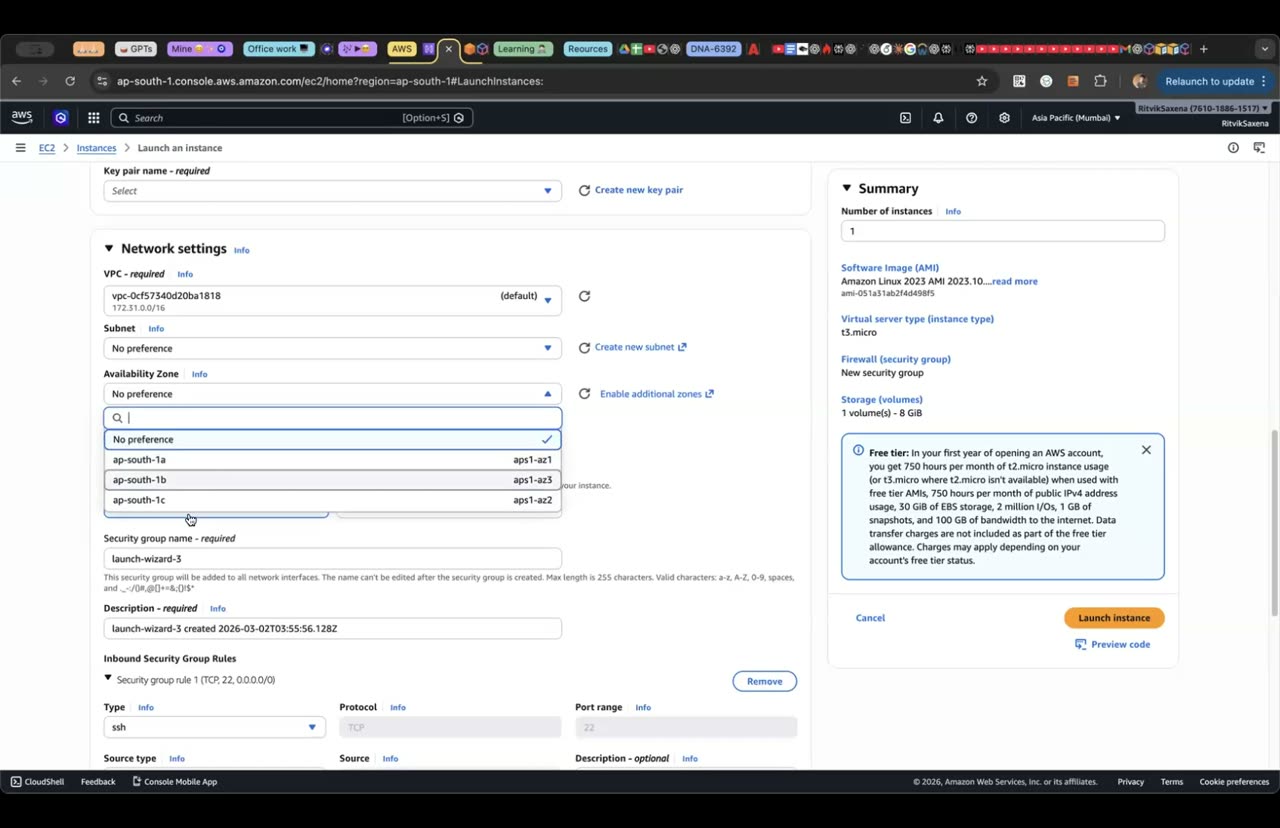
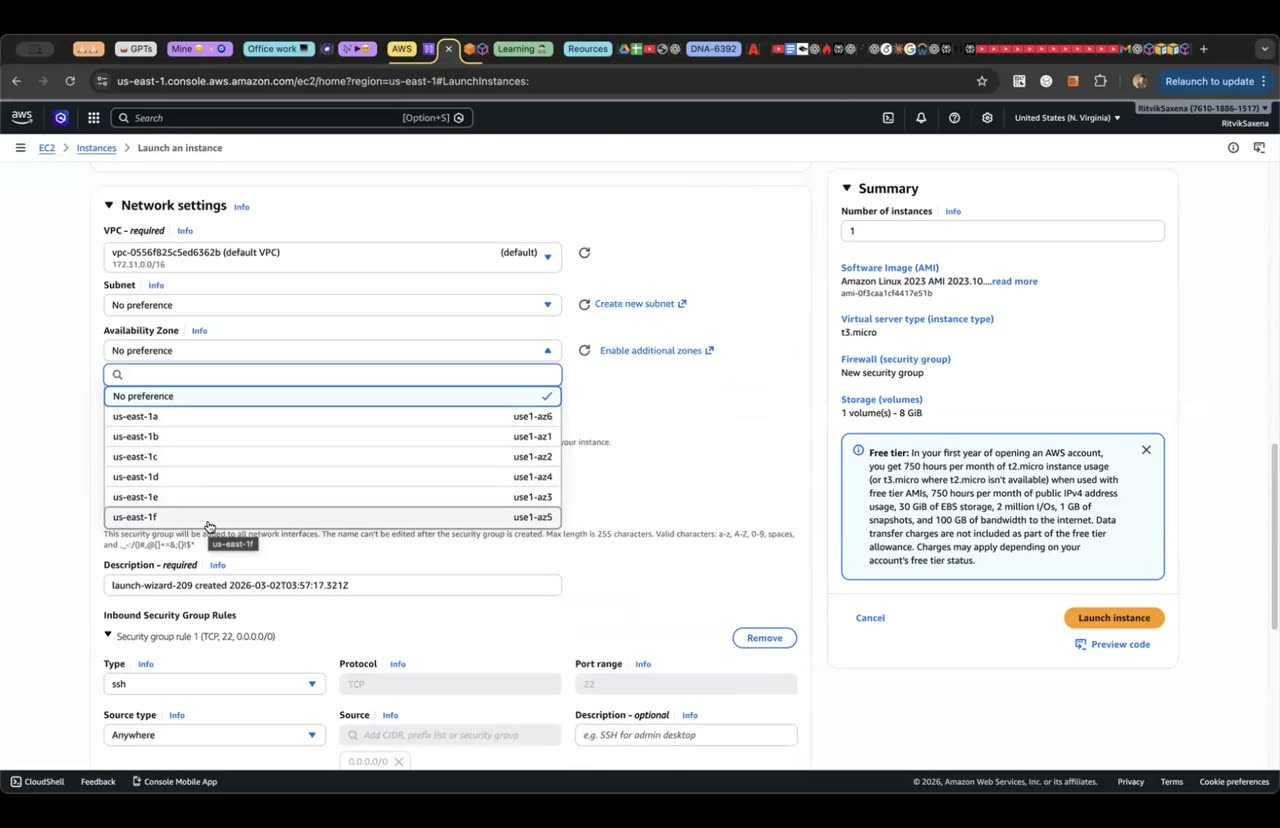
Region selector aur Mumbai (3 AZ) / N. Virginia (6 AZ) ka farak — L01 se.
Neeche di gayi table ko apni notebook mein copy karo, "Tum kya manage karte ho" wala column khud bharo, aur phir apne jawab ko yahan diye jawab se milao.
IaaS, PaaS aur SaaS ka asli matlab yeh hai ki kaunsi zimmedari kiski hai. AWS ka Shared Responsibility Model kehta hai ki AWS "security OF the cloud" ka zimmedar hai, yaani data centers, hardware, hypervisor aur global network ka. Tum "security IN the cloud" ke zimmedar ho, yaani apne data, IAM permissions, EC2 pe OS patching, security groups aur encryption settings ke. Service jitni zyada managed hoti hai, tumhari zimmedari utni hi kam hoti hai.
| Model | AWS example | Tum kya manage karte ho |
|---|---|---|
| IaaS | EC2 | OS patches, runtime, app, data, firewall rules (SG), IAM |
| PaaS / managed | RDS, Elastic Beanstalk, Lambda | App code, data, IAM aur config; OS aur patching AWS karta hai |
| SaaS | Amazon WorkMail, Amazon Q Business | Sirf data aur yeh ki kaun access karega |
Cloud ke deployment models bhi chaar hote hain. Public cloud ka matlab hai AWS, Azure ya GCP jaisi company ka infrastructure. Private cloud ka matlab hai company ka apna data center, jaise VMware pe chalne wala setup. Hybrid mein dono jude hote hain, jaise on-premises database aur AWS pe chalne wala app, jo VPN ya Direct Connect se connected hote hain. Multi-cloud mein company ek saath do cloud providers use karti hai, jaise AWS aur GCP, aam taur pe vendor lock-in se bachne ke liye ya kisi doosri company ko khareedne ki wajah se.
- Tum bata sakte ho ki RDS database ka OS patch AWS karta hai, jabki EC2 ka OS patch tumhe khud karna padta hai.
- Tum bata sakte ho ki agar S3 bucket public ho gaya toh galti customer ki hai, kyunki woh "security IN the cloud" ka hissa hai.
C IAM: groups, admin user, CLI access
Is step mein tum Admins naam ka ek group banaoge jispe AdministratorAccess policy lagi hogi, phir deepdive-admin naam ka user banaoge aur use is group mein daaloge.
Har user pe alag-alag permissions lagana scale nahi karta; agar 50 log aa gaye toh tumhe 50 jagah policy lagani padegi. Behtar tareeka yeh hai ki permissions groups pe lagao aur users ko group mein daalo. Agar kisi ka role badle, toh bas uska group badal do. Is step ke baad root user sirf emergency ke liye bachega, aur roz ka saara kaam is admin user se hoga. Real companies insaanon ke login ke liye aksar IAM Identity Center (SSO) use karti hain, jo tum Lab 8 mein seekhoge; ek learning account ke liye IAM user bilkul theek hai.
- IAM console mein User groups → Create group kholo. Group ka naam
Adminsrakho,AdministratorAccesspolicy pe tick lagao aur Create dabao. - IAM mein Users → Create user kholo aur username
deepdive-admindaalo. Provide user access to the AWS Management Console pe tick lagao, "I want to create an IAM user" chuno, apna custom password daalo, "must create new password" wala tick hata do aur Next dabao. - Permissions wale page pe Add user to group chuno,
Adminsgroup select karo, Next dabao aur Create user karo. Is page pe dikhne wala sign-in URL copy kar lo. - IAM Dashboard pe AWS Account wale box mein Account Alias ke aage Create dabao aur koi aasaan naam do, jaise
deepdive-yourname. Iske baad tumhara sign-in URLhttps://deepdive-yourname.signin.aws.amazon.com/consoleho jaayega, jo yaad rakhna aasaan hai. - Root user se sign out karo aur naye URL se
deepdive-adminke roop mein login karo. Phir Security credentials mein jaake is user pe bhi MFA assign karo.
- Tum
deepdive-adminse MFA ke saath console mein login kar pa rahe ho. - IAM mein deepdive-admin user ke Permissions tab pe policy "Attached via group Admins" dikh rahi hai, yaani woh seedha user pe nahi balki group ke through lagi hai.
- Tumne root se sign out kar diya hai aur aage ka saara kaam isi user se karoge.
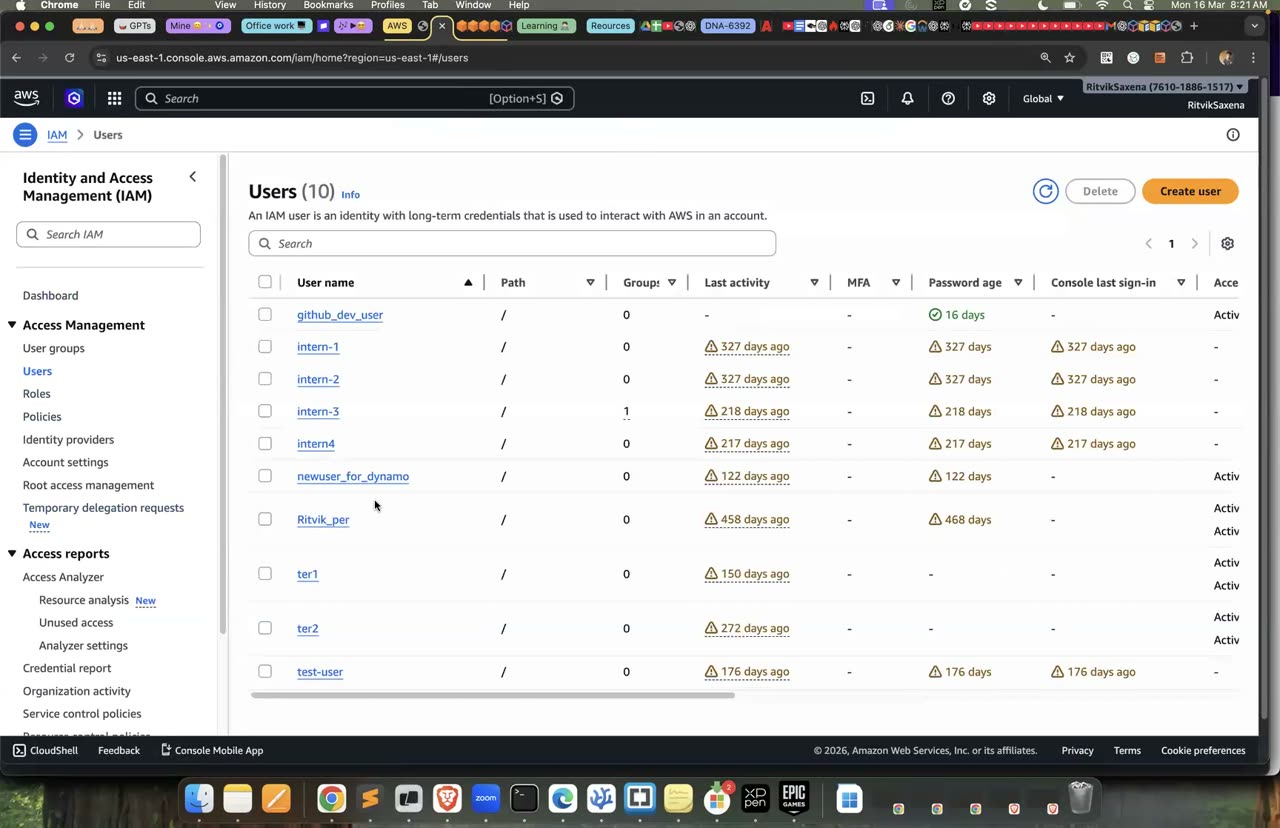
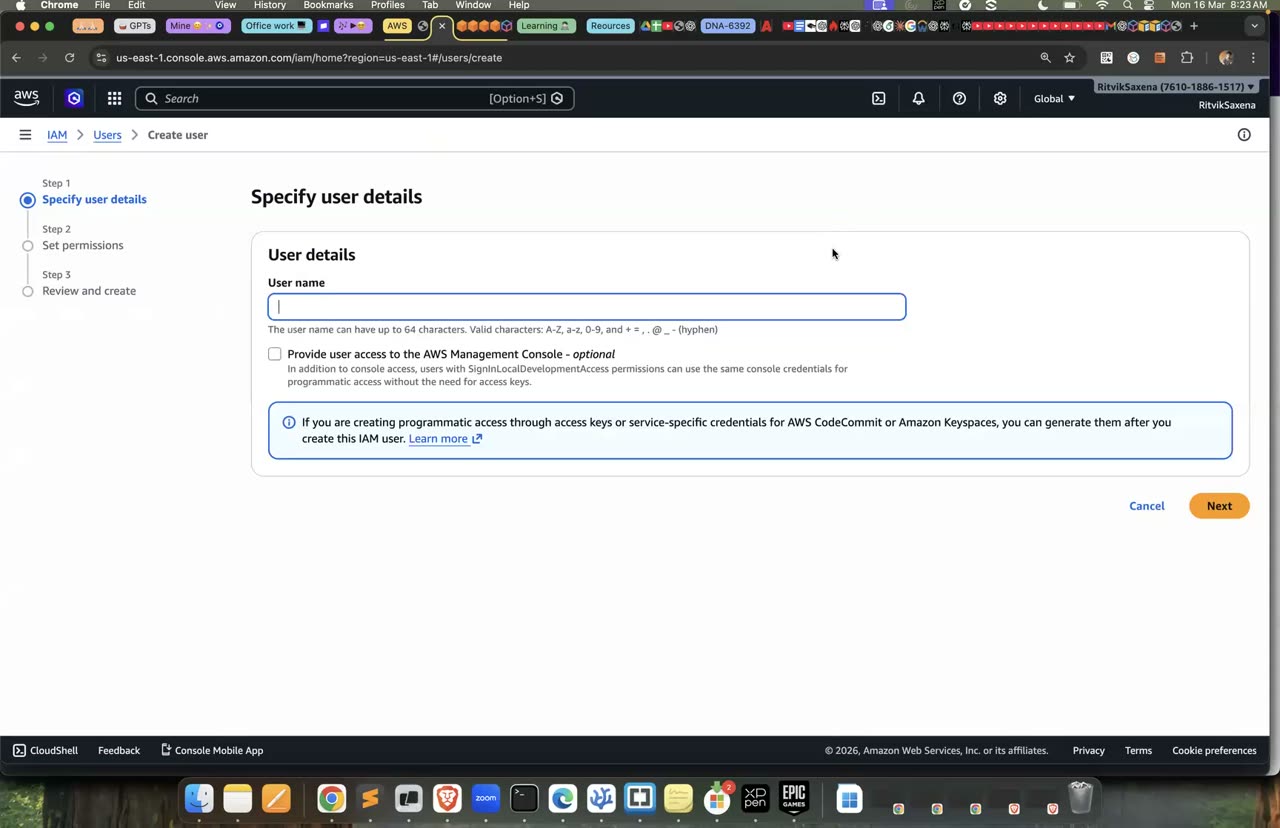
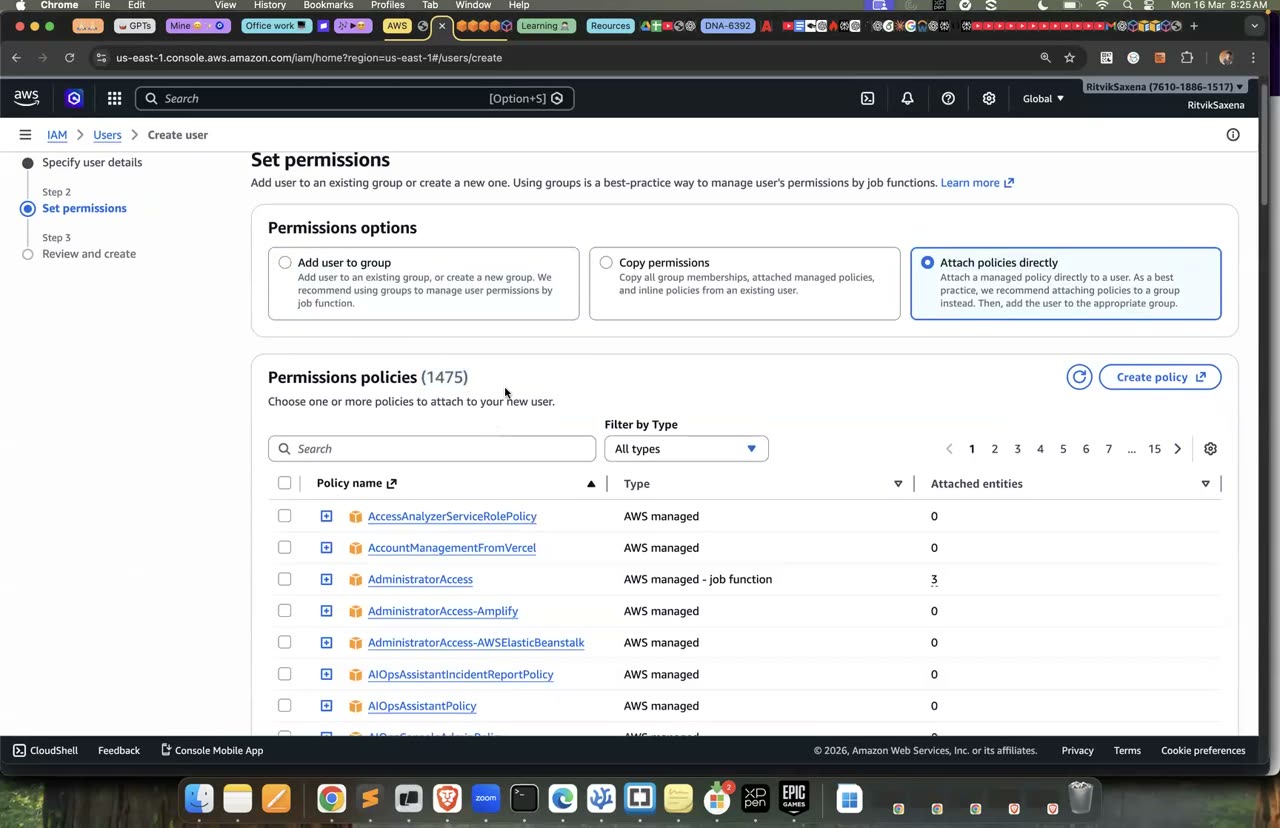
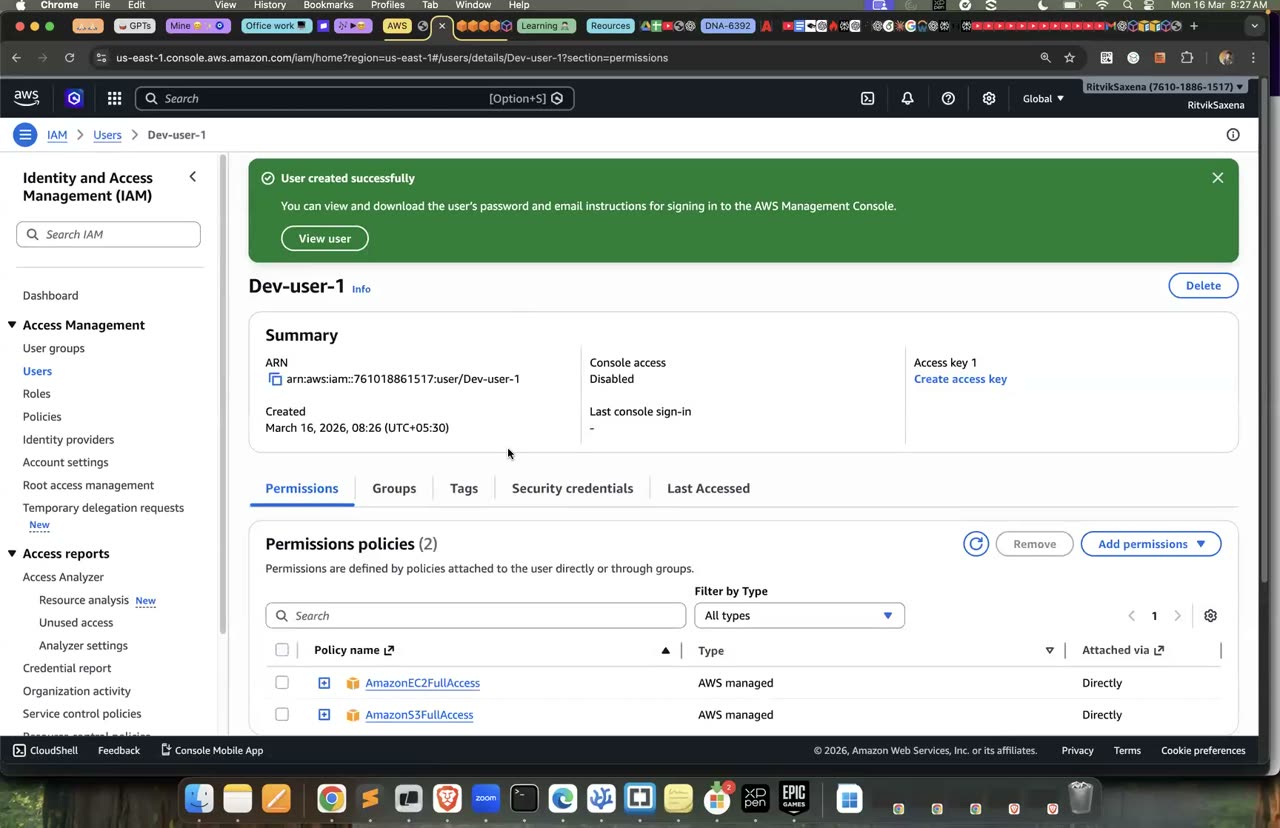
IAM user banane ka wahi flow — group ka naam/policy tumhare lab mein alag hoga.
Is step mein tum apne laptop pe AWS CLI version 2 install karoge.
Console mein har kaam ek-ek click se hota hai, jabki CLI aur SDK wahi API calls script ke through karte hain. Real DevOps ka zyaadatar kaam, jaise CI/CD aur automation, CLI, SDK aur Infrastructure as Code se hi hota hai. Console bhi andar se yahi APIs call karta hai, aur Lab 7 mein CloudTrail pe tum dekhoge ki console click aur CLI command dono ek jaise API events ki tarah record hote hain.
# macOS (Homebrew)
brew install awscli

# ya official installer (macOS)
curl "https://awscli.amazonaws.com/AWSCLIV2.pkg" -o AWSCLIV2.pkg && sudo installer -pkg AWSCLIV2.pkg -target /

# Windows: https://awscli.amazonaws.com/AWSCLIV2.msi  |  Linux: docs.aws.amazon.com/cli (install guide)
aws --version    # aws-cli/2.x.x hona chahiye
Agar tum laptop pe CLI install nahi kar sakte, toh console ke top bar mein CloudShell ka icon hai. CloudShell browser ke andar ek terminal hai jisme CLI pehle se logged-in hota hai, aur Part D tak ke saare CLI steps wahan bhi chal jaayenge.
aws --versionchalane pe outputaws-cli/2.se shuru ho raha hai.
Is step mein tum deepdive-admin user ke liye ek access key banaoge aur aws configure command se use apne laptop pe set karoge.
Access key ek lambe samay tak chalne wala credential hai jiske do hisse hote hain: Access Key ID aur Secret Access Key. Kyunki yeh expire nahi hoti, isliye yahi cheez sabse zyada leak hoti hai, jaise galti se GitHub pe push ho jaana ya kisi screenshot mein aa jaana. Isliye rule simple hai: access key sirf apne laptop pe rakho, kabhi code mein mat likho, aur kabhi EC2 ya Lambda pe mat daalo, kyunki wahan roles use honge jo tum Part E mein dekhoge. Access key ko har 90 din mein badal dena bhi achhi aadat hai.
- IAM mein
deepdive-adminuser kholo aur Security credentials → Create access key pe jao. Use case mein Command Line Interface (CLI) chuno, confirmation pe tick lagao, Next dabao, description meinlaptoplikho aur Create karo. - Secret key sirf ek hi baar dikhti hai, isliye use seedha terminal mein paste karo:
aws configure
# AWS Access Key ID:      AKIA................
# AWS Secret Access Key:  ........................................
# Default region name:    us-east-1
# Default output format:  json

aws sts get-caller-identity
Credentials ~/.aws/credentials file mein aur region ~/.aws/config file mein save hote hain. Upar wali aakhri command ke output mein tumhe "Arn": "arn:aws:iam::123456789012:user/deepdive-admin" jaisi line dikhni chahiye.
Ab do variables set karo jo is poore lab mein use honge. Har naya terminal kholne pe inhe dobara chalana padega:
export AWS_DEFAULT_REGION=us-east-1
export ACCOUNT_ID=$(aws sts get-caller-identity --query Account --output text)
echo $ACCOUNT_IDaws sts get-caller-identityke output mein tumharauser/deepdive-adminwala ARN aa raha hai.- Step B1 ke dono CLI commands ab chal rahe hain.
- Tum bata sakte ho ki secret key kis file mein save hui hai aur woh file Git mein kyun nahi jaani chahiye.
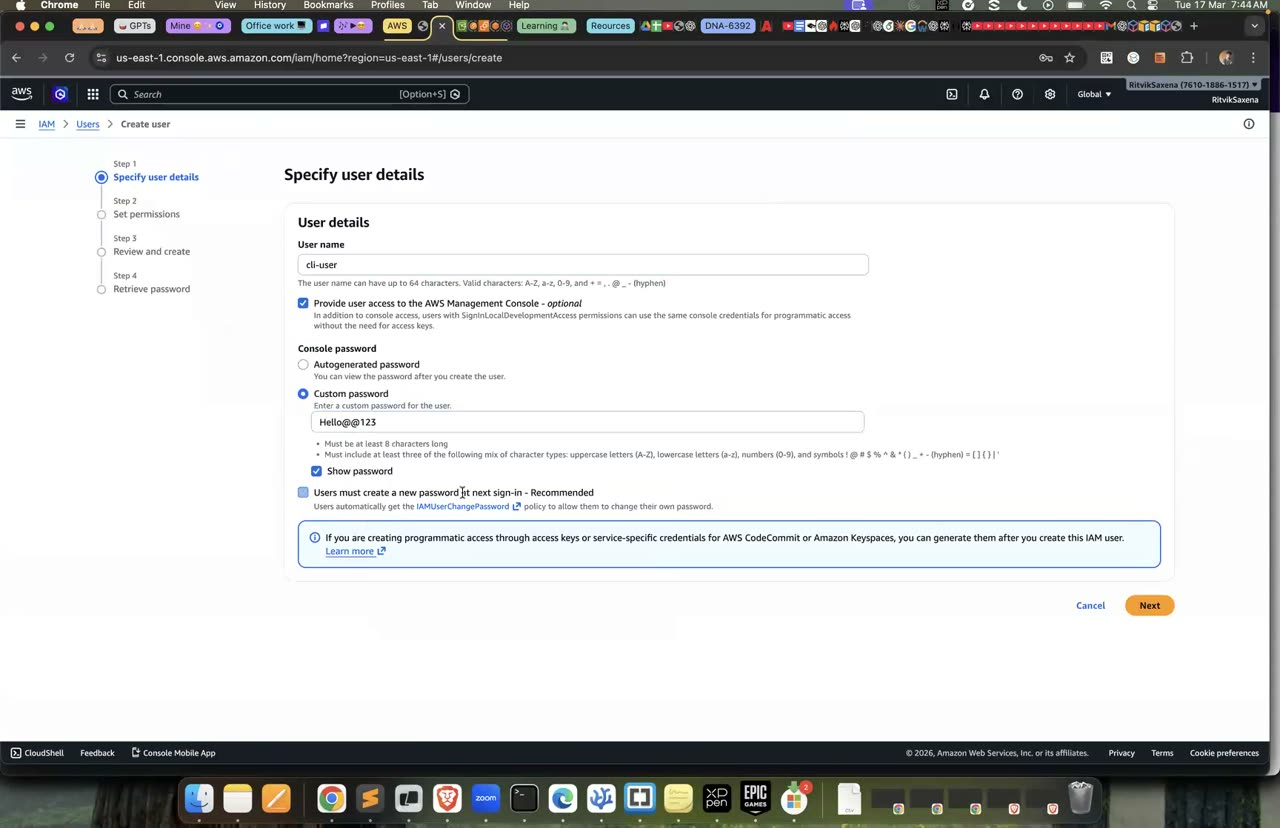
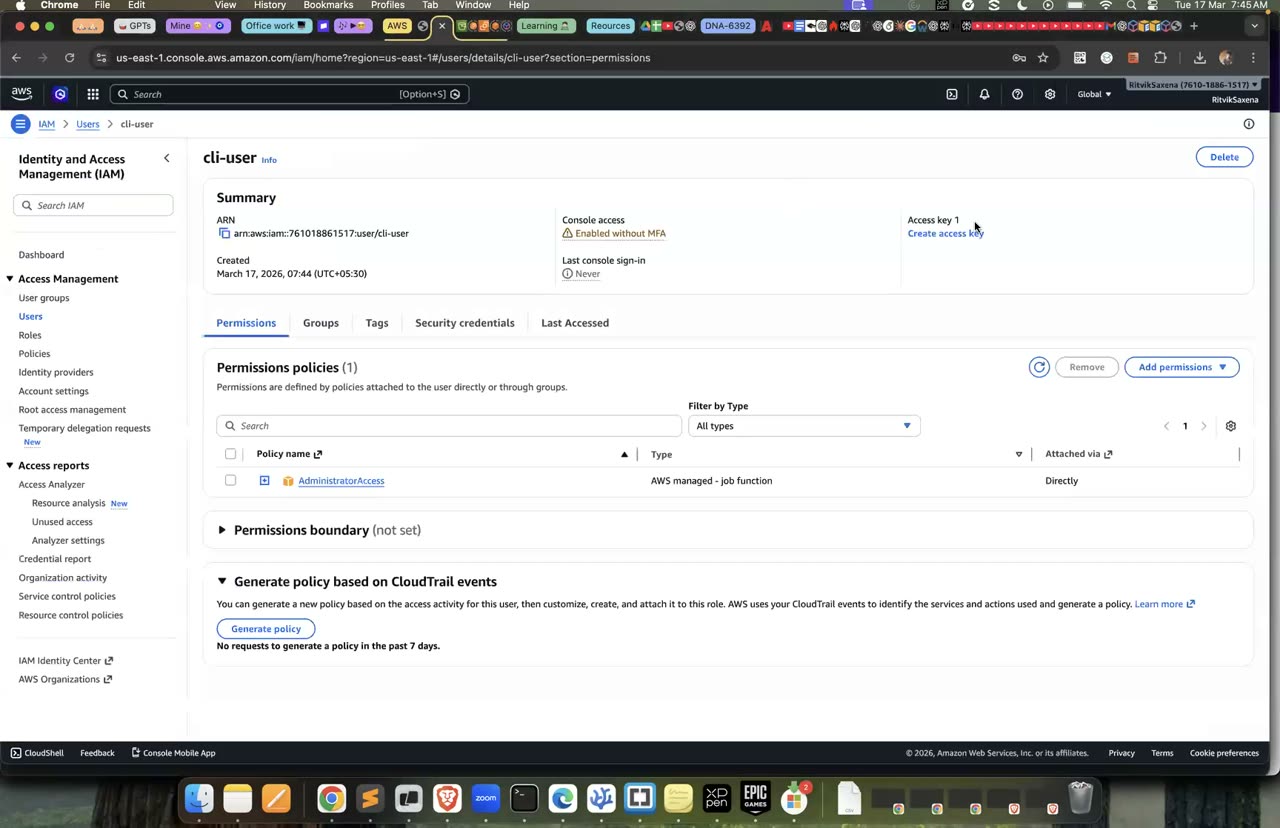
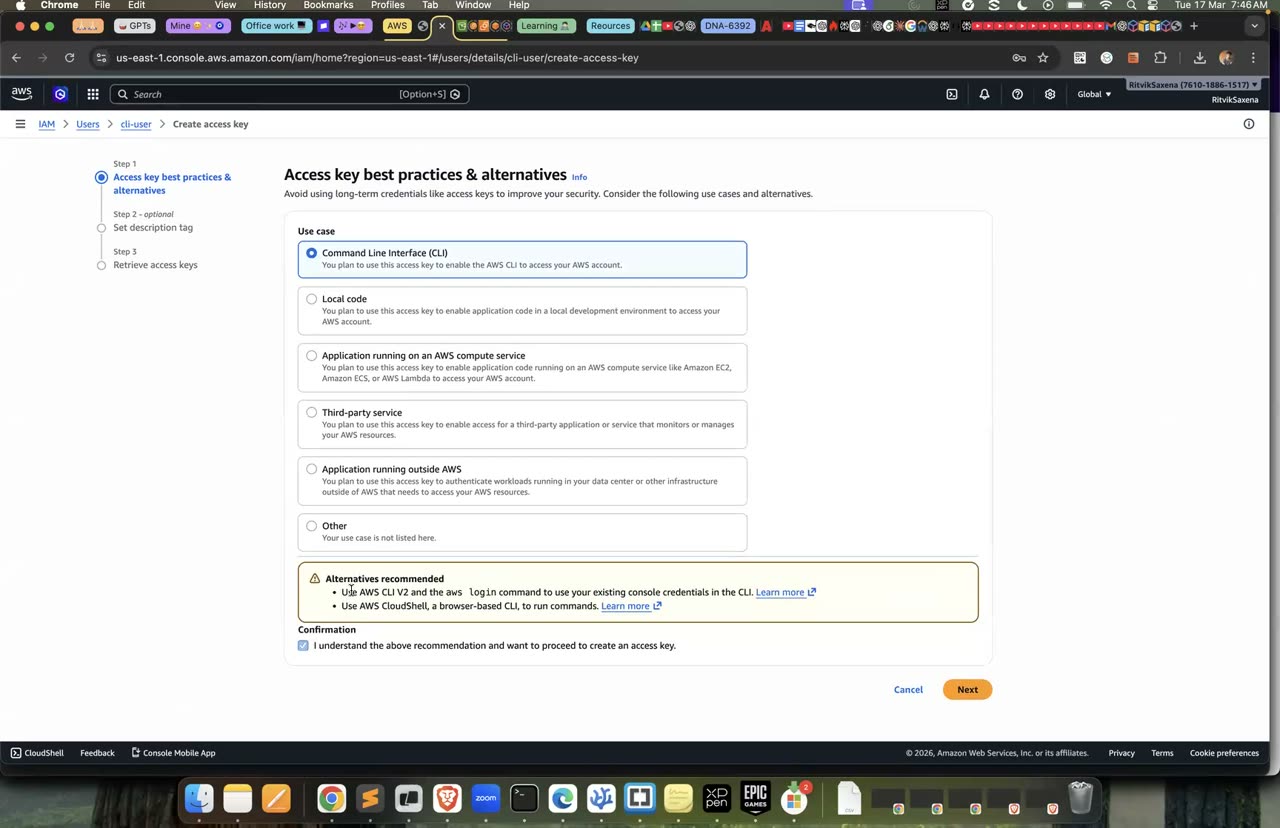
CLI ke liye access key banane ka wahi console — is lab mein tum role use karoge, key nahi (E1 dekho).
D Apni khud ki least-privilege policy + role assume karna
{
  "Version": "2012-10-17",            // policy language version (hamesha yahi)
  "Statement": [
    {
      "Sid": "ReadPublicDocs",         // optional label
      "Effect": "Allow",               // Allow ya Deny
      "Action": "s3:GetObject",        // service:APIcall  (wildcards allowed: s3:Get*)
      "Resource": "arn:aws:s3:::my-bucket/public-docs/*",   // kis cheez pe
      "Condition": { "Bool": { "aws:SecureTransport": "true" } }  // optional: kab
    }
  ]
}
AWS kisi request ko allow karega ya nahi, yeh teen rules se tay hota hai, aur inhe achhe se yaad kar lo. Pehla, by default har cheez implicitly denied hoti hai. Doosra, agar koi policy kisi action ko explicitly Allow karti hai, toh woh allowed ho jaata hai. Teesra, agar kisi bhi policy mein us action pe explicit Deny hai, toh Deny hi jeet-ta hai, chahe dus policies usko Allow kar rahi hon.
Har AWS resource ki pehchaan ek ARN se hoti hai, jiska format arn:partition:service:region:account-id:resource hai. S3 bucket ke ARN mein region aur account wale hisse khaali hote hain. Yahan ek baat bahut dhyan dene wali hai: arn:aws:s3:::bucket-name khud bucket ka ARN hai, jabki arn:aws:s3:::bucket-name/* bucket ke andar ke objects ka ARN hai. Yeh do alag resources hain. ListBucket permission bucket pe lagti hai aur GetObject objects pe, aur in dono ko mix kar dena sabse common galti hai.
Is step mein tum ek bucket banaoge jisme do "folders" honge: public-docs/ aur secret/.
export LAB1_BUCKET=deepdive-lab1-$ACCOUNT_ID
aws s3 mb s3://$LAB1_BUCKET

echo "Yeh document sab padh sakte hain" > hello.txt
echo "CEO salary: bahut zyada" > salary.txt
aws s3 cp hello.txt  s3://$LAB1_BUCKET/public-docs/hello.txt
aws s3 cp salary.txt s3://$LAB1_BUCKET/secret/salary.txt
aws s3 ls s3://$LAB1_BUCKET --recursive
Asal mein S3 mein folders hote hi nahi hain. public-docs/hello.txt poora ka poora ek hi object key hai, aur console sirf "/" dekh ke use folder jaisa dikha deta hai. Isliye S3 policies mein access ko folder se nahi balki key ke prefix se control kiya jaata hai.
- S3 → Buckets → Create bucket — naam
deepdive-lab1-<account-id>rakho, baaki defaults rehne do, aur Create bucket dabao. - Bucket kholo, Upload → Add files se
hello.txtchuno, uske Key field kopublic-docs/hello.txtkar do, aur Upload dabao. - Wahi tareeke se
salary.txtko keysecret/salary.txtke saath upload karo. - Bucket ke andar ab
public-docs/aursecret/do "folders" jaise dikhenge.
aws s3 ls --recursiveke output mein dono objects dikh rahe hain.
Is step mein tum ek customer-managed policy banaoge jo is bucket ki listing dekhne degi, lekin padhne sirf public-docs/ wale objects degi.
Least privilege ka matlab hai ki kisi ko sirf utni hi permission do jitni uske kaam ke liye zaroori hai. AWS ki ready-made managed policies, jaise AmazonS3ReadOnlyAccess, use karne mein aasaan hain, lekin woh account ke saare buckets padhne deti hain. Real applications ke liye tumhe aisi scoped policies khud likhni padengi.
cat > reader-policy.json <<EOF
{
  "Version": "2012-10-17",
  "Statement": [
    {
      "Sid": "ListOnlyThisBucket",
      "Effect": "Allow",
      "Action": "s3:ListBucket",
      "Resource": "arn:aws:s3:::$LAB1_BUCKET"
    },
    {
      "Sid": "ReadOnlyPublicDocs",
      "Effect": "Allow",
      "Action": "s3:GetObject",
      "Resource": "arn:aws:s3:::$LAB1_BUCKET/public-docs/*"
    }
  ]
}
EOF
cat reader-policy.json      # check karo ki bucket name sahi bhara gaya

aws iam create-policy --policy-name DeepdiveReadPublicDocs \
--policy-document file://reader-policy.json- IAM → Policies → Create policy pe jao aur JSON tab chuno.
- Upar wali JSON (bucket name apne actual bucket se badal ke) editor mein paste karo — console neeche dono statements ka resource-scope summary dikhata hai, isse galti pakadna aasaan hota hai.
- Next dabao, policy ka naam
DeepdiveReadPublicDocsrakho aur Create policy dabao.
- IAM ke Policies page pe "Customer managed" filter lagane pe
DeepdiveReadPublicDocsdikh rahi hai. - Tum bata sakte ho ki
ListBucketwale statement ka Resource bina/*ke kyun likha gaya hai.
Is step mein tum deepdive-s3-reader naam ka role banaoge, jise tumhare account ki identities "assume" kar sakengi, aur jis pe D2 wali policy lagi hogi.
Har role ke paas do alag policies hoti hain, aur roles ka sabse confusing hissa yahi hai:
- Trust policy batati hai ki kaun is role ko pehen sakta hai. Yeh EC2 service ho sakti hai, Lambda service ho sakti hai, koi user ho sakta hai, ya koi doosra AWS account.
- Permission policy batati hai ki role pehenne ke baad kya-kya kiya ja sakta hai.
User ke paas permanent password ya keys hote hain, jabki role ke paas koi permanent credential nahi hota. Jab koi role assume karta hai, toh STS (Security Token Service) use temporary credentials deta hai jo default roop se ek ghante mein expire ho jaate hain. Isi wajah se roles users se zyada safe maane jaate hain.
cat > trust.json <<EOF
{
  "Version": "2012-10-17",
  "Statement": [
    {
      "Effect": "Allow",
      "Principal": { "AWS": "arn:aws:iam::$ACCOUNT_ID:root" },
      "Action": "sts:AssumeRole"
    }
  ]
}
EOF

aws iam create-role --role-name deepdive-s3-reader \
  --assume-role-policy-document file://trust.json

aws iam attach-role-policy --role-name deepdive-s3-reader \
--policy-arn arn:aws:iam::$ACCOUNT_ID:policy/DeepdiveReadPublicDocs- IAM → Roles → Create role pe jao. Trusted entity type mein Custom trust policy chuno (yahan AWS service/account wale ready-made options kaam nahi aayenge, kyunki hume apne hi account ko trust karna hai).
- JSON editor mein upar wali
trust.jsonpaste karo ($ACCOUNT_IDki jagah apna actual account ID) aur Next dabao. - Permissions page pe search karke DeepdiveReadPublicDocs (D2 mein banayi) pe tick lagao, Next dabao.
- Role ka naam
deepdive-s3-readerrakho aur Create role dabao.
Trust policy mein likhe :root ka matlab root user nahi hai. Iska matlab hai "is account ki woh saari identities jinki apni permissions unhe sts:AssumeRole karne deti hain". Tumhare admin user ke paas AdministratorAccess hai, isliye woh is role ko assume kar payega.
- IAM mein deepdive-s3-reader role ke Trust relationships tab pe tumhara account dikh raha hai.
- Usi role ke Permissions tab pe DeepdiveReadPublicDocs policy attached hai.
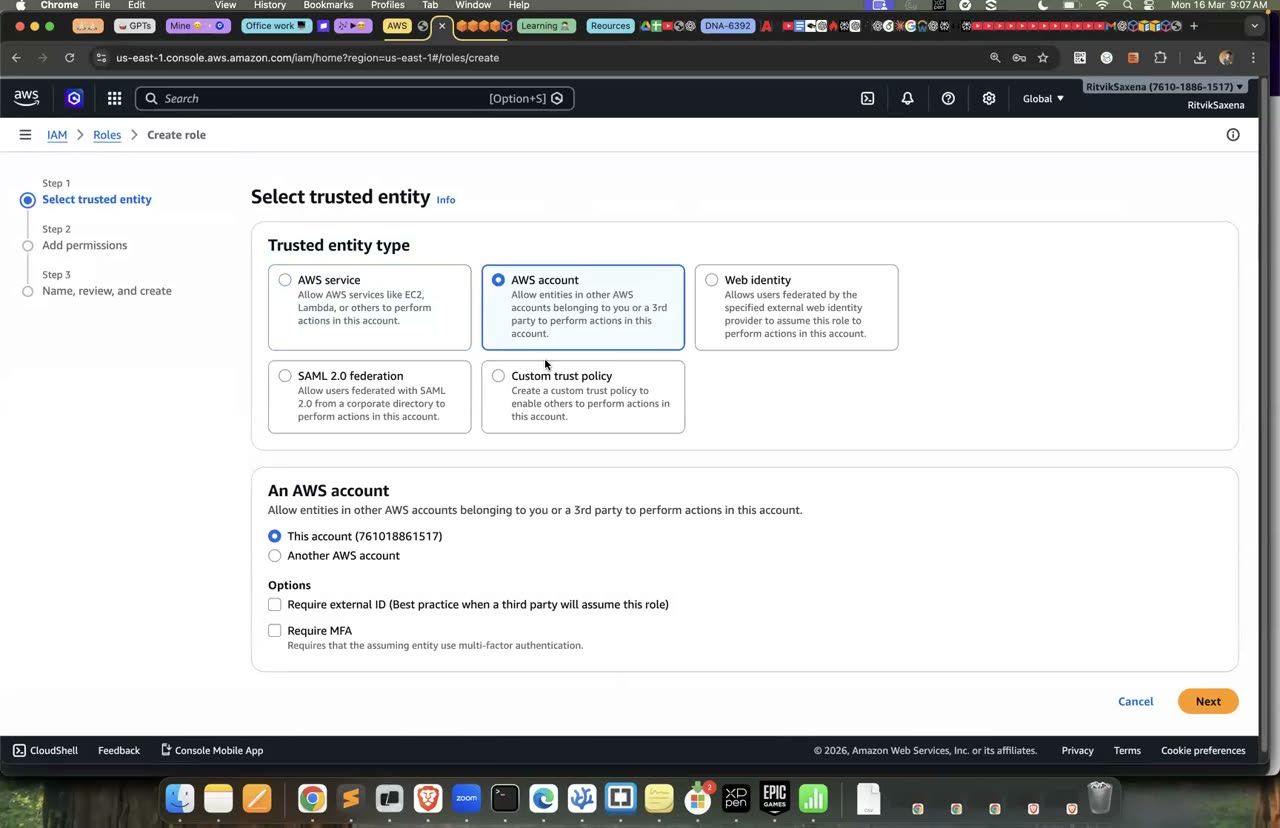
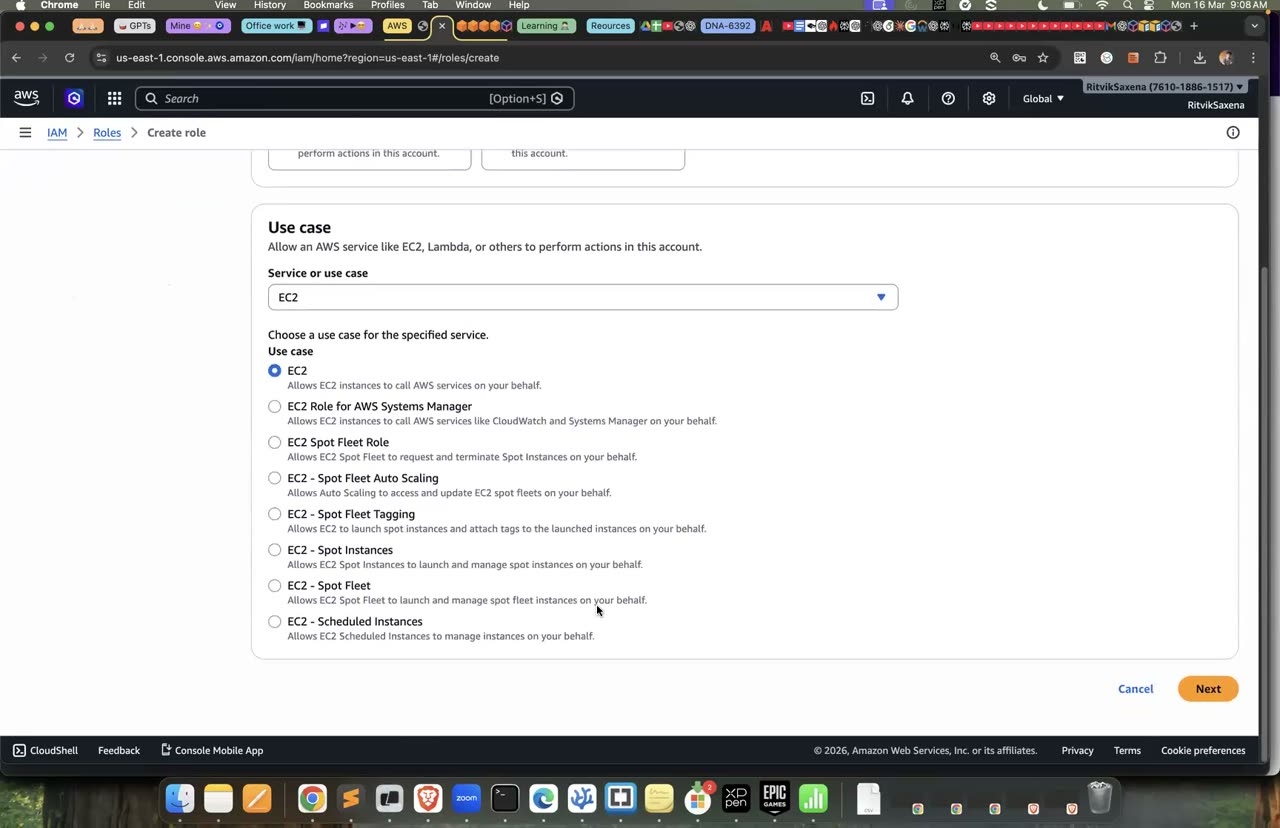
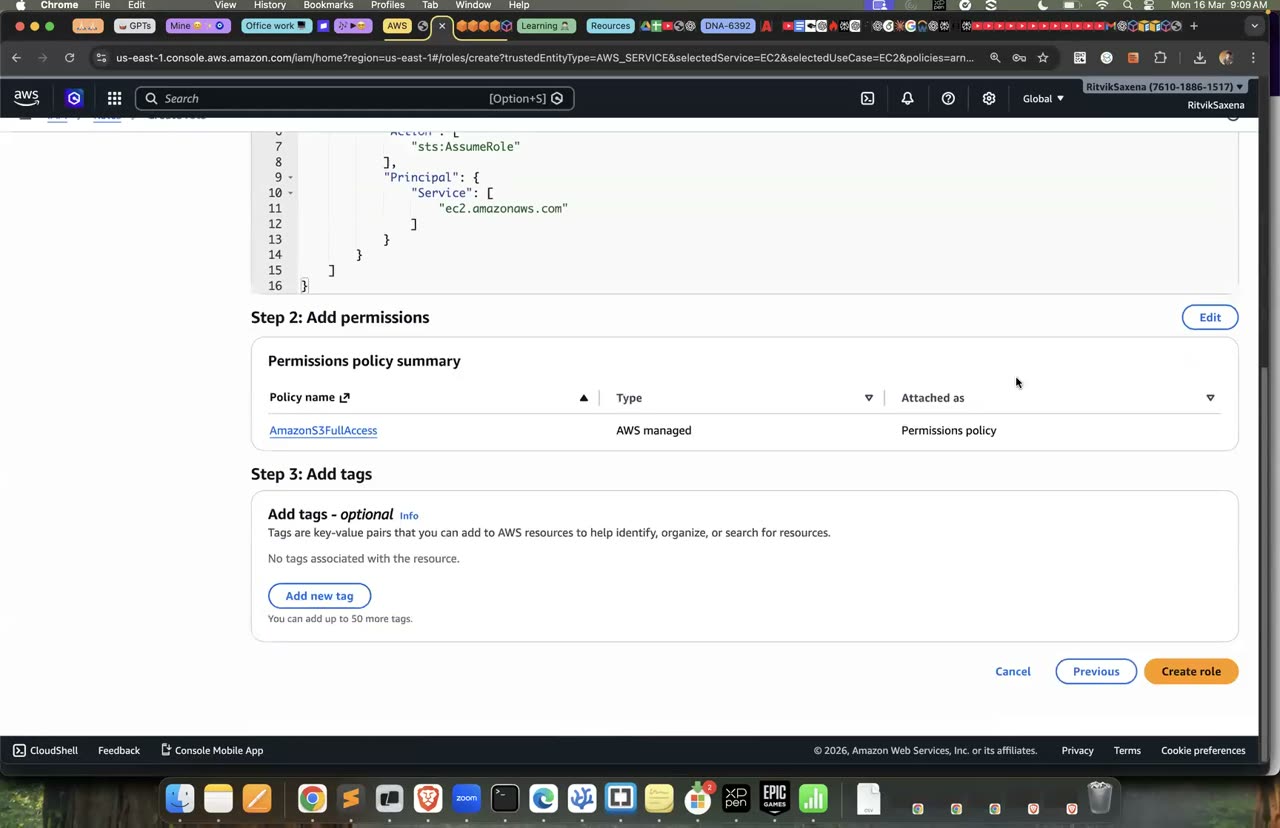
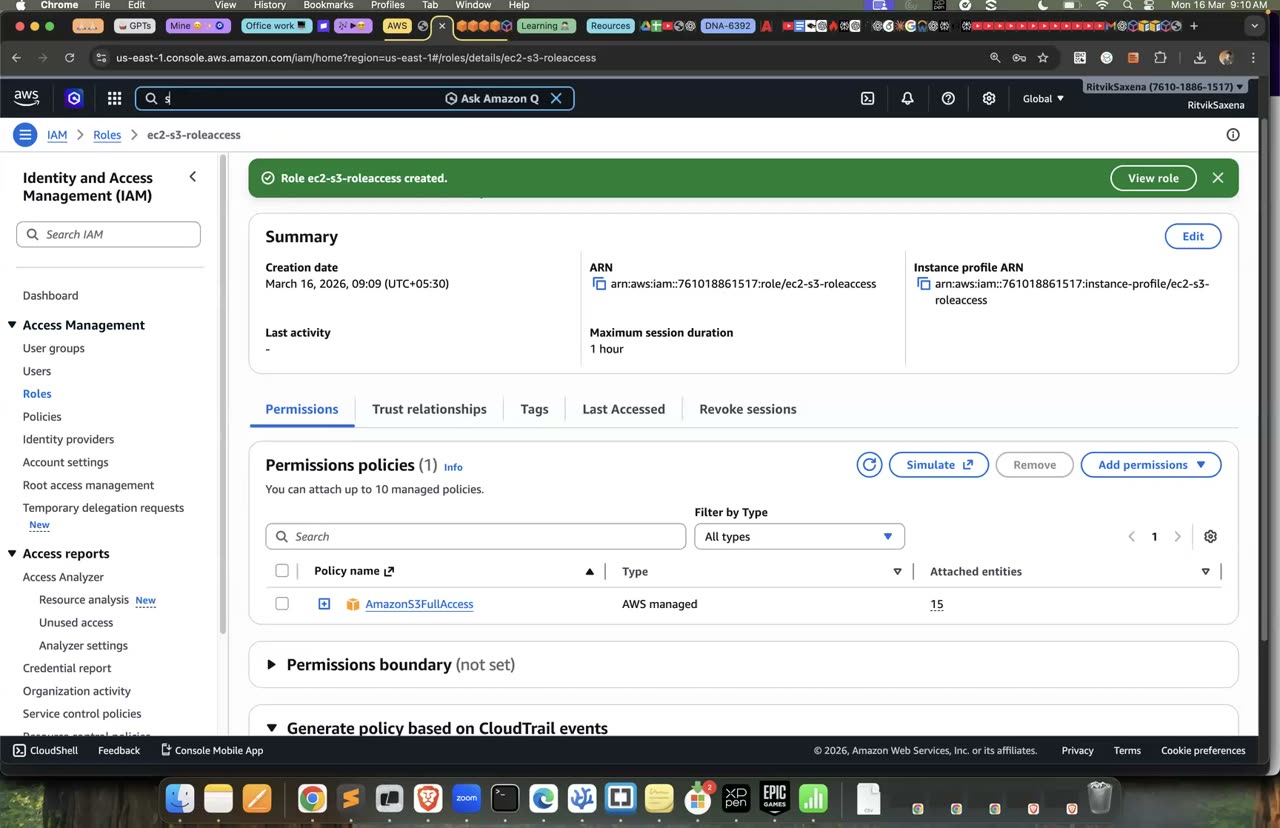
Role create karne ka wahi wizard — trust policy aur permissions is lab mein alag honge.
Is step mein tum CLI ka ek naya profile banaoge jo apne aap role assume kar leta hai, aur phir chhe tests chala ke dekhoge ki kya allowed hai aur kya nahi.
cat >> ~/.aws/config <<EOF

[profile reader]
role_arn = arn:aws:iam::$ACCOUNT_ID:role/deepdive-s3-reader
source_profile = default
region = us-east-1
EOF

# 1. Main kaun hoon?  → assumed-role/deepdive-s3-reader/... dikhna chahiye
aws sts get-caller-identity --profile reader

# 2. Bucket list  → CHALNA CHAHIYE
aws s3 ls s3://$LAB1_BUCKET --recursive --profile reader

# 3. public-docs padho  → CHALNA CHAHIYE (file content terminal pe print hoga)
aws s3 cp s3://$LAB1_BUCKET/public-docs/hello.txt - --profile reader

# 4. secret padho  → FAIL hona chahiye (403 Forbidden)
aws s3 cp s3://$LAB1_BUCKET/secret/salary.txt - --profile reader

# 5. Upload karo  → FAIL (AccessDenied) — PutObject kabhi allow hi nahi kiya
aws s3 cp hello.txt s3://$LAB1_BUCKET/public-docs/new.txt --profile reader

# 6. Account ke saare buckets list karo  → FAIL (ListAllMyBuckets allow nahi)
aws s3 ls --profile reader- Top-right corner mein apne account/user name pe click karo aur Switch role chuno (ya seedha
https://signin.aws.amazon.com/switchrolekholo). - Account mein apna
$ACCOUNT_IDaur Role meindeepdive-s3-readerdaalo, ek display name/color chuno aur Switch Role dabao. Top-right mein ab role ka naam dikhega, user ka nahi. - S3 console kholo — bucket list mein sirf
deepdive-lab1-...dikhega (sirf isi bucket ka ListBucket allow hai). Bucket kholo → chalega. public-docs/hello.txtpe click karke Open ya Download karo → chalega.secret/salary.txtpe wahi try karo → console mein "Access Denied" error dikhega.- Upload se koi file
public-docs/mein daalne ki koshish karo → upload fail hoga (PutObject allow nahi hai). - Top-right se Back to deepdive-admin dabake apne original user pe wapas aa jao.
Test 6 (saare buckets list) console mein alag dikhega — S3 console khud hi sirf woh buckets dikhata hai jinki ListBucket permission hai, error ki jagah list bas khaali/chhoti dikhegi.
Test 4 mein tumhe An error occurred (403) when calling the HeadObject operation: Forbidden jaisa error dikhega. Iski wajah yeh hai ki CLI file download karne se pehle object ka metadata padhta hai (jise HeadObject kehte hain), aur uske liye bhi GetObject permission chahiye hoti hai.
- Tests 1 se 3 pass hue aur tests 4 se 6 mein AccessDenied ya Forbidden aaya, bilkul waise hi jaise expect kiya tha.
- Tum samjha sakte ho ki test 5 fail kyun hua jabki tumne koi Deny statement likha hi nahi tha. (Kyunki jo allow nahi hai woh implicitly denied hai.)
Is step mein tum role pe ek inline policy lagaoge jo hello.txt ko explicitly deny karti hai, aur phir test 3 dobara chala ke dekhoge.
cat > deny.json <<EOF
{
  "Version": "2012-10-17",
  "Statement": [
    {
      "Effect": "Deny",
      "Action": "s3:GetObject",
      "Resource": "arn:aws:s3:::$LAB1_BUCKET/public-docs/hello.txt"
    }
  ]
}
EOF
aws iam put-role-policy --role-name deepdive-s3-reader \
  --policy-name DenyHello --policy-document file://deny.json

sleep 10   # IAM changes propagate hone mein kuch second lagte hain
aws s3 cp s3://$LAB1_BUCKET/public-docs/hello.txt - --profile reader   # ab FAIL

aws iam delete-role-policy --role-name deepdive-s3-reader --policy-name DenyHello- IAM → Roles → deepdive-s3-reader → Permissions tab kholo, Add permissions → Create inline policy dabao.
- JSON tab mein upar wali
deny.jsonpaste karo, Next dabao, naamDenyHellorakho aur Create policy dabao. - D4 wale Switch Role tareeke se
deepdive-s3-readerpe jao aur S3 console sehello.txtdownload karo — is baar yeh bhi Access Denied dega. - Wapas apne user pe aake role ke Permissions tab se
DenyHelloinline policy Remove kar do.
Ab console mein ek baar IAM Policy Simulator (policysim.aws.amazon.com) kholo. Roles mein deepdive-s3-reader chuno, service mein S3 chuno, actions mein GetObject aur PutObject select karo, resource mein apne object ka ARN daalo aur Run simulation dabao. Real incidents mein "yeh access kyun deny ho raha hai" jaise sawal debug karne ke liye yahi tool use hota hai.
Managed policy (chahe AWS ki bani ho ya tumhari khud ki) ek alag object hoti hai jo kai users aur roles pe attach ho sakti hai, aur uske versions bhi rakhe jaate hain. Inline policy ek hi user ya role ke andar embed hoti hai, aur jab woh identity delete hoti hai toh policy bhi saath mein delete ho jaati hai. Aam taur pe customer-managed policy hi sahi choice hai; inline policy tab use karo jab policy sach mein sirf us ek role se judi ho.
- Deny lagne ke baad hello.txt padhna fail ho gaya, jabki Allow wali policy abhi bhi attached thi.
- Deny hatane ke baad file phir se padhi ja rahi hai.
- Policy Simulator mein GetObject "allowed" aur PutObject "implicitDeny" dikha.
E EC2 + IAM Role + Session Manager (no SSH, no keys)
Is step mein tum deepdive-ec2-role naam ka role banaoge, jiski trusted entity EC2 service hogi aur jis pe do policies lagi hongi: AmazonS3ReadOnlyAccess aur AmazonSSMManagedInstanceCore. Yeh role aage ke kai labs aur scenarios mein dobara use hoga, isliye ise delete mat karna.
Agar EC2 pe chalne wale app ko AWS services ka access chahiye, toh access key ko server pe kisi file mein rakh dena galat tareeka hai. Server hack hua toh keys bhi chali jaayengi, aur woh keys kabhi apne aap expire nahi hoti. Sahi tareeka hai server pe role attach karna. Tab EC2 apne aap temporary credentials leta hai jo har kuch ghante mein badalte rehte hain. Doosri policy, AmazonSSMManagedInstanceCore, Session Manager ko kaam karne deti hai, jisse tum browser se server ka shell khol sakte ho, bina SSH port khole aur bina key pair ke.
- IAM mein Roles → Create role pe jao. Trusted entity type mein AWS service chuno, use case mein EC2 chuno aur Next dabao.
- Policies ki list mein search karke
AmazonS3ReadOnlyAccessaurAmazonSSMManagedInstanceCoredono pe tick lagao, phir Next dabao. - Role ka naam
deepdive-ec2-rolerakho aur Create karo. Console isi naam ka ek instance profile bhi bana deta hai, kyunki EC2 roles ko hamesha instance profile ke through hi attach karta hai. - Role ko kholo aur uska Trust relationships tab dekho. Wahan
"Principal": {"Service": "ec2.amazonaws.com"}likha hoga. Isko D3 wale role ke trust policy se compare karo.
- Role pe do policies lagi hain aur uska trust principal
ec2.amazonaws.comhai.
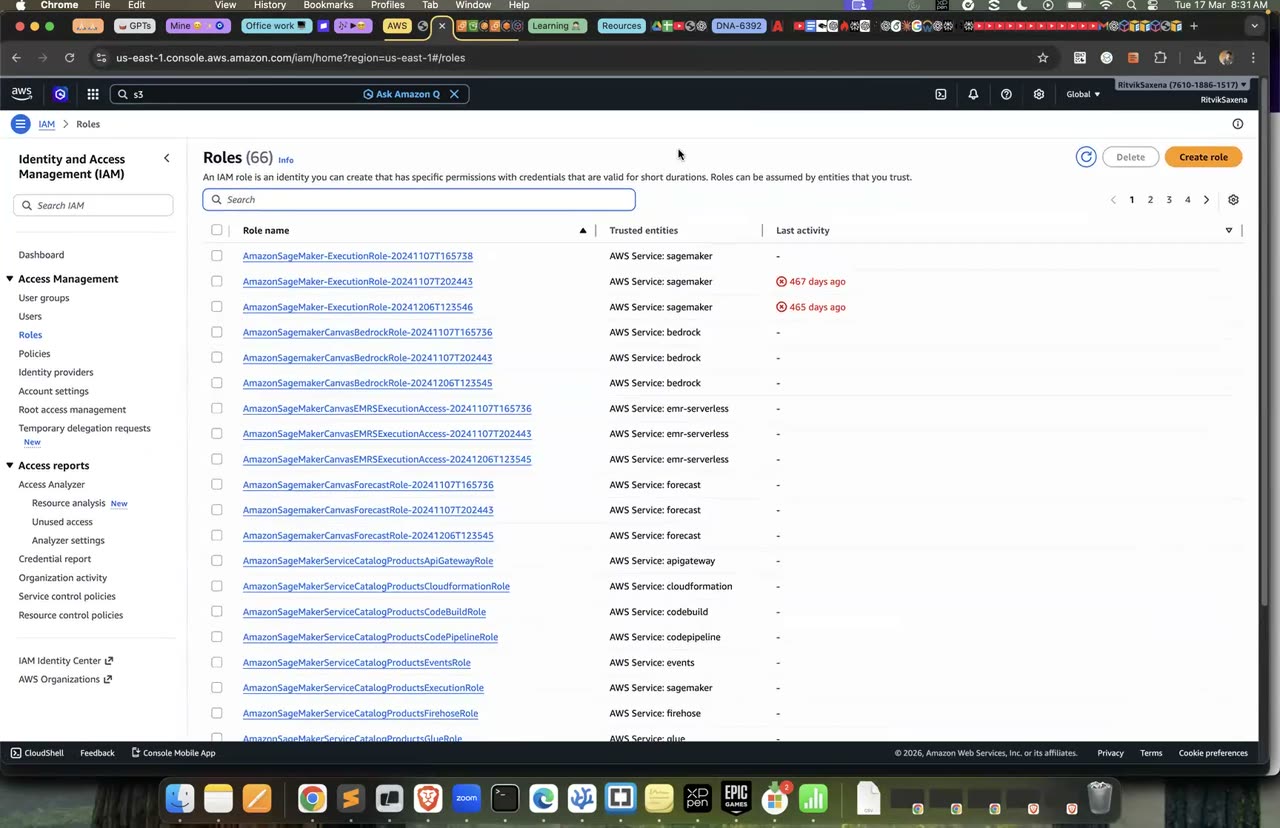
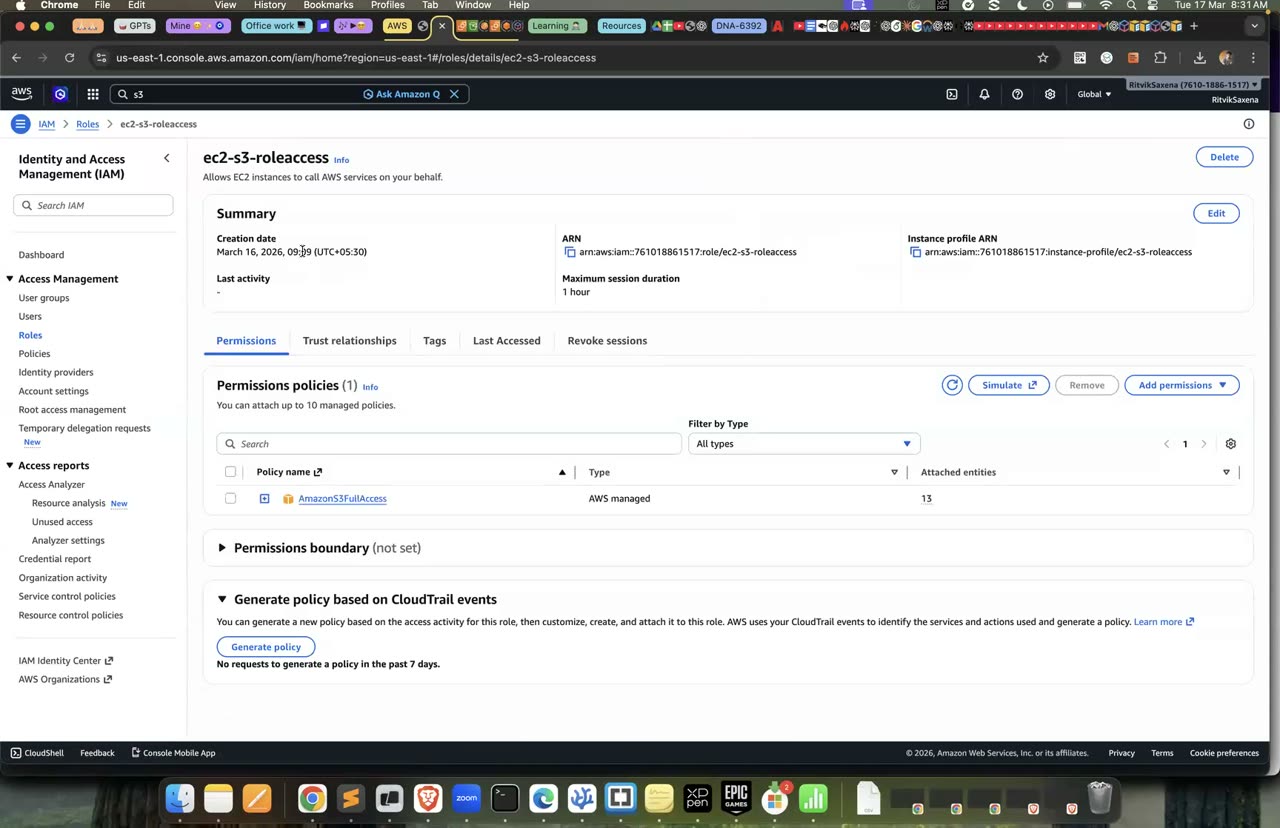
IAM roles list aur role summary — tumhara role S3 read + SSM ke liye hoga.
Is step mein tum ek Amazon Linux 2023 instance launch karoge jiske paas koi key pair nahi hoga, jiske security group mein koi inbound rule nahi hoga, aur jis pe E1 wala role laga hoga.
Is step se tum prove karoge ki SSH port (22) khole bina bhi server ka shell mil sakta hai. Session Manager ka agent Amazon Linux 2023 mein pehle se install hota hai, aur woh khud AWS ki taraf ek outbound HTTPS connection banata hai. Isliye server pe kisi bhi inbound port ki zaroorat nahi padti, aur attacker ke liye koi khula darwaza nahi bachta.
- EC2 console mein Launch instances dabao. Naam
deepdive-lab1rakho, AMI mein Amazon Linux 2023 chuno, aur instance type mein free-tier eligible type (t3.microyat2.micro) chuno. - Key pair wale section mein Proceed without a key pair chuno.
- Network settings ke aage Edit dabao. Default VPC rehne do aur Auto-assign public IP ko Enable rakho. Create security group chuno, uska naam
deepdive-no-inboundrakho, aur default mein jo SSH rule aata hai use Remove kar do, taaki inbound rules bilkul khaali rahein. - Advanced details kholo, IAM instance profile mein
deepdive-ec2-rolechuno, aur Metadata version ko V2 only (token required) pe set karo. - Launch dabao aur 2–3 minute ruko, taaki agent AWS ke saath register ho jaaye.
- Instance "Running" state mein hai aur uske status checks "2/2 passed" dikha rahe hain.
- Instance ke Security tab mein inbound rules khaali hain aur IAM Role mein deepdive-ec2-role likha hai.
Instance select karo, Connect dabao, Session Manager tab chuno aur Connect pe click karo. Browser mein ek shell khulega jisme tum ssm-user ke roop mein logged-in hoge. Wahan yeh commands chalao:
export AWS_DEFAULT_REGION=us-east-1

# 1. Main kaun hoon? → assumed-role/deepdive-ec2-role/i-0abc...
aws sts get-caller-identity

# 2. Koi `aws configure` nahi kiya, phir bhi:
aws s3 ls
aws s3 ls s3://deepdive-lab1-<ACCOUNT_ID> --recursive

# 3. Write try karo → AccessDenied (role sirf ReadOnly hai)
echo test > t.txt && aws s3 cp t.txt s3://deepdive-lab1-<ACCOUNT_ID>/t.txt

# 4. Credentials aa kahan se rahe hain? Instance Metadata Service (IMDSv2)
TOKEN=$(curl -s -X PUT "http://169.254.169.254/latest/api/token" \
  -H "X-aws-ec2-metadata-token-ttl-seconds: 300")
curl -s -H "X-aws-ec2-metadata-token: $TOKEN" \
  http://169.254.169.254/latest/meta-data/iam/security-credentials/deepdive-ec2-role
Aakhri command ka output dhyan se dekho. Usme AccessKeyId hai jo ASIA se shuru hota hai, jabki permanent keys AKIA se shuru hoti hain; yahi batata hai ki yeh temporary credentials hain. Saath mein SecretAccessKey, Token aur Expiration bhi hain. AWS CLI aur SDK apne aap isi endpoint se credentials padh lete hain. Credentials dhoondhne ke is kram ko "default credential provider chain" kehte hain: pehle environment variables dekhe jaate hain, phir ~/.aws/credentials file, aur phir container ya instance metadata.
2019 ke Capital One breach mein attacker ne ek SSRF bug ka fayda uthaya aur server se 169.254.169.254 (metadata service) ko request karwa ke uske role ke credentials chura liye. IMDSv2 mein credentials lene se pehle ek PUT request se token lena padta hai, aur simple SSRF attack yeh nahi kar pata. Isliye naye instances pe hamesha "V2 only" setting rakhni chahiye.
get-caller-identityke output mein assumed-role wala ARN dikha.- S3 se padhna chal gaya aur likhne pe AccessDenied aaya.
- Metadata ke output mein ASIA se shuru hone wali key aur Expiration time dikha.
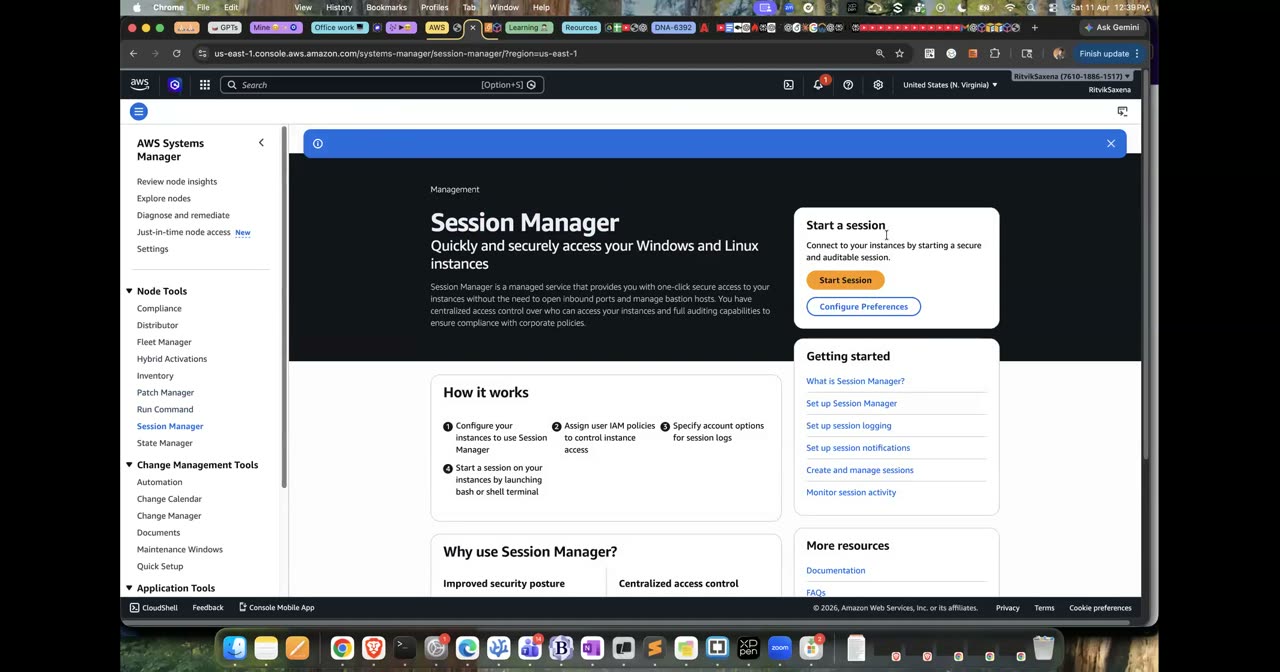
Session Manager ka wahi console — koi SSH key nahi chahiye.
F Secrets Manager & Parameter Store
Is step mein tum ek normal config value aur ek encrypted value, dono ko ek hierarchy mein store karoge.
Agar tum code mein DB_PASSWORD = "..." likh dete ho, toh woh password Git history mein hamesha ke liye reh jaata hai. Parameter Store, jo Systems Manager ka hissa hai, iska muft solution deta hai. Isme teen type ki values rakh sakte ho: String, StringList aur SecureString, jisme value KMS se encrypt hoti hai. Agar tum values ko /app/env/key jaisi path hierarchy mein rakhte ho, toh ek hi call mein poore environment ka config mil jaata hai.
Yeh commands apne laptop ke terminal mein chalao:
aws ssm put-parameter --name /deepdive/dev/app_env   --type String       --value "development"
aws ssm put-parameter --name /deepdive/dev/log_level --type String       --value "DEBUG"
aws ssm put-parameter --name /deepdive/dev/db_password --type SecureString --value 'Lab-Only-P@ss-123'

# Bina decrypt kiye — encrypted blob dikhega
aws ssm get-parameter --name /deepdive/dev/db_password --query Parameter.Value

# Decrypt ke saath
aws ssm get-parameter --name /deepdive/dev/db_password --with-decryption --query Parameter.Value

# Poora /deepdive/dev/ ek saath
aws ssm get-parameters-by-path --path /deepdive/dev/ --with-decryption \
--query 'Parameters[].[Name,Value]' --output table- Systems Manager → Parameter Store → Create parameter pe jao.
- Naam
/deepdive/dev/app_env, Type String, Valuedevelopmentdaal ke Create karo. Isi tarahlog_levelbhi String ke saath banao. - Teesre parameter ke liye naam
/deepdive/dev/db_password, Type SecureString chuno (KMS key defaultalias/aws/ssmrehne do), value daalo aur Create karo. db_passwordparameter kholo — console mein login karke value dekhne pe woh decrypt hoke dikhti hai (tumhare paas KMS Decrypt permission hai isliye); CLI ka--with-decryptionflag isi decrypt-vs-encrypted farak ko explicitly control karta hai.
--with-decryptionke bina SecureString ki value encrypted dikhi, aur uske saath plain text mein dikhi.get-parameters-by-pathse teeno values ek hi table mein aa gayi.
Is step mein tum ek JSON secret banaoge aur use CLI aur Python, dono se padhoge.
Secrets Manager paid service hai (lagbhag $0.40 per secret per month, aur naye secrets pe 30 din ka free trial milta hai), lekin iske badle yeh kuch extra cheezein deta hai. Sabse badi cheez hai automatic rotation, jisme ek Lambda function ke through, jaise, RDS ka password har 30 din mein badal jaata hai aur app ko restart bhi nahi karna padta. Iske alawa yeh doosre accounts ke saath secret share karne deta hai aur RDS ke saath seedha integrate hota hai, jo tum Lab 3 mein dekhoge. Seedha niyam yeh hai ki config aur simple secrets ke liye Parameter Store use karo, aur database credentials ya rotation ki zaroorat ho toh Secrets Manager use karo.
aws secretsmanager create-secret --name deepdive/dev/api-key \
  --secret-string '{"api_key":"sk-demo-123456","username":"demo-user"}'

aws secretsmanager get-secret-value --secret-id deepdive/dev/api-key \
--query SecretString --output text- Secrets Manager → Store a new secret pe jao. Secret type mein Other type of secret chuno.
- Key/value pairs mein
api_key = sk-demo-123456aurusername = demo-userdaalo (ya JSON tab mein seedha JSON paste karo). Next dabao. - Secret name
deepdive/dev/api-keyrakho, rotation OFF rehne do aur Store dabao. - Secret kholo aur Retrieve secret value pe click karo — wahi key/value pairs dikhenge jo CLI ke
get-secret-valuese mile the.
Python wala hissa app code demo hai, uska console equivalent nahi hota — real app hamesha SDK/CLI se hi secret padhega, click karke nahi.
Ab wahi secret us tareeke se padho jaise ek application padhti hai. Iske liye get_secret.py file banao:
import json
import boto3

def get_secret(name: str) -> dict:
    client = boto3.client("secretsmanager", region_name="us-east-1")
    resp = client.get_secret_value(SecretId=name)
    return json.loads(resp["SecretString"])

if __name__ == "__main__":
    secret = get_secret("deepdive/dev/api-key")
    # Real app mein secret kabhi print/log nahi karte — yahan sirf demo
    print("username:", secret["username"])
    print("api_key starts with:", secret["api_key"][:6] + "...")
python3 -m venv .venv && source .venv/bin/activate
pip install boto3
python get_secret.py- CLI aur Python, dono se secret mil gaya.
- Tum samjha sakte ho ki code mein sirf secret ka naam likha hai, uski value nahi, aur isi wajah se yeh code GitHub pe daalna safe hai.
Is step mein tum E3 wale Session Manager shell se secret padhne ki koshish karoge, jo fail hogi. Phir tum role ko sirf usi ek secret ko padhne ki permission doge.
# EC2 Session Manager shell mein:
aws secretsmanager get-secret-value --secret-id deepdive/dev/api-key
# → AccessDeniedException ... is not authorized to perform: secretsmanager:GetSecretValue
Error message ko dhyan se padho. Usme teen cheezein saaf likhi hoti hain: kaun request kar raha tha (role ka ARN), kya karna chahta tha (action), aur kis cheez pe (resource). Kisi bhi permission problem ko debug karne ka pehla kadam yahi padhna hota hai. Ab apne laptop se isko theek karo:
cat > read-secret.json <<EOF
{
  "Version": "2012-10-17",
  "Statement": [
    {
      "Effect": "Allow",
      "Action": "secretsmanager:GetSecretValue",
      "Resource": "arn:aws:secretsmanager:us-east-1:$ACCOUNT_ID:secret:deepdive/dev/api-key-*"
    }
  ]
}
EOF
aws iam put-role-policy --role-name deepdive-ec2-role \
--policy-name ReadDeepdiveApiKey --policy-document file://read-secret.json- IAM → Roles → deepdive-ec2-role → Permissions tab kholo, Add permissions → Create inline policy dabao.
- JSON tab mein upar wali
read-secret.jsonpaste karo ($ACCOUNT_IDapna daalo), Next dabao, naamReadDeepdiveApiKeyrakho aur Create policy dabao. - EC2 ke Session Manager shell mein wahi
get-secret-valuecommand dobara chalao — is baar chal jaayegi (yeh action khud console se nahi ho sakta, kyunki role EC2 instance pe hi apply hoti hai).
Resource ke end mein -* isliye lagaya hai kyunki Secrets Manager har secret ke ARN ke end mein chhe random characters jod deta hai, jaise ...api-key-AbC123. Ab EC2 ke shell mein wahi command dobara chalao; is baar woh chal jaayegi.
Ab EC2 ke shell mein aws ssm get-parameter --name /deepdive/dev/db_password --with-decryption chala ke dekho. Yeh command chal jaayegi, kyunki AmazonSSMManagedInstanceCore policy ssm:GetParameter ko saare parameters (Resource: *) ke liye allow karti hai. AWS ki managed policies use karne mein aasaan hoti hain, lekin woh aksar zaroorat se zyada permission de deti hain. Production mein sensitive values ke liye ya toh Secrets Manager ke saath scoped policy use karo, ya customer-managed policy aur customer-managed KMS key use karo. Interview mein yeh observation batana bahut achha impression chhodta hai.
- Pehli baar AccessDeniedException aaya, aur policy lagane ke baad secret mil gaya.
- Tum samjha sakte ho ki SSM parameter bina kisi extra permission ke kyun padh liya gaya.
Secrets Manager ek rotation Lambda function ko schedule ke hisaab se chalata hai, aur woh function chaar steps karta hai. Pehle step (createSecret) mein woh naya password banata hai aur use AWSPENDING label deta hai. Doosre step (setSecret) mein woh database mein password badal deta hai. Teesre step (testSecret) mein woh naye password se login karke check karta hai. Chauthe step (finishSecret) mein woh naye password ka label AWSPENDING se badal ke AWSCURRENT kar deta hai. Kyunki app har baar secret ko uske naam se fetch karta hai, isliye use bina restart ke naya password mil jaata hai. RDS ke liye AWS rotation ka ready-made function deta hai, jo tum Lab 3 mein chala ke dekhoge.
G AWS Organizations, OUs & SCPs
Companies dev, staging aur production ko alag-alag AWS accounts mein rakhti hain, kyunki account sabse mazboot isolation boundary hai; ek account ki IAM permissions doosre account pe kaam nahi karti. AWS Organizations in sab accounts ko ek management account ke neeche jodta hai. Isse teen fayde hote hain: saare accounts ka ek hi bill aata hai (consolidated billing), accounts ko Organizational Units (OUs) mein folders ki tarah rakha ja sakta hai (jaise Dev, Prod, Security), aur un OUs pe Service Control Policies (SCPs) lagayi ja sakti hain. SCPs guardrails hain jo batate hain ki us OU ke accounts mein zyada se zyada kya ho sakta hai. Ek baat hamesha yaad rakho: SCP kabhi kisi ko permission nahi deti, woh sirf limit lagati hai. Kisi user ki asli permission woh hoti hai jo uski IAM policy aur SCP, dono allow karein. Control Tower yeh sab kuch (accounts, OUs, guardrails aur central logging) ek wizard se automate kar deta hai. Bade enterprises ise use karte hain; Lab 8 mein iska optional hands-on hai, lekin dhyan rakhna ki yeh Config aur CloudTrail ke resources banata hai jinka kharcha lagta hai.
- AWS Organizations console kholo aur Create an organization dabao. Ab tumhara account is organization ka management account ban gaya hai. Organization banana muft hai. Agar Free plan pe "not supported" jaisa error aaye, toh Part G ko sirf padh lo aur concepts ke notes bana ke aage badh jao.
- AWS accounts page pe Root select karo, Actions mein jaake Create new organizational unit chuno aur uska naam
Devrakho. Isi tarahProdnaam ka ek aur OU banao. - Policies → Service control policies mein jaake Enable service control policies dabao.
- Organization tree mein Root ke neeche Dev aur Prod dikh rahe hain.
- SCPs "Enabled" hain aur ek default
FullAWSAccessSCP dikh rahi hai.
Is step mein tum ek SCP likhoge jo Dev OU ke accounts ko sirf us-east-1 aur ap-south-1 regions mein kaam karne dega.
Yeh ek classic guardrail hai. Iska maqsad yeh hai ki koi developer galti se, ya koi hacker jaan-boojh ke (jaise crypto-mining ke liye), kisi door ke region mein resources na bana sake jahan koi nazar nahi rakh raha. Global services, jaise IAM, Organizations, CloudFront aur Route 53, ko NotAction se chhoot deni padti hai, kyunki woh us-east-1 ke endpoint se chalti hain aur unhe block karne se account ka zaroori kaam ruk jaayega.
Policies → Service control policies mein jaake Create policy dabao, naam DenyUnapprovedRegions rakho, aur JSON editor mein yeh policy paste karo:
{
  "Version": "2012-10-17",
  "Statement": [
    {
      "Sid": "DenyAllOutsideApprovedRegions",
      "Effect": "Deny",
      "NotAction": [
        "iam:*", "organizations:*", "sts:*", "support:*", "budgets:*",
        "ce:*", "cloudfront:*", "route53:*", "health:*", "account:*"
      ],
      "Resource": "*",
      "Condition": {
        "StringNotEquals": {
          "aws:RequestedRegion": ["us-east-1", "ap-south-1"]
        }
      }
    }
  ]
}
Policy create karne ke baad use kholo, Targets tab mein Attach dabao aur Dev OU chuno.
Ek zaroori baat: SCPs management account pe kabhi lagti hi nahi. Isliye tumhare apne account pe is policy ka koi asar nahi padega. AWS ne jaan-boojh ke aisa rakha hai, warna koi galat SCP management account ko hi lock kar sakti thi.
- SCP Dev OU pe attached hai.
- Tum is sawal ka jawab de sakte ho: agar ek IAM user ke paas AdministratorAccess hai lekin woh Dev OU ke kisi account mein hai, toh kya woh eu-west-1 mein EC2 launch kar sakta hai? Jawab hai nahi, kyunki SCP ek upar ki seema (ceiling) lagati hai.
Is optional step mein tum ek member account banaoge, use Dev OU mein daaloge, aur role switch karke eu-west-1 mein kuch karne ki koshish karoge.
Member account ke liye ek naya email address chahiye. Gmail mein tumhara.naam+deepdivedev@gmail.com jaisa alias bhi chal jaata hai. Dhyan rakho ki account close karne ke baad woh 90 din tak "suspended" rehta hai aur us email ko dobara kisi naye account ke liye use nahi kiya ja sakta. Agar tum yeh sab nahi chahte, toh G3 skip kar do.
- Organizations mein AWS accounts → Add an AWS account → Create an AWS account pe jao. Naam
deepdive-devrakho, email alias daalo, IAM role ka naam default (OrganizationAccountAccessRole) hi rehne do aur Create dabao. - Naye account ko select karo, Actions mein Move chuno aur use
DevOU mein daal do. - Console ke top-right mein Switch role pe click karo. Account mein naye account ka ID daalo, Role mein
OrganizationAccountAccessRolelikho aur Switch dabao. - Region mein Europe (Ireland) eu-west-1 chuno aur EC2 ka Instances page kholo. Tumhe "You are not authorized ... with an explicit deny in a service control policy" jaisa error dikhna chahiye. Phir us-east-1 pe wapas jao; wahan sab normal chalega.
- Apne account pe wapas switch karo. Cleanup ke liye Organizations mein deepdive-dev account kholo aur Close dabao.
- eu-west-1 mein "explicit deny in a service control policy" wala error dikha.
- Usi role se us-east-1 mein sab kuch normal chal raha tha.
H Break & Fix, Challenge, Explain-it-back
IAM mein deepdive-s3-reader role kholo, Trust relationships tab mein Edit dabao, aur Principal ko badal ke "Service": "lambda.amazonaws.com" kar do. Update karne ke baad aws s3 ls s3://$LAB1_BUCKET --profile reader chalao.
Tumhe AccessDenied ... when calling the AssumeRole operation error dikhega. Permission policy bilkul theek hai, lekin trust policy ab tumhe role pehenne hi nahi de rahi. Isse ek bahut kaam ki cheez seekhne ko milti hai: agar error mein "AssumeRole" likha hai toh problem trust policy mein hai, aur agar error "GetObject" ya "PutObject" jaise action pe hai toh problem permission policy mein hai. Principal ko wapas apne account pe set karke isko theek kar do.
EC2 console mein deepdive-lab1 select karo, Actions → Security → Modify IAM role mein jaake "No IAM role" chuno aur Update dabao. Ek-do minute baad Session Manager se connect karne ki koshish karo. Connect button kaam nahi karega, ya "SSM Agent is not online" dikhega, kyunki Session Manager khud bhi instance ke role ki permissions se hi chalta hai. Role wapas attach karo; 2–3 minute mein connection phir se chal jaayega. Yaad rakho ki jab bhi Session Manager connect na ho, toh sabse pehle instance profile aur server ka outbound internet (ya NAT) check karna chahiye.
Yeh kaam bina steps dekhe karo. Developers naam ka ek naya IAM group banao jiske members teen cheezein kar sakein: saare EC2 instances dekh sakein, sirf woh instances start aur stop kar sakein jin pe tag Env = dev laga ho, aur kisi bhi instance ko terminate na kar sakein. Hint ke taur pe yaad rakho ki ec2:Describe* ko Resource: "*" chahiye hota hai, aur start/stop ke liye Condition mein "aws:ResourceTag/Env": "dev" use hoga. Apni policy ko Policy Simulator se verify karo.
- IAM user, group, role aur policy mein se har ek ko ek-do sentences mein samjhao. Role ke paas password kyun nahi hota?
- Trust policy aur permission policy mein kya farak hai? Kaunsa error kis policy ki problem batata hai?
- Ek user ke paas AdministratorAccess hai aur ek doosri policy
s3:DeleteBucketko Deny karti hai. Kya woh user bucket delete kar sakta hai? Kyun? - Agar EC2 pe chalne wale app ko S3 access dena ho, toh access keys aur role mein se kya chunoge, aur kyun? Role ke credentials andar se kahan se aate hain?
- Parameter Store aur Secrets Manager mein se kab kaunsa use karoge?
- SCP aur IAM policy mein kya farak hai? Kya koi SCP kisi ko permission de sakti hai?
- Root user ko kab use karna chahiye? (Hint: bahut kam kaamon ke liye, jaise account band karna ya support plan badalna.)
- EC2 instance
deepdive-lab1ko Terminate karo. Security groupdeepdive-no-inboundko tum baad mein delete kar sakte ho. - Secret ko delete karo, warna 30 din ka trial khatam hone ke baad uska charge lagega:
aws secretsmanager delete-secret --secret-id deepdive/dev/api-key --force-delete-without-recovery - Bucket ko khaali karke delete karo:
aws s3 rb s3://$LAB1_BUCKET --force - Parameters muft hain, isliye tum unhe rakh sakte ho. Hatana ho toh yeh chalao:
aws ssm delete-parameters --names /deepdive/dev/app_env /deepdive/dev/log_level /deepdive/dev/db_password - In cheezon ko delete mat karo, kyunki aage kaam aayengi:
deepdive-adminuser,Adminsgroup,deepdive-ec2-role, billing alarm, budgets aur organization. deepdive-s3-readerrole aurDeepdiveReadPublicDocspolicy muft hain; chaaho toh inhe rakh lo.