Lab 7: Monitoring, Observability & Cost
Is lab mein tum system ko "chalana" aur us pe nazar rakhna seekhoge. Ek live web server pe tum CloudWatch ke chaaron stambh — metrics, logs, alarms aur dashboards — use karoge. Tum CloudWatch agent se memory, disk aur nginx ke logs bhejoge, Logs Insights se logs pe queries chalaoge, logs se metrics banaoge, CPU pe load daal ke alarm bajwaoge, aur apne business ke custom metrics bhejoge. Uske baad kharche ko samjhoge (Budgets, Cost Explorer, tags, Compute Optimizer aur Savings Plans), CloudTrail se "kisne kya kiya" ki jaanch karoge, aur ant mein ek poora incident drill karoge, jaise asli on-call engineer karta hai.
- Setup: monitored web server
- Metrics: kya free milta hai, kya nahi
- CloudWatch agent: memory, disk, nginx logs
- Logs Insights + metric filters
- Alarms + SNS: CPU stress test
- Custom metrics
- Cost: Budgets, Cost Explorer, tags, Compute Optimizer, Savings Plans, budget actions
- CloudTrail: event history, trail, investigation
- Dashboard + Synthetics canary
- Incident drill, Challenge, Cleanup
0 Setup: monitored web server
export AWS_DEFAULT_REGION=us-east-1
export ACCOUNT_ID=$(aws sts get-caller-identity --query Account --output text)
mkdir -p ~/deepdive/lab7 && cd ~/deepdive/lab7Pehle Lab 1 wale role ko CloudWatch agent chalane ki permission do:
aws iam attach-role-policy --role-name deepdive-ec2-role \
  --policy-arn arn:aws:iam::aws:policy/CloudWatchAgentServerPolicy
Phir EC2 console mein Launch instance dabao. Naam deepdive-monitor rakho, Amazon Linux 2023 aur free-tier instance type chuno, key pair mat chuno, default VPC mein public IP chalu rakho, security group mein Lab 2 wala deepdive-web-sg chuno (jisme HTTP 80 khula hai), IAM profile mein deepdive-ec2-role chuno, aur user data mein Lab 2 wali userdata.sh (nginx wali script) daalo. Project=deepdive tag lagao aur Launch karo. Uske baad instance ka ID aur public IP variables mein rakho aur page check karo:
IID=<instance-id>
IP=<public-ip>
curl -s http://$IP | head -3
Agar tumne Lab 2 ka security group delete kar diya tha, toh ek naya security group banao jisme HTTP 80 har jagah se allowed ho.
curlse DEEPDIVE ka page aa raha hai.- deepdive-ec2-role pe ab teen managed policies lagi hain: S3ReadOnly, SSMManagedInstanceCore aur CloudWatchAgentServerPolicy.
A Metrics: kya free milta hai, kya nahi
- EC2 console mein apna instance kholo aur uska Monitoring tab dekho. Wahan CPU utilization, network in/out, status check failed aur EBS read/write jaise metrics dikhenge.
- CloudWatch mein Metrics → All metrics → EC2 → Per-Instance Metrics kholo, apna instance dhoondho aur CPUUtilization chuno. Graphed metrics tab mein Statistic (jaise Average, Maximum ya p99) aur Period badal ke dekho ki graph kaise badalta hai.
Yahi data CLI se bhi nikaala ja sakta hai. Neeche wali command pichhle ek ghante ka CPU data 5 minute ke hisson mein laati hai:
# macOS date syntax; Linux pe: --start-time $(date -u -d '1 hour ago' +%Y-%m-%dT%H:%M:%SZ)
aws cloudwatch get-metric-statistics --namespace AWS/EC2 --metric-name CPUUtilization \
  --dimensions Name=InstanceId,Value=$IID \
  --start-time $(date -u -v-1H +%Y-%m-%dT%H:%M:%SZ) --end-time $(date -u +%Y-%m-%dT%H:%M:%SZ) \
--period 300 --statistics Average Maximum --output tableHar metric ke kuch hisse hote hain. Namespace (jaise AWS/EC2) batata hai ki metric kis service ka hai. Metric name (jaise CPUUtilization) batata hai ki kya naapa ja raha hai. Dimensions (jaise InstanceId=i-...) batate hain ki kis resource ka data hai. Aur Statistic ek Period ke upar nikaala jaata hai, jaise "5 minute ka Average". EC2 ki basic monitoring muft hai aur har 5 minute mein ek data point deti hai, jabki detailed monitoring har minute data deti hai lekin uska charge lagta hai.
Dhyan do ki memory aur disk ke istemaal ka percentage is list mein hai hi nahi. Iski wajah yeh hai ki AWS hypervisor ke bahar se sirf CPU, network aur disk I/O dekh sakta hai; operating system ke andar kitni RAM use ho rahi hai, yeh sirf OS ko pata hota hai. Isliye iske liye instance ke andar ek agent chalana padta hai, jo tum Part B mein karoge. Yeh interview ka ek bahut purana aur pasandida sawal hai.
- CLI se CPU ke data points ki table aa gayi.
- Tum samjha sakte ho ki memory ka metric default roop se kyun nahi milta.
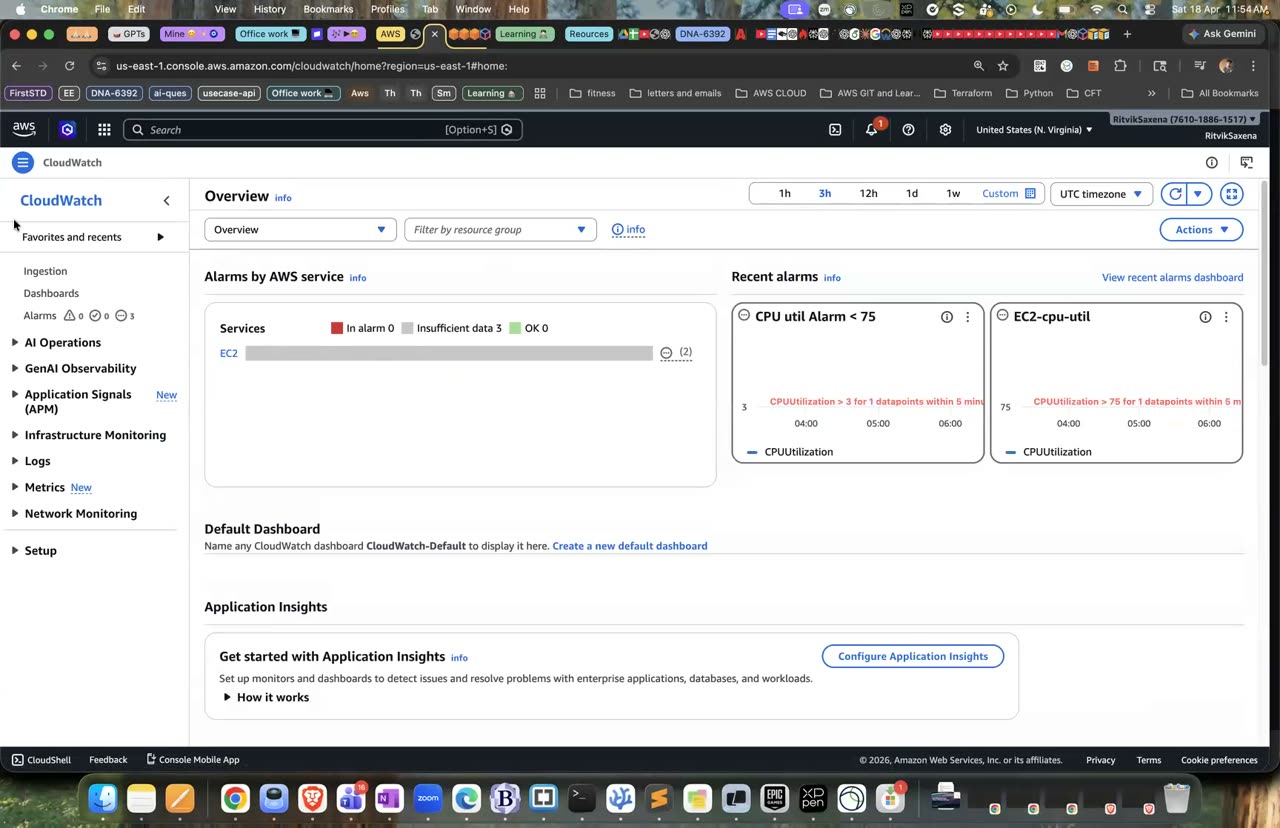
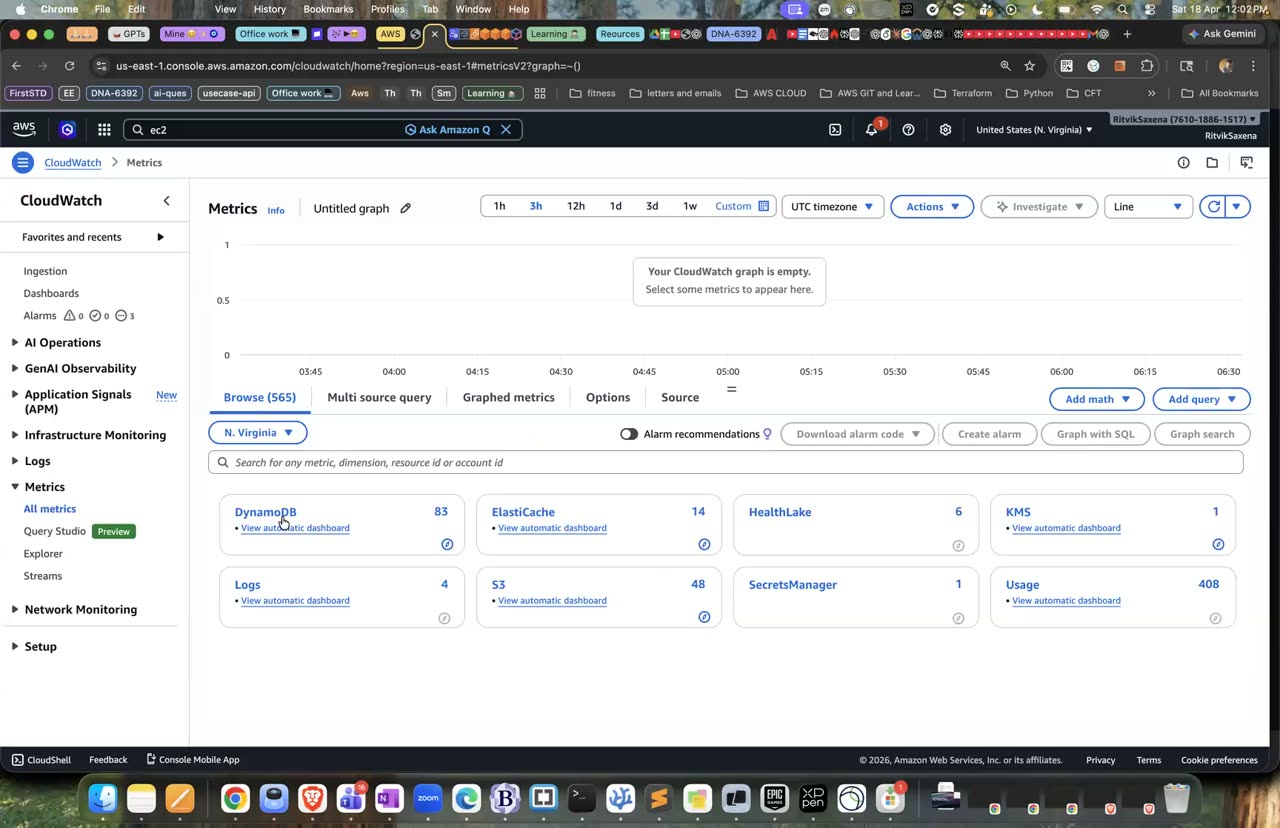
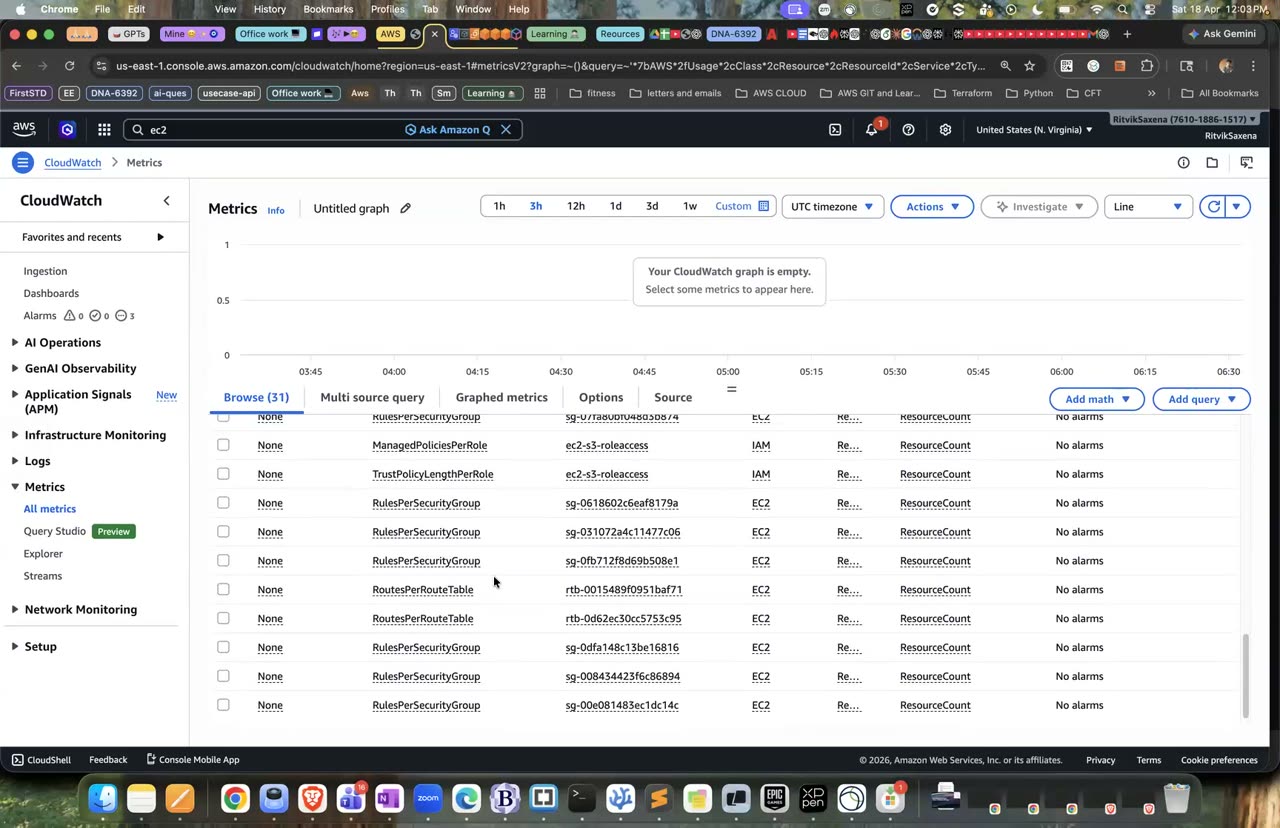
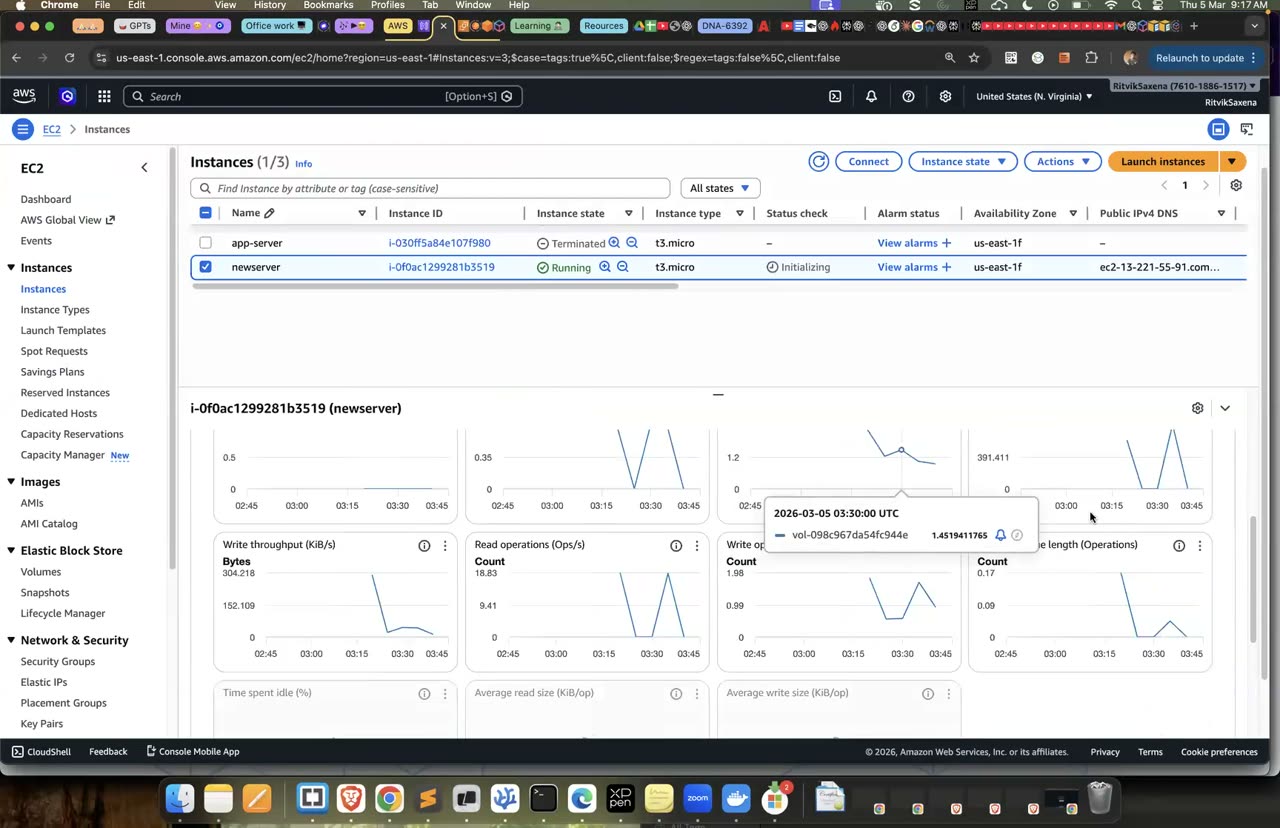
CloudWatch metrics browse karna aur EC2 ke default CPU/network graphs dekhna.
B CloudWatch agent: memory, disk, nginx logs
Session Manager se deepdive-monitor ke andar jao aur agent install karo. Phir ek config file banao jo agent ko batati hai ki memory aur disk ke metrics bhejne hain aur nginx ke dono log files CloudWatch Logs mein bhejne hain. Aakhir mein agent ko is config ke saath chalu karo:
sudo dnf install -y amazon-cloudwatch-agent

sudo tee /opt/aws/amazon-cloudwatch-agent/etc/deepdive-agent.json > /dev/null <<'EOF'
{
  "agent": { "metrics_collection_interval": 60, "run_as_user": "root" },
  "metrics": {
    "namespace": "DeepDive/EC2",
    "append_dimensions": { "InstanceId": "${aws:InstanceId}" },
    "metrics_collected": {
      "mem":  { "measurement": ["mem_used_percent"] },
      "disk": { "measurement": ["used_percent"], "resources": ["/"], "drop_device": true }
    }
  },
  "logs": {
    "logs_collected": {
      "files": {
        "collect_list": [
          { "file_path": "/var/log/nginx/access.log", "log_group_name": "/deepdive/nginx/access",
            "log_stream_name": "{instance_id}", "retention_in_days": 7 },
          { "file_path": "/var/log/nginx/error.log",  "log_group_name": "/deepdive/nginx/error",
            "log_stream_name": "{instance_id}", "retention_in_days": 7 }
        ]
      }
    }
  }
}
EOF

sudo /opt/aws/amazon-cloudwatch-agent/bin/amazon-cloudwatch-agent-ctl \
  -a fetch-config -m ec2 -s -c file:/opt/aws/amazon-cloudwatch-agent/etc/deepdive-agent.json
sudo /opt/aws/amazon-cloudwatch-agent/bin/amazon-cloudwatch-agent-ctl -a status
Heredoc mein 'EOF' ko quotes mein isliye likha gaya hai taaki shell ${aws:InstanceId} ko apna variable samajh ke khaali na kar de; is value ko agent khud instance ID se badalta hai. Agar kuch gadbad ho, toh agent ka log sudo tail -50 /opt/aws/amazon-cloudwatch-agent/logs/amazon-cloudwatch-agent.log se dekho.
- Agent ka status
"status": "running"dikha raha hai.
Apne laptop se server pe kuch traffic bhejo, jisme normal pages bhi hon aur aise pages bhi jo maujood nahi hain (taaki 404 errors banein):
for i in $(seq 1 60); do
  curl -s -o /dev/null http://$IP/
  curl -s -o /dev/null http://$IP/missing-page-$((i % 5))
done- 2–3 minute baad CloudWatch mein Metrics kholo, Custom namespaces mein DeepDive/EC2 chuno, aur
mem_used_percentaurdisk_used_percentdekho. - CloudWatch mein Logs → Log groups kholo,
/deepdive/nginx/accesschuno, instance ID wali stream kholo aur nginx ki log lines dekho.
- DeepDive/EC2 namespace mein memory aur disk ke metrics aa gaye.
- Log group mein 200 aur 404, dono tarah ki lines dikh rahi hain.
C Logs Insights + metric filters
CloudWatch mein Logs Insights kholo, log group /deepdive/nginx/access chuno, samay pichhla 1 ghanta rakho, aur yeh query chalao. Yeh har status code ki ginti batati hai:
parse @message '* - * [*] "* * *" * * "*" "*"' as ip, user, ts, method, path, proto, status, bytes, referer, agent
| stats count(*) as hits by status
| sort hits desc
Phir yeh query chalao, jo batati hai ki kaunse paths pe sabse zyada 404 aaye:
parse @message '* - * [*] "* * *" * * "*" "*"' as ip, user, ts, method, path, proto, status, bytes, referer, agent
| filter status = "404"
| stats count(*) as misses by path
| sort misses desc
| limit 10
parse command ek glob pattern ki madad se nginx ki "combined" format wali har log line ko tukdon mein todta hai, aur har tukde ko ek naam wala field bana deta hai. Real incidents mein sabse pehle yahi sawal poochhe jaate hain: kitne errors aaye, kab se aa rahe hain, kis endpoint pe aur kis IP se. Yeh queries bilkul inhi sawalon ka jawab deti hain.
- Pehli query mein 200 aur 404, dono ki ginti lagbhag 60-60 aayi.
- Doosri query mein
/missing-page-0se/missing-page-4tak ke paths unki ginti ke saath aaye.
Logs pe seedha alarm nahi lagaya ja sakta. Pehle logs mein kisi pattern ko ek metric mein badla jaata hai, aur phir us metric pe alarm lagaya jaata hai. "5 minute mein 10 se zyada 404 ya 500 errors" jaise alerts isi tareeke se bante hain.
- Log group
/deepdive/nginx/accesskholo, Actions mein Create metric filter chuno. - Filter pattern mein neeche wala pattern daalo. Yeh space se alag kiye gaye fields ko pehchanta hai, aur
[]ya""ke andar ke poore hisse ko ek hi field maanta hai:
[ip, ident, user, timestamp, request, status_code=404, bytes, referer, agent]- "Test pattern" se sample logs pe check karo ki sirf 404 wali lines match ho rahi hain, phir Next dabao. Filter ka naam
nginx-404, metric namespaceDeepDive/Nginx, metric ka naamNotFoundCount, metric value1aur default value0rakho, aur Create karo. - B2 wala traffic loop dobara chalao, kyunki metric filter sirf naye logs pe kaam karta hai, purane logs pe nahi.
- Test pattern ne sirf 404 wali lines ko match kiya.
- 2–3 minute baad DeepDive/Nginx ke NotFoundCount metric mein data points aa gaye.
D Alarms + SNS: CPU stress test
Pehle alerts ke liye ek SNS topic banao aur usme apna email subscribe karo; email aane pe subscription confirm kar dena. Phir do alarms banao: ek jo CPU 70% se upar jaane pe bajta hai, aur ek jo 5 minute mein 20 se zyada 404 aane pe bajta hai:
TOPIC=$(aws sns create-topic --name deepdive-ops-alerts --query TopicArn --output text)
aws sns subscribe --topic-arn $TOPIC --protocol email --notification-endpoint you@example.com
# email confirm karo

aws cloudwatch put-metric-alarm --alarm-name deepdive-high-cpu \
  --namespace AWS/EC2 --metric-name CPUUtilization --dimensions Name=InstanceId,Value=$IID \
  --statistic Average --period 300 --evaluation-periods 1 --threshold 70 \
  --comparison-operator GreaterThanThreshold --treat-missing-data notBreaching \
  --alarm-actions $TOPIC --ok-actions $TOPIC

aws cloudwatch put-metric-alarm --alarm-name deepdive-many-404s \
  --namespace DeepDive/Nginx --metric-name NotFoundCount \
  --statistic Sum --period 300 --evaluation-periods 1 --threshold 20 \
  --comparison-operator GreaterThanThreshold --treat-missing-data notBreaching \
--alarm-actions $TOPIC- CloudWatch → Alarms → Create alarm — Select metric se AWS/EC2 → CPUUtilization (apna instance) chuno, threshold "Greater than 70", period 5 minutes, Next dabao, SNS topic deepdive-ops-alerts chuno (ya naya banao), naam
deepdive-high-cpurakho. - Dusre alarm ke liye Select metric mein DeepDive/Nginx namespace → NotFoundCount chuno, statistic Sum, threshold "Greater than 20".
Ek alarm teen states mein ho sakta hai: OK, ALARM aur INSUFFICIENT_DATA. period aur evaluation-periods ko guna karke pata chalta hai ki condition kitni der tak sach rehni chahiye tabhi alarm bajega; galat alarms kam karne ke liye "3 mein se 2 data points" jaisi settings bhi hoti hain. treat-missing-data batata hai ki data na aane pe use kya maana jaaye. Alarm bajne pe kai kaam ho sakte hain: SNS se email, Slack ya PagerDuty pe message, EC2 ka reboot ya recover, ya Auto Scaling policy chalana. Kai alarms ko jod ke ek composite alarm bhi banaya ja sakta hai, jaise "jab CPU bhi zyada ho AUR 5xx errors bhi zyada hon, tabhi on-call engineer ko jagao".
- Dono alarms ban gaye; CPU wala alarm OK ya Insufficient data state mein hai.
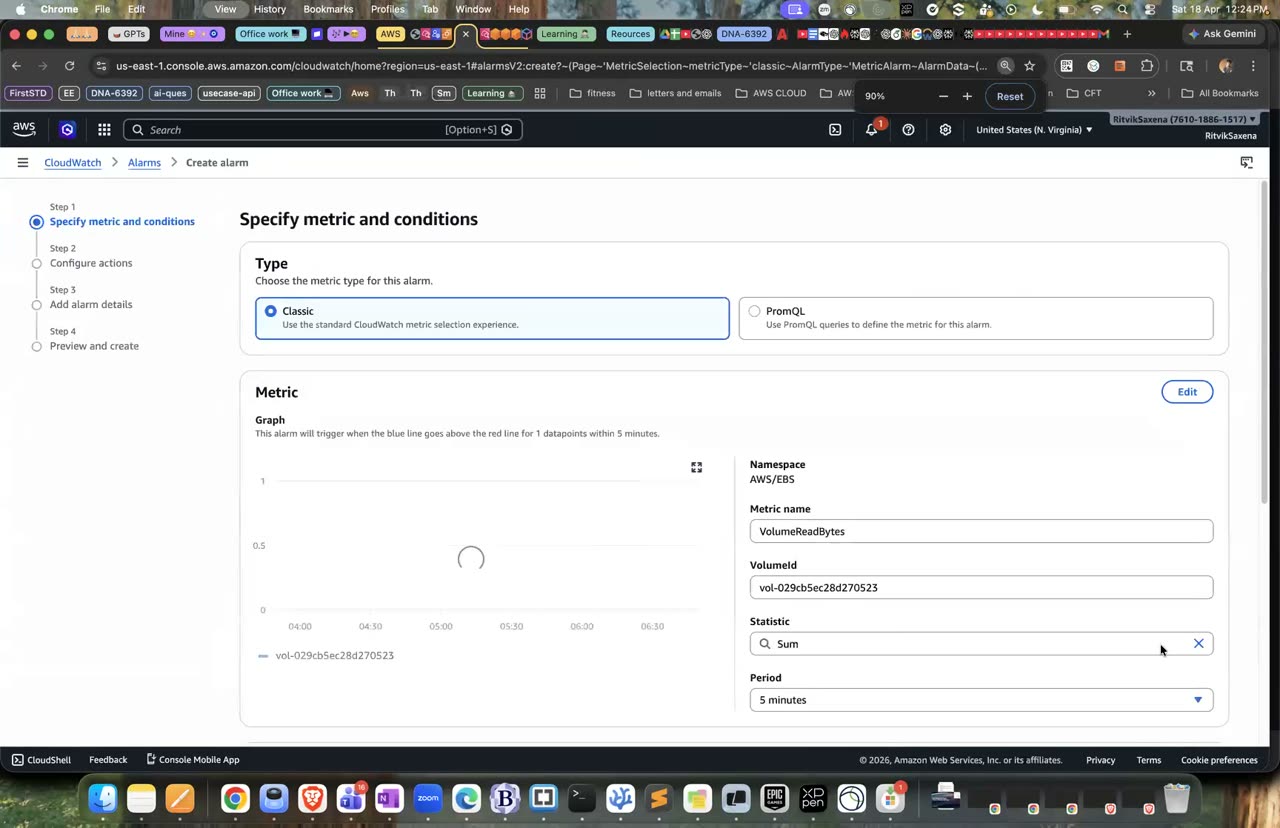
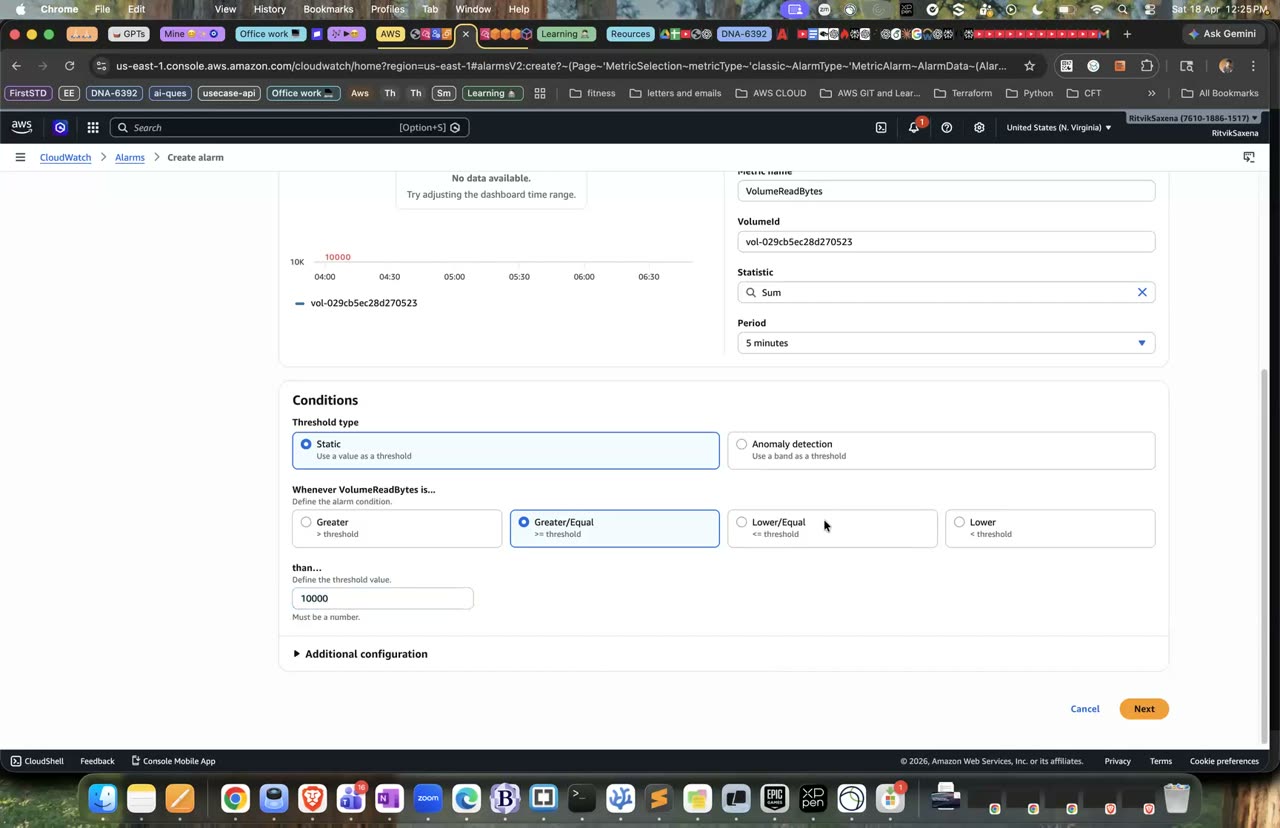
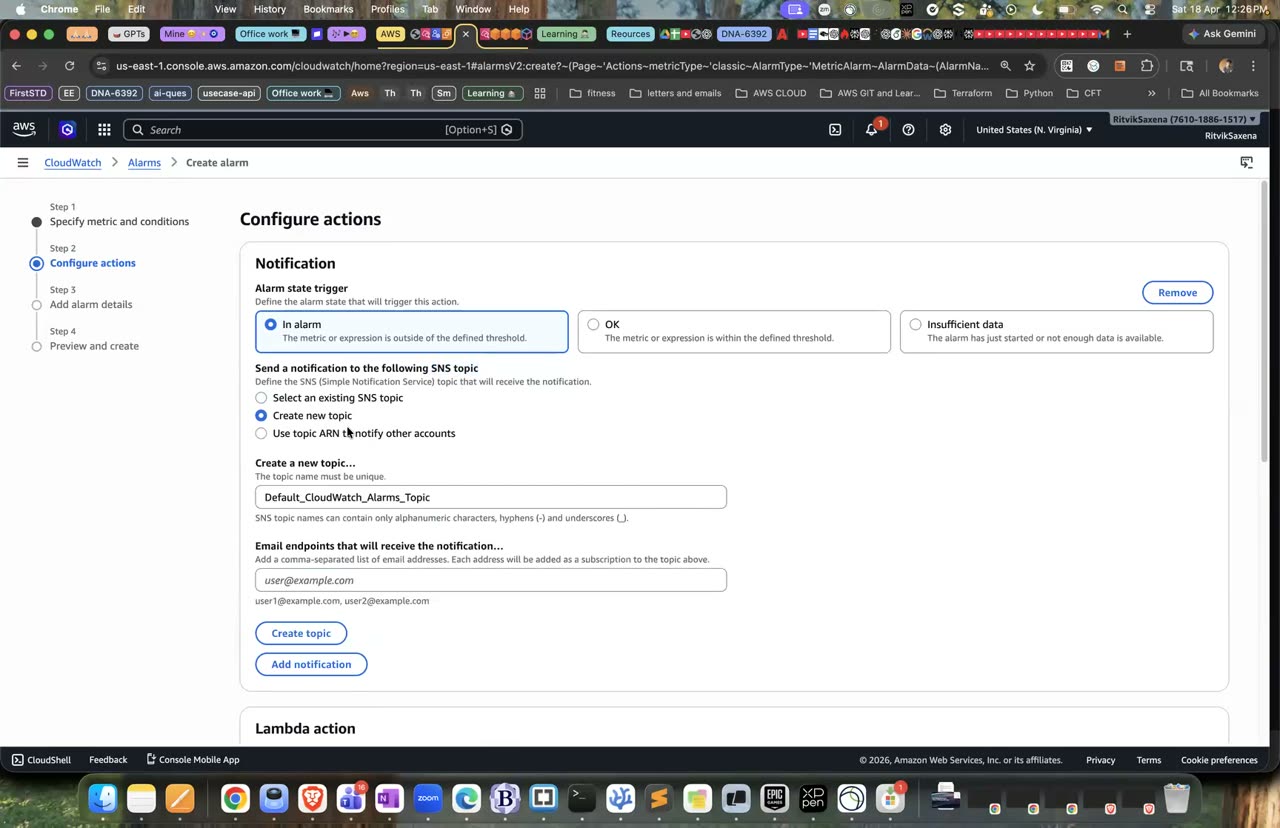
Alarm create karna — metric, threshold, aur SNS topic notification ka wahi 3-step flow.
Session Manager ke shell mein neeche wali command chalao. Yeh har CPU core pe ek busy process chalati hai jo suraksha ke liye 15 minute baad khud band ho jaata hai:
for i in $(seq $(nproc)); do timeout 900 yes > /dev/null & done
top -b -n 1 | head -12        # yes processes ~100% CPU
Lagbhag 5–10 minute mein alarm ALARM state mein chala jaayega aur tumhe email aayega. Load khatam hone ke baad (ya pkill yes chalane ke baad) agle 5–10 minute mein alarm wapas OK ho jaayega aur doosra email aayega. Alarm ke History tab mein uski saari state changes dekho.
Ek baat yaad rakho: t2 aur t3 jaise burstable instances CPU credits pe chalte hain. 15 minute ke load ka free tier pe koi asar nahi padega, lekin ise ghanton tak mat chalana.
Isi beech B2 wala 404 loop do baar chalao; deepdive-many-404s alarm bhi ALARM mein jaayega aur email bhejega.
- "ALARM: deepdive-high-cpu" wala email aaya, aur baad mein "OK" wala email aaya.
- 404 wala alarm bhi baja.
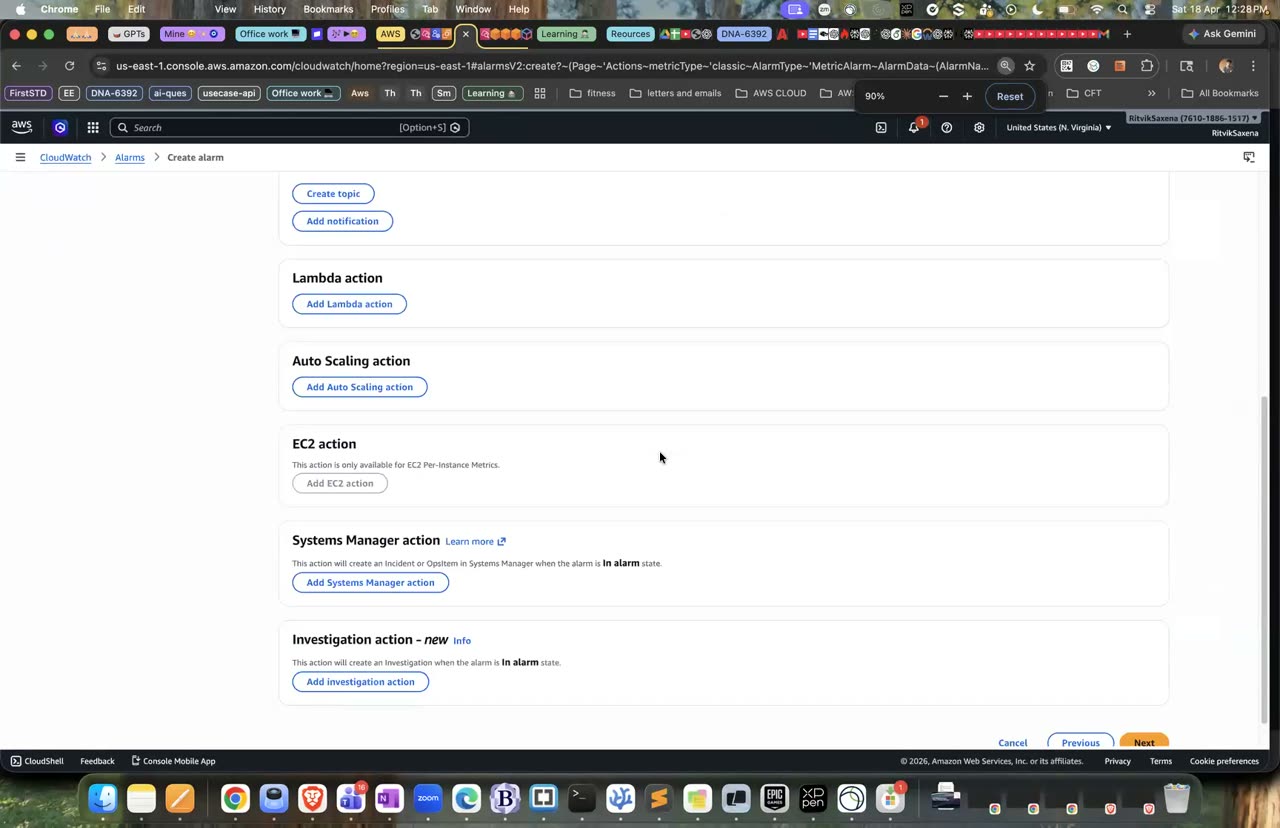
Alarm actions mein Lambda/Auto Scaling/EC2 actions bhi milte hain.
E Custom metrics
Socho CPU bilkul theek chal raha hai, lekin orders zero aa rahe hain. Aise mein system ko "healthy" nahi kaha ja sakta. Isliye asli observability mein business metrics, jaise har minute ke orders, naye signups ya fail hue payments, sabse zaroori maane jaate hain. Inhe app khud PutMetricData se bhejta hai, ya logs mein Embedded Metric Format mein likhta hai.
Neeche wala loop paanch minute tak har 30 second mein ek random "orders" ki ginti bhejta hai:
for i in $(seq 1 10); do
  aws cloudwatch put-metric-data --namespace DeepDive/App --metric-name OrdersPlaced \
    --dimensions Env=dev --value $((RANDOM % 20)) --unit Count
  sleep 30
done
CloudWatch Metrics mein DeepDive/App → Env → OrdersPlaced kholo aur statistic Sum aur period 1 minute rakho. Custom metrics ka ek chhota monthly charge hota hai (free tier mein 10 custom metrics muft hain). Lab ke baad inka data 15 mahine mein apne aap khatam ho jaata hai; inhe delete karne ka koi option nahi hota.
- OrdersPlaced ke graph mein lagbhag 10 data points dikh rahe hain.
F Cost: Budgets, Cost Explorer, cost allocation tags
- Billing and Cost Management mein Cost Explorer kholo. Agar tum ise pehli baar chalu kar rahe ho, toh data aane mein lagbhag 24 ghante lag sakte hain.
- Date range mein is mahine ko chuno, granularity Daily rakho aur Service ke hisaab se group karo. Dekho ki kaunsi service sabse upar hai. Agar tumne Lab 4 kiya hai, toh shayad "EC2-Other" upar hoga, kyunki NAT Gateway aur EBS ka kharcha isi mein aata hai.
- Ab Usage type ke hisaab se group karke dekho; wahan
NatGateway-HoursaurPublicIPv4:InUseAddressjaise exact items dikhenge. - Forecast bhi dekho, jo mahine ke end tak ke kharche ka andaaza batata hai.
Agar tum Free plan ya credits pe ho, toh Billing mein Credits page pe bache hue credits dekho. Purane free-tier accounts ke liye Billing ka Free Tier page batata hai ki kaunsi service apni muft seema ke kitne paas hai.
- Tum un teen services ke naam bata sakte ho jinhone is mahine sabse zyada kharcha kiya.
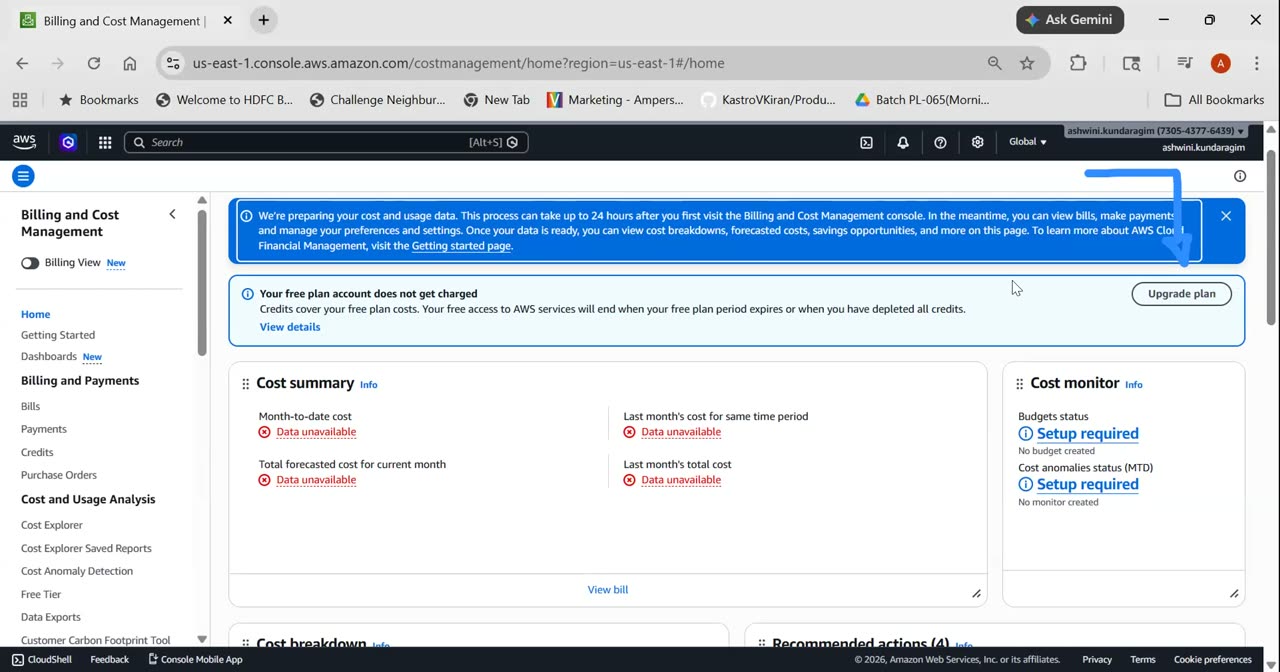
Billing and Cost Management console — yahin se Cost Explorer khulta hai.
Socho ek company mein 50 teams ek hi account istemaal karti hain. "Kis project ne kitna kharcha kiya?" is sawal ka jawab tags se milta hai. Lekin koi tag billing reports mein tabhi dikhta hai jab use cost allocation tag ke roop mein activate kiya jaaye.
- Billing mein Cost allocation tags kholo, User-defined tab mein
Projecttag select karo aur Activate dabao. Tag ko is list mein aane mein 24 ghante tak lag sakte hain; agar abhi na dikhe, toh kal kar lena. - Activate hone ke lagbhag 24 ghante baad Cost Explorer mein Tag: Project ke hisaab se group karke dekho.
Projecttag Active status mein hai, ya tumne ise kal karne ke liye note kar liya hai.
- Budgets mein Lab 1 wala
deepdive-monthly-5usdbudget kholo aur uske alerts dekho. Agar usme sirf actual kharche ka alert hai, toh Edit karke ek naya alert jodo: Forecasted kharcha 100% se zyada hone pe email. - Optional ke taur pe ek naya budget banao: Customize → Cost budget mein $2 ka budget rakho aur Filters mein Tag Project = deepdive lagao (tag active hone ke baad). Isse sirf is course ka kharcha track hoga.
Budgets sirf alert nahi bhejte, woh actions bhi le sakte hain. Seema paar hone pe woh koi IAM ya SCP policy laga sakte hain (jaise naye EC2 launch band karna), ya kuch khaas EC2 aur RDS instances ko band kar sakte hain. Kharche ko kaabu mein rakhne ki kuch achhi aadatein (FinOps) yeh hain: har resource pe owner aur project ka tag lagao, dev environments ko raat mein band karo (Scheduler se), zaroorat se bade instances ko chhota karo (Compute Optimizer se), Savings Plans sirf lagataar chalne wale kaam pe lo, S3 lifecycle rules lagao, aur har mahine purane snapshots, khaali Elastic IPs aur bina jude volumes saaf karo.
- Budget mein forecasted kharche wala alert maujood hai.
Kharcha kam karne ke do bade tareeke hain. Pehla hai right-sizing, yaani agar instance zaroorat se bada hai toh use chhota karna. Doosra hai commitment discounts, yaani Savings Plans ya Reserved Instances, jinme ek ya teen saal ke commitment pe lagbhag 30–70% ki chhoot milti hai. In dono ke liye AWS tumhare asli istemaal ke aadhar pe khud sujhaav deta hai.
Compute Optimizer ko chalu karo (yeh muft hai) aur uska status dekho. Sujhaav aane ke liye lagbhag 30 ghante ka data chahiye, isliye aakhri command kal chalana:
aws compute-optimizer update-enrollment-status --status Active       # free opt-in
aws compute-optimizer get-enrollment-status- Compute Optimizer console kholo (pehli baar) — Get started dabao, "Opt in" chuno aur Enroll accounts dabao.
# ~30 ghante ke metrics ke baad (kal dekhna):
aws compute-optimizer get-ec2-instance-recommendations \
--query 'instanceRecommendations[].[instanceArn,finding,currentInstanceType,recommendationOptions[0].instanceType]' --output table- Billing and Cost Management mein Savings Plans → Recommendations kholo. Compute Savings Plans, 1 saal, No upfront aur pichhle 30 din ka lookback chuno, aur "estimated savings" padho.
- Cost Explorer mein Reservations → Recommendations bhi dekho, jahan RDS aur ElastiCache ke liye Reserved Instances ke sujhaav hote hain.
Savings Plan ya Reserved Instance khareedne ke baad use cancel nahi kiya ja sakta, kyunki yeh ek se teen saal ka pakka commitment hota hai. Learning account mein sirf sujhaav padho. Real company mein aam taur pe 24x7 chalne wale lagataar kaam pe Savings Plan liya jaata hai, aur achanak badhne-ghatne wale kaam ko On-Demand ya Spot pe chalaya jaata hai.
- Compute Optimizer ka enrollment Active hai.
- Tumne Savings Plans ke sujhaav wala page dekha aur samjha ki woh kis istemaal pe aadharit hai.
Is step mein tum ek aisa budget banaoge jo seema paar hone pe, tumhari approval ke baad, ek test role pe "EC2 launch band karo" wali policy laga deta hai.
Pehle woh policy banao jo lagayi jaayegi, aur ek role banao jise Budgets service is kaam ke liye use karegi:
cat > deny-launch.json <<'EOF'
{"Version":"2012-10-17","Statement":[{"Effect":"Deny","Action":["ec2:RunInstances","rds:CreateDBInstance"],"Resource":"*"}]}
EOF
aws iam create-policy --policy-name DeepdiveBudgetFreeze --policy-document file://deny-launch.json

cat > budgets-trust.json <<'EOF'
{"Version":"2012-10-17","Statement":[{"Effect":"Allow","Principal":{"Service":"budgets.amazonaws.com"},"Action":"sts:AssumeRole"}]}
EOF
aws iam create-role --role-name deepdive-budgets-action-role --assume-role-policy-document file://budgets-trust.json
aws iam attach-role-policy --role-name deepdive-budgets-action-role \
--policy-arn arn:aws:iam::aws:policy/AWSBudgetsActionsWithAWSResourceControlAccess- IAM → Policies → Create policy → JSON — upar wali
deny-launch.jsonpaste karo, naamDeepdiveBudgetFreezerakho. - IAM → Roles → Create role → Custom trust policy —
budgets-trust.jsonpaste karo, naamdeepdive-budgets-action-role, permission meinAWSBudgetsActionsWithAWSResourceControlAccessattach karo.
- Budgets mein Create budget → Customize → Cost budget chuno. Naam
deepdive-freeze-testrakho, period Monthly aur fixed amount $0.01 rakho, aur Next dabao. - Alert threshold mein 100% of budgeted, Actual chuno aur email daalo, phir Next dabao. Attach actions mein IAM role
deepdive-budgets-action-rolechuno, action type Apply IAM policy chuno, policyDeepdiveBudgetFreezechuno, target role mein Lab 1 wala test roledeepdive-s3-readerchuno, Requires approval chuno aur Create karo. - Agar is mahine thoda bhi kharcha hua hai, toh kuch ghanton mein yeh budget paar ho jaayega, kyunki Budgets din mein kuch baar hisaab lagata hai. Tab budget ke Alerts mein action Pending dikhega. Run action dabao aur IAM mein check karo ki
deepdive-s3-readerpe DeepdiveBudgetFreeze lag gayi. Phir Reverse action dabake use hata do.
- Budget action ban gaya hai aur uska status Standby ya Pending hai.
- Jab action trigger hua, toh Run action se policy lag gayi aur Reverse se hat gayi.
G CloudTrail: event history, trail, investigation
- CloudTrail mein Event history kholo, lookup attribute mein Event name chuno aur
RunInstanceslikho. Is lab mein launch kiya gaya instance dhoondho aur uska event kholo. - Event ka JSON dhyan se padho.
userIdentitybatata hai ki kaam kisne kiya (deepdive-admin, ya role ke case meinAssumedRole).eventTimebatata hai kab kiya,sourceIPAddressbatata hai kahan se kiya, auruserAgentbatata hai kis tool se kiya (console, aws-cli ya boto3).requestParametersmein woh hota hai jo maanga gaya,responseElementsmein AWS ka jawab, aurerrorCodetab hota hai jab request fail hui ho.
CLI se bhi events dhoondhe ja sakte hain. Neeche ki pehli command haal hi mein bane alarms dikhati hai, aur doosri dikhati hai ki pichhle labs ke cleanup mein kisne kaunse buckets delete kiye:
aws cloudtrail lookup-events --lookup-attributes AttributeKey=EventName,AttributeValue=PutMetricAlarm \
  --max-results 5 --query 'Events[].[EventTime,Username,EventName]' --output table

# Kisne kya delete kiya (pichhle labs ka cleanup)?
aws cloudtrail lookup-events --lookup-attributes AttributeKey=EventName,AttributeValue=DeleteBucket \
  --max-results 10 --query 'Events[].[EventTime,Username,Resources[0].ResourceName]' --output table
Console ke clicks aur CLI ki commands, dono ek jaise API events ki tarah record hote hain; Lab 1 ke step C2 mein kahi gayi baat yahan saabit hoti hai. Event history muft hai, lekin isme sirf pichhle 90 din ke aur sirf management events hote hain.
- Tumne RunInstances event mein userIdentity, sourceIPAddress aur userAgent pehchaane.
- CLI lookup ne alarms ke events dikhaye.
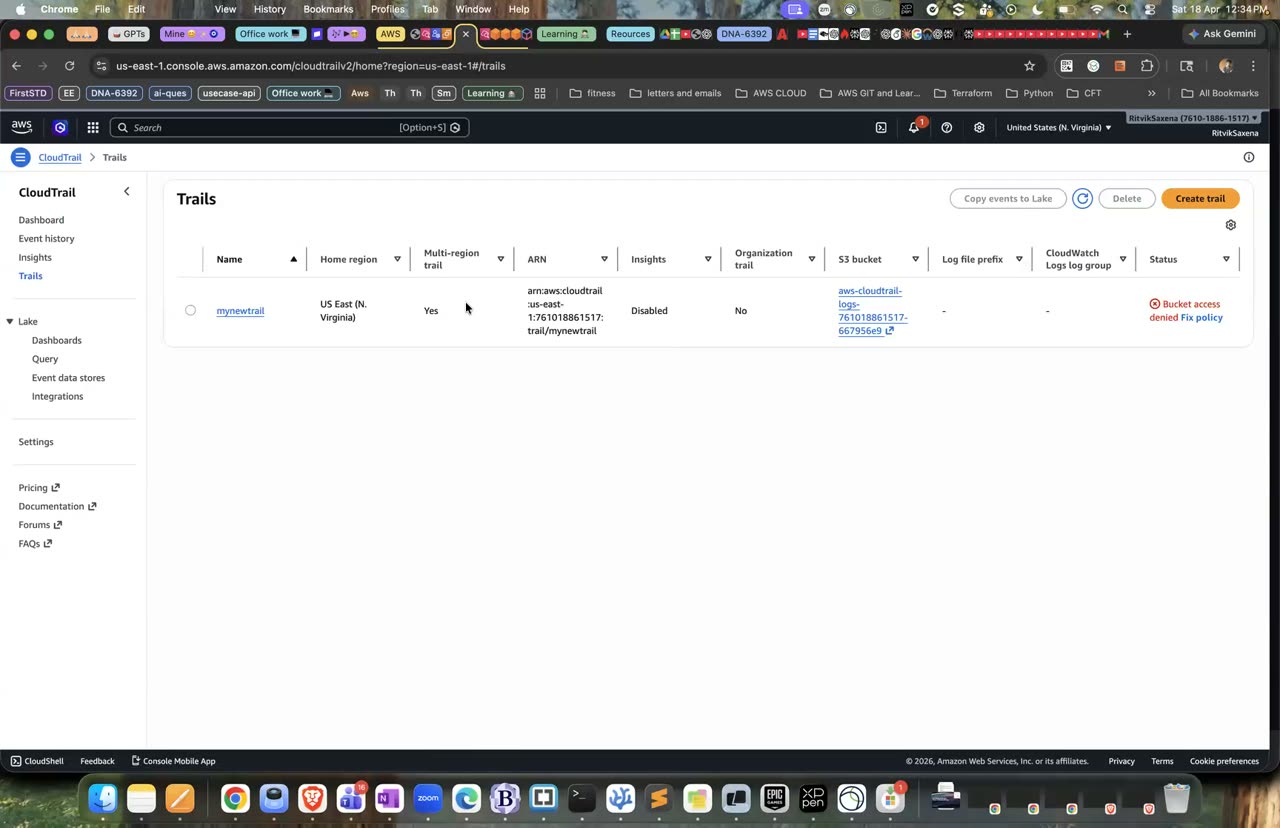
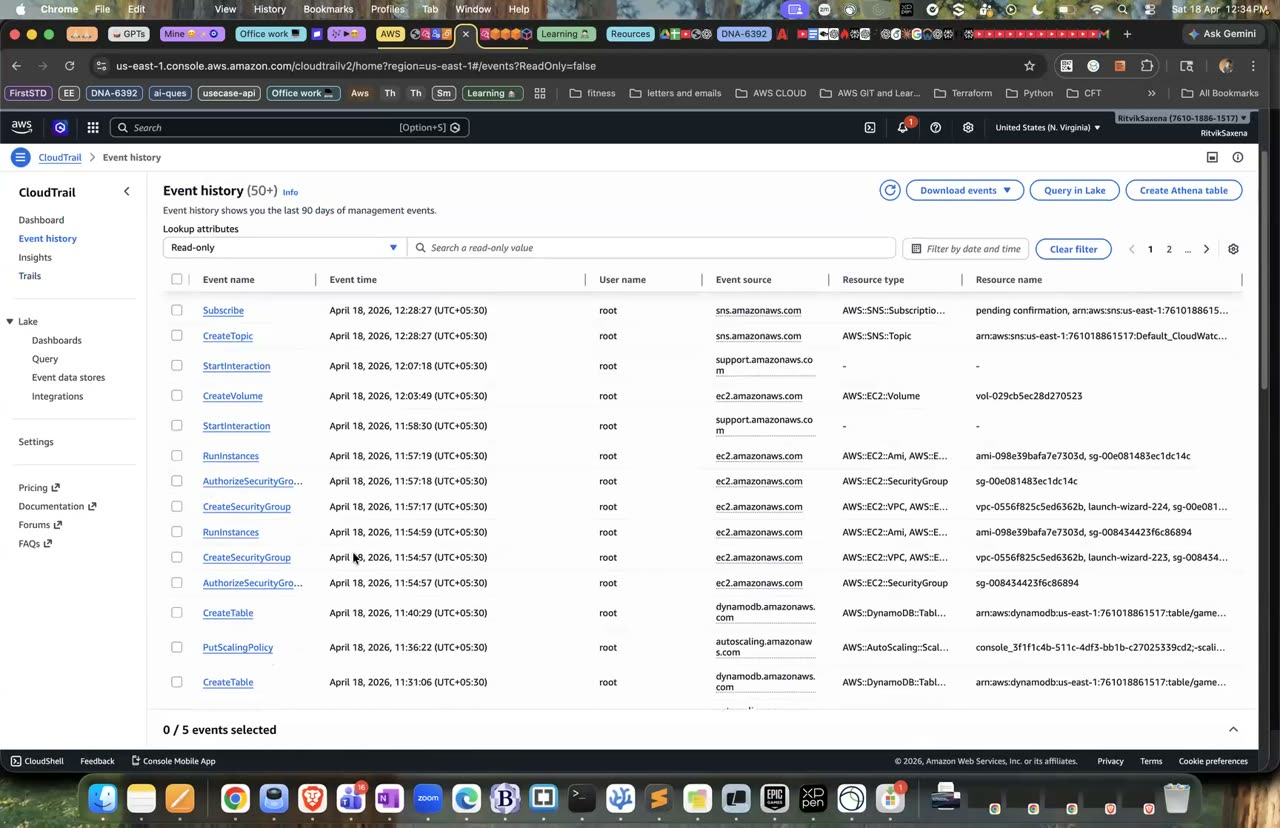
CloudTrail dashboard aur Event history — wahi console jahan tum investigation karoge.
ISO, SOC2 ya RBI guidelines jaise compliance niyamon ke liye audit logs ko saalon tak rakhna padta hai, aur unhe aisa hona chahiye ki koi unhe chupke se badal na sake. Ek trail events ko S3 mein likhta hai, aur chaaho toh CloudWatch Logs mein bhi, jahan unpe alarms lagaye ja sakte hain. Management events ki pehli copy muft hoti hai; sirf S3 storage ka thoda sa charge lagta hai.
- CloudTrail mein Trails → Create trail kholo. Naam
deepdive-trailrakho aur Create new S3 bucket chuno (default naam theek hai). Log file SSE-KMS encryption ka tick hata do, taaki KMS key ka monthly charge na lage; S3 ka default encryption phir bhi lagega. Log file validation ko Enabled rakho, CloudWatch Logs band rakho aur Next dabao. - Events mein sirf Management events chuno, Read aur Write dono rakho, Next dabao aur Create karo.
- 5–15 minute baad bucket mein
AWSLogs/<account>/CloudTrail/us-east-1/YYYY/MM/DD/*.json.gzjaise path pe files aane lagengi.
Neeche ke commands sabse nayi log file dhoondh ke download karte hain aur usme se har event ka samay, service aur naam print karte hain:
TRAIL_BUCKET=<trail bucket name>
KEY=$(aws s3api list-objects-v2 --bucket $TRAIL_BUCKET --prefix AWSLogs/$ACCOUNT_ID/CloudTrail/us-east-1/ \
  --query 'reverse(sort_by(Contents,&LastModified))[0].Key' --output text)
aws s3 cp s3://$TRAIL_BUCKET/$KEY - | gunzip | python3 -c \
  "import json,sys; [print(r['eventTime'], r['eventSource'], r['eventName']) for r in json.load(sys.stdin)['Records']]" | head -20
Log file validation chalu hone pe CloudTrail har ghante ek "digest" file likhta hai, jisme saari log files ke SHA-256 hashes hote hain aur jo digitally signed hoti hai. Agar kisi ne koi log file badli ya delete ki, toh aws cloudtrail validate-logs use pakad lega. Data events, jaise S3 ke GetObject aur PutObject ya Lambda ka Invoke, default roop se record nahi hote, kyunki inki sankhya bahut zyada hoti hai aur inka charge lagta hai; inhe sirf sensitive buckets ke liye chalu kiya jaata hai. Organization trail saare accounts ka ek hi central trail hota hai, jiske baare mein tumne Lab 1 ke Part G mein padha tha.
- Trail pe "Logging: On" dikh raha hai.
- S3 se download ki gayi log file se events print hue.
- EC2 console mein
deepdive-web-sgke Inbound rules mein ek rule jodo: Custom TCP 3306 from 0.0.0.0/0, aur Save karo. Yeh ek galat kaam hai jo tum jaan-boojh ke kar rahe ho. - Ab ek detective ki tarah 2–5 minute baad neeche wali command chalao. Yeh security group mein rules jodne wale events dhoondh ke unka samay, karne wale ka ARN, IP aur request ki details dikhati hai:
aws cloudtrail lookup-events \
  --lookup-attributes AttributeKey=EventName,AttributeValue=AuthorizeSecurityGroupIngress \
  --max-results 3 --query 'Events[].CloudTrailEvent' --output json | python3 -c "
import json, sys
for raw in json.load(sys.stdin):
    e = json.loads(raw)
    print(e['eventTime'], e['userIdentity'].get('arn'), e['sourceIPAddress'])
print(json.dumps(e['requestParameters'], indent=1)[:600])"- Ab woh rule wapas hata do. Isse bhi ek
RevokeSecurityGroupIngressevent banega; use bhi dhoondh ke dekho.
- Tumne pata laga liya ki kisne, kab, kis IP se, aur kaunsa port kiske liye khola.
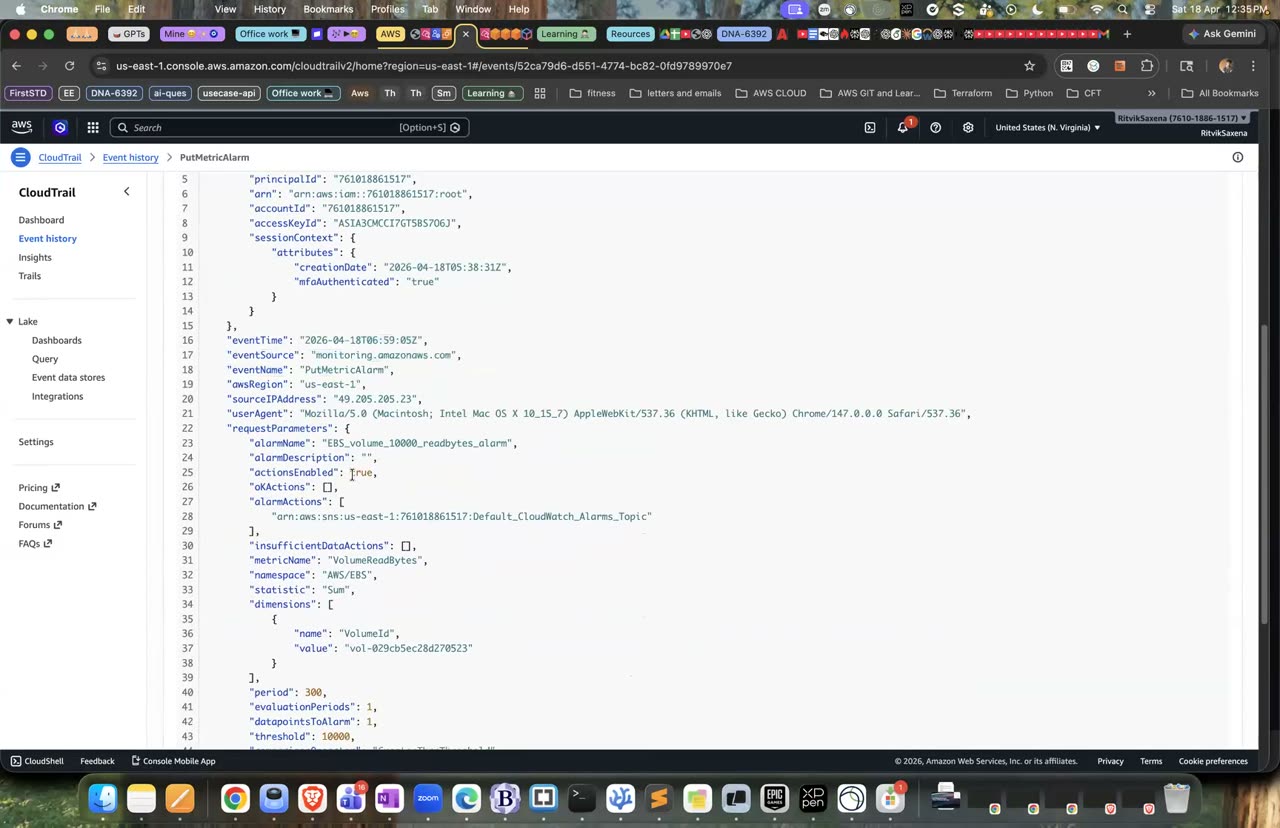
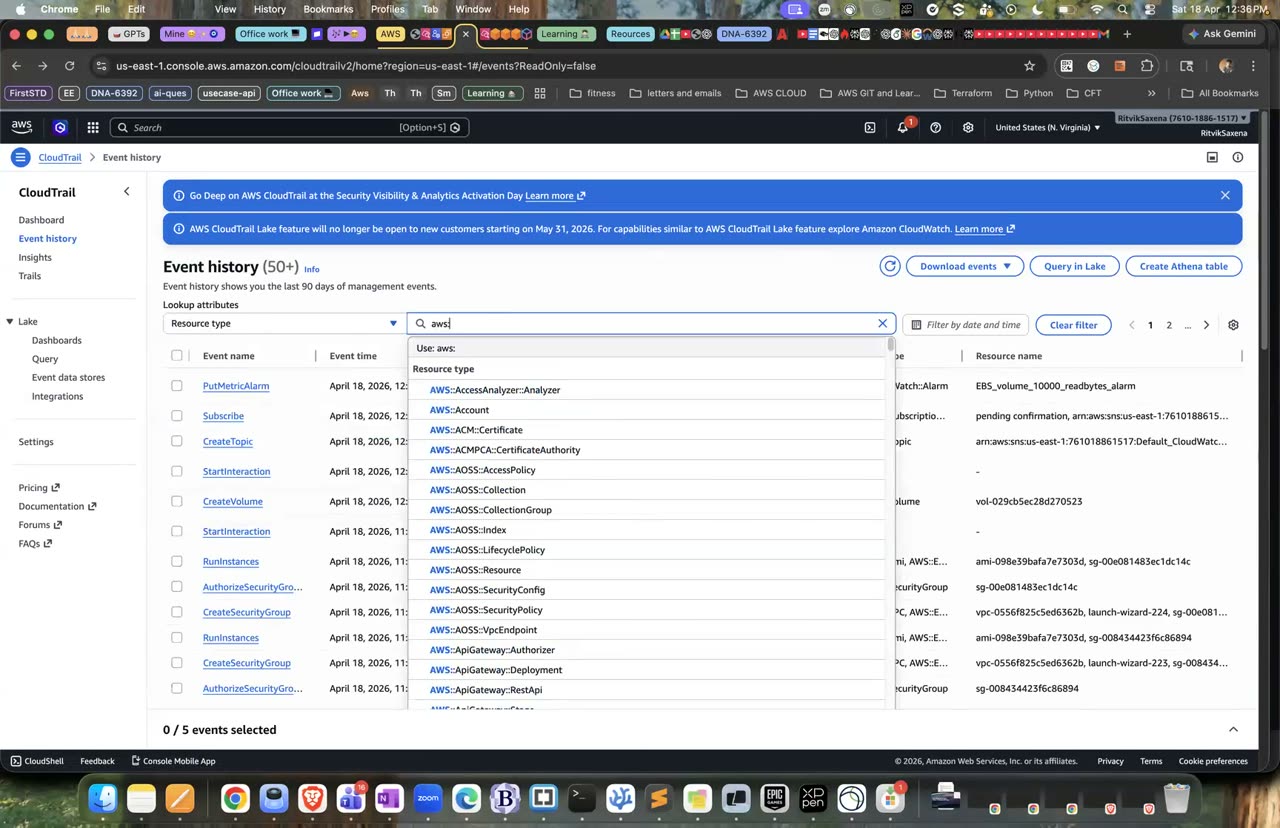
Event ka poora JSON record aur lookup-attribute filter — 'kisne kya kiya' yahin milta hai.
H Dashboard (single pane of glass)
- CloudWatch mein Dashboards → Create dashboard kholo aur naam
deepdive-opsrakho. - Ek Line widget jodo jisme AWS/EC2 ka CPUUtilization (deepdive-monitor ka) aur DeepDive/EC2 ka mem_used_percent, dono ek hi graph mein hon.
- Ek Number widget jodo jo DeepDive/Nginx ka NotFoundCount (Sum, 5 minute) dikhaye.
- Ek Alarm status widget jodo jisme deepdive-high-cpu, deepdive-many-404s aur deepdive-billing-over-5usd hon.
- Ek Logs table widget jodo: Logs Insights mein C1 wali "status count" query chalao aur "Add to dashboard" dabao.
- Ek Number widget jodo jo Billing ka Total Estimated Charge (USD) dikhaye. Dashboard us-east-1 mein hai, isliye yeh metric seedha mil jaayega.
- Ek aur Line widget jodo jisme DeepDive/App ka OrdersPlaced ho, aur dashboard ko Save karo.
Dashboard mein Actions → View/edit source kholo; tumhe dikhega ki poora dashboard ek JSON hai. Is JSON ko Git mein rakh ke CloudFormation ya CDK se deploy kiya ja sakta hai, jise "dashboards-as-code" kehte hain. Teen dashboards tak muft hain.
- Ek hi screen pe infrastructure (CPU aur memory), app (404s aur orders), alarms, logs aur kharcha, sab dikh raha hai.
Tumhare ab tak ke saare alarms server ke andar ke metrics dekhte hain. Agar nginx band ho jaaye ya security group galat ho jaaye, toh CPU normal rahega aur koi alarm nahi bajega, jabki users ke liye site down ho chuki hogi. Synthetic monitoring is kami ko poora karti hai: ek script har minute bahar se site ko ek headless browser mein kholti hai, uska screenshot leti hai, aur fail hone pe alarm bajati hai. Iska kharcha lagbhag $0.0012 per run hai.
- CloudWatch mein Application Signals → Synthetics Canaries → Create canary kholo aur Use a blueprint → Heartbeat monitoring chuno.
- Naam
deepdive-heartbeatrakho, Application endpoint meinhttp://<deepdive-monitor public IP>/daalo, aur schedule mein Run continuously, every 1 minute chuno. - Data storage ke liye S3 bucket apne aap banne do, Access mein Create a new role chuno, aur CloudWatch alarms → Add new alarm mein ek alarm jodo jo SuccessPercent 90 se kam hone pe (5 minute ke 1 mein se 1 data point) SNS topic
deepdive-ops-alertspe bheje. Phir Create canary dabao. - 2–3 minute baad canary ke runs green dikhne lagenge; har run ka screenshot aur HAR file dekho.
- Ab Session Manager se
sudo systemctl stop nginxchalao. Agle runs red ho jaayenge ("net::ERR_CONNECTION_REFUSED"), aur lagbhag 5 minute mein alarm bajega aur email aayega. Phirsudo systemctl start nginxchalao aur runs dobara green hote dekho.
- Canary ke runs Passed hain aur screenshot mein DEEPDIVE ka page dikh raha hai.
- nginx band karne pe canary Failed hua aur alarm ka email aaya, aur nginx chalu karne pe sab wapas theek ho gaya.
- Tum samjha sakte ho ki CPU wala alarm is outage ko kyun nahi pakadta.
I Incident drill, Challenge
Kisi dost se kaho (ya khud aankh band karke kisi bhi kram mein) ki neeche ki cheezon mein se koi do kare: (a) sudo systemctl stop nginx chalana, (b) laptop se 404 wala loop chalana, (c) deepdive-web-sg se HTTP wala rule hatana, ya (d) CPU pe load daalna. Phir sirf dashboard, alarms, Logs Insights aur CloudTrail ki madad se ek chhota incident report likho, jisme yeh paanch hisse hon:
- Detection: tumhe problem ka pata kaise chala (kaunse alarm ya graph se), aur kab?
- Impact: users pe kya asar pada (errors aaye ya site down rahi), aur kitni der tak?
- Root cause: asal mein kya hua aur kisne kiya (CloudTrail se saboot ke saath)?
- Fix: tumne problem ko kaise theek kiya?
- Prevention: aage aisa na ho, iske liye kaunsa naya alarm, guardrail ya automation lagaoge?
Hint: (a) aur (c) ko CPU ya 404 wale alarms nahi pakadte; inhe H2 wala Synthetics canary pakadega. Report mein yeh bhi likho ki kaunsa signal sabse pehle aaya.
Teen kaam bina steps dekhe karo. Pehla, memory ke liye ek alarm banao (DeepDive/EC2 mem_used_percent > 80), aur dhyan rakho ki dimensions bilkul match karein, kyunki agent ne InstanceId dimension joda hai. Doosra, ek composite alarm banao jo sirf tab bajta hai jab CPU zyada ho aur 404 bhi zyada hon. Teesra, CloudTrail trail ko CloudWatch Logs mein bhejo, aur ek metric filter aur alarm banao jo root user ke login ({ $.userIdentity.type = "Root" }) pe turant email bheje. Yeh CIS benchmark ka ek asli security control hai.
- Metrics, logs, alarms aur dashboards ko ek-ek sentence mein samjhao.
- EC2 ka memory metric default roop se kyun nahi aata, aur use kaise laoge?
- Kisi metric ke namespace, dimension, statistic aur period ka kya matlab hai?
- Ek log line se alarm tak ka raasta kya hai (metric filter ke through)?
- Budgets, Cost Explorer aur billing alarm mein kya farak hai?
- Cost allocation tags kya hote hain, aur unhe activate kyun karna padta hai?
- CloudTrail ki event history aur trail mein kya farak hai? Management events aur data events mein kya farak hai? Log file validation kya saabit karta hai?
- Agar poochha jaaye "production database kisne delete kiya?", toh tum kadam-dar-kadam kaise pata lagaoge?
- EC2:
deepdive-monitorko terminate karo, aur confirm karo kideepdive-web-sgse port 3306 wala rule hat chuka hai. - Alarms:
aws cloudwatch delete-alarms --alarm-names deepdive-high-cpu deepdive-many-404schalao. Billing wala alarm rakhna. - Logs: log groups
/deepdive/nginx/accessaur/deepdive/nginx/errordelete karo; metric filter bhi inke saath chala jaayega. - SNS:
deepdive-ops-alertstopic delete karo. Billing wala topic rakhna. - Synthetics: canary
deepdive-heartbeatko pehle Stop karo aur phir Delete karo; delete karte waqt uske Lambda aur S3 artifacts bhi delete karne ka option chuno. Canary ka alarm bhi delete karo. - Budget action test:
deepdive-freeze-testbudget delete karo.DeepdiveBudgetFreezepolicy ko (agar kahin lagi hai toh pehle hata ke) aurdeepdive-budgets-action-rolerole ko delete karo. Compute Optimizer ko chalu rehne do, kyunki woh muft hai. - Dashboard: ise rakh sakte ho (teen tak muft hain) ya delete kar sakte ho.
- CloudTrail: trail ko rakhna hi achha hai, kyunki management events muft hain aur S3 ka kharcha kuch cents ka hai. Agar hatana ho, toh trail delete karo aur phir uska bucket khaali karke delete karo.
- Hamesha ke liye rakho: budgets, billing alarm, root user ka MFA aur cost allocation tag.
- Poore course ke baad ek aakhri jaanch: us-east-1 mein har console check karo — EC2 (instances, volumes, snapshots, Elastic IPs, load balancers), VPC (NAT gateways), RDS, EFS, ECS, EKS, SageMaker, CloudFront aur S3. Agle do din Cost Explorer mein kharcha lagbhag $0 dikhna chahiye.