Private EC2 access: bastion host vs Session Manager
Private servers tak pahunchne ka purana tareeka (bastion + SSH) aur naya (Session Manager, zero open ports).
Ops team ko logs dekhne aur debugging ke liye private subnet ke servers pe login karna padta hai. Kabhi-kabhi unhe ek private admin page (port 80) bhi apne laptop ke browser mein kholna padta hai. Abhi yeh kaam ek bastion host se hota hai, jiska port 22 internet pe khula hai, aur SSH keys Slack pe share ki jaati hain. Security audit ne ise "High risk" bataya hai. Tumhe dono tareeke chala ke dikhane hain: purana tareeka (bastion) aur naya tareeka (Session Manager, jisme koi inbound port nahi khulta, koi key nahi chahiye, aur poora audit milta hai). Uske baad bastion ko hata dena hai.
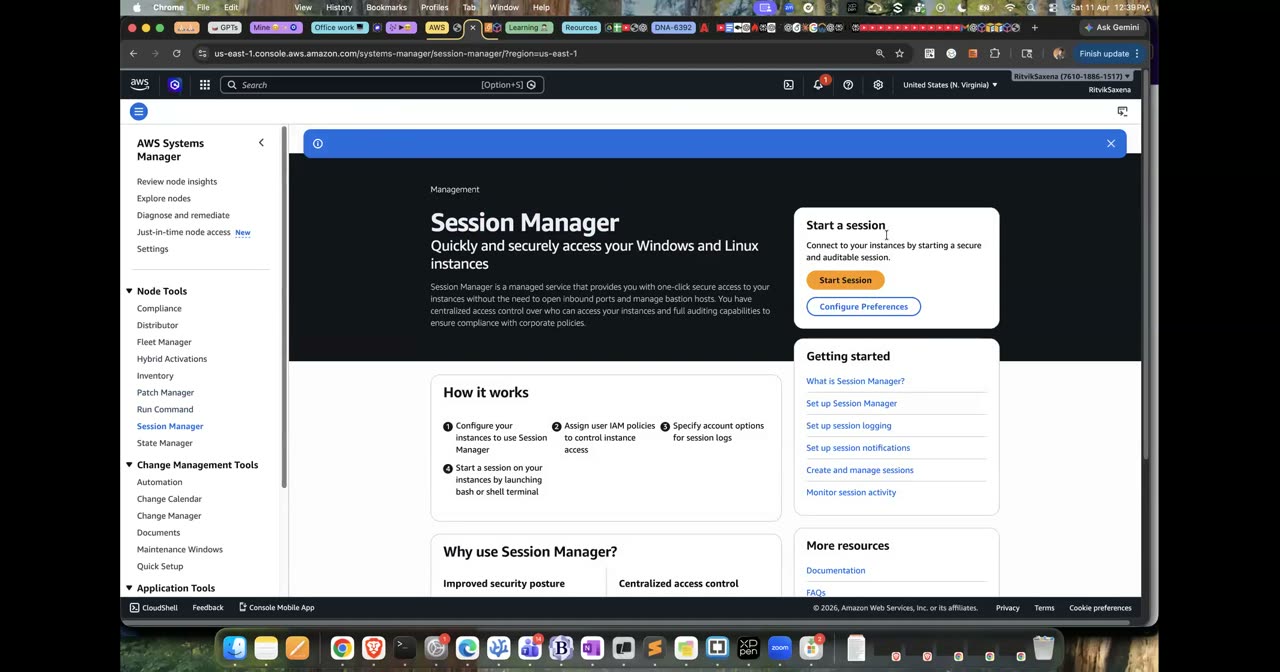
Session Manager ka console — bastion wala hissa course mein nahi tha.
- Ek VPC banana hai jisme public aur private subnet ho, aur private app server (nginx) bina public IP ke chale.
- Part A: laptop se ek hi command (
ssh app-private) se bastion ke through app server pe SSH hona chahiye, aur SSH tunnel se laptop ke browser mein app ka page (localhost:8080) khulna chahiye. - Part B: yahi dono kaam Session Manager se karne hain: shell aur port forwarding.
- Part C: bastion ko terminate karna hai aur saare SGs se port 22 hatana hai, phir bhi access chalna chahiye. Saath hi sessions ka audit trail dikhana hai.
- SSH ka
ProxyJump(-J) option ek host ke through doosre host tak pahunchata hai. Ise~/.ssh/configmein likh do. - SSH tunnel ke liye
ssh -L 8080:<APP_PRIVATE_IP>:80 bastionuse hota hai. - Laptop pe Session Manager plugin chahiye, jo
brew install --cask session-manager-pluginse install hota hai. - Port forwarding ke liye do documents hain:
AWS-StartPortForwardingSessionaurAWS-StartPortForwardingSessionToRemoteHost.
Guided solution dekho (pehle khud try karo!)
Pehle region, folder aur AMI ID set hote hain, aur tumhare laptop ka public IP (MYIP) nikaala jaata hai, taaki bastion ka port 22 sirf tumhare liye khule.
Phir ops-vpc (10.90.0.0/16) banta hai, jisme ek public aur ek private subnet hota hai. Public subnet ke liye internet gateway aur route table banti hai. Private subnet ke liye NAT Gateway aur uski route table banti hai, taaki private server bahar ja sake (packages install karne ke liye, aur Session Manager agent ko AWS se baat karne ke liye).
Uske baad do SGs bante hain. Bastion SG pe port 22 sirf tumhare IP se khula hai. App SG pe port 22 aur port 80 sirf bastion SG se khule hain.
Phir app server ke liye ek chhoti user-data file banti hai, jo nginx install karke ek admin page lagati hai. Bastion public subnet mein launch hota hai. App server private subnet mein role ke saath launch hota hai; role Session Manager ke liye zaroori hai. Dono pe Lab 2 wali key lagti hai. Aakhir mein bastion ka public IP aur app ka private IP print hote hain.
export AWS_DEFAULT_REGION=us-east-1 TYPE=t3.micro
mkdir -p ~/deepdive/scn5 && cd ~/deepdive/scn5
AMI_ID=$(aws ssm get-parameter --name /aws/service/ami-amazon-linux-latest/al2023-ami-kernel-default-x86_64 --query Parameter.Value --output text)
MYIP=$(curl -s https://checkip.amazonaws.com)/32

VPC=$(aws ec2 create-vpc --cidr-block 10.90.0.0/16 --tag-specifications 'ResourceType=vpc,Tags=[{Key=Name,Value=ops-vpc},{Key=Project,Value=deepdive-scn5}]' --query Vpc.VpcId --output text)
PUB=$(aws ec2 create-subnet --vpc-id $VPC --cidr-block 10.90.1.0/24 --availability-zone us-east-1a --query Subnet.SubnetId --output text)
PRIV=$(aws ec2 create-subnet --vpc-id $VPC --cidr-block 10.90.2.0/24 --availability-zone us-east-1a --query Subnet.SubnetId --output text)
aws ec2 modify-subnet-attribute --subnet-id $PUB --map-public-ip-on-launch
IGW=$(aws ec2 create-internet-gateway --query InternetGateway.InternetGatewayId --output text)
aws ec2 attach-internet-gateway --internet-gateway-id $IGW --vpc-id $VPC
PUB_RT=$(aws ec2 create-route-table --vpc-id $VPC --query RouteTable.RouteTableId --output text)
aws ec2 create-route --route-table-id $PUB_RT --destination-cidr-block 0.0.0.0/0 --gateway-id $IGW >/dev/null
aws ec2 associate-route-table --route-table-id $PUB_RT --subnet-id $PUB >/dev/null
EIP=$(aws ec2 allocate-address --query AllocationId --output text)
NAT=$(aws ec2 create-nat-gateway --subnet-id $PUB --allocation-id $EIP --query NatGateway.NatGatewayId --output text)
aws ec2 wait nat-gateway-available --nat-gateway-ids $NAT
PRIV_RT=$(aws ec2 create-route-table --vpc-id $VPC --query RouteTable.RouteTableId --output text)
aws ec2 create-route --route-table-id $PRIV_RT --destination-cidr-block 0.0.0.0/0 --nat-gateway-id $NAT >/dev/null
aws ec2 associate-route-table --route-table-id $PRIV_RT --subnet-id $PRIV >/dev/null

BASTION_SG=$(aws ec2 create-security-group --vpc-id $VPC --group-name bastion-sg --description bastion --query GroupId --output text)
APP_SG=$(aws ec2 create-security-group --vpc-id $VPC --group-name app-sg --description app --query GroupId --output text)
aws ec2 authorize-security-group-ingress --group-id $BASTION_SG --protocol tcp --port 22 --cidr $MYIP >/dev/null
aws ec2 authorize-security-group-ingress --group-id $APP_SG --protocol tcp --port 22 --source-group $BASTION_SG >/dev/null
aws ec2 authorize-security-group-ingress --group-id $APP_SG --protocol tcp --port 80 --source-group $BASTION_SG >/dev/null

printf '#!/bin/bash\ndnf install -y nginx\necho "<h1>Private admin page on $(hostname)</h1>" > /usr/share/nginx/html/index.html\nsystemctl enable --now nginx\n' > app-userdata.sh
BASTION=$(aws ec2 run-instances --image-id $AMI_ID --instance-type $TYPE --subnet-id $PUB --security-group-ids $BASTION_SG \
  --key-name deepdive-key --tag-specifications 'ResourceType=instance,Tags=[{Key=Name,Value=ops-bastion}]' \
  --query 'Instances[0].InstanceId' --output text)
read APP APP_IP <<< "$(aws ec2 run-instances --image-id $AMI_ID --instance-type $TYPE --subnet-id $PRIV --security-group-ids $APP_SG \
  --key-name deepdive-key --iam-instance-profile Name=deepdive-ec2-role --user-data file://app-userdata.sh \
  --tag-specifications 'ResourceType=instance,Tags=[{Key=Name,Value=ops-app}]' \
  --query 'Instances[0].[InstanceId,PrivateIpAddress]' --output text)"
aws ec2 wait instance-running --instance-ids $BASTION $APP
BASTION_IP=$(aws ec2 describe-instances --instance-ids $BASTION --query 'Reservations[0].Instances[0].PublicIpAddress' --output text)
echo "bastion=$BASTION_IP  app=$APP ($APP_IP)"
deepdive-key woh key hai jo tumne Lab 2 ke step A1 mein banayi thi, aur woh ~/.ssh/deepdive-key.pem pe honi chahiye.
Yeh block tumhari ~/.ssh/config file mein do entries jodta hai. ops-bastion bastion ka public IP aur key batati hai. app-private app ka private IP batati hai aur kehti hai ki wahan bastion ke through (ProxyJump) jaana hai.
Phir ssh app-private hostname ek hi command mein bastion ke through private server pe command chalata hai. Uske baad background mein ek SSH tunnel chalu hota hai, jo laptop ke port 8080 ko app server ke port 80 se jodta hai. curl localhost:8080 se private admin page laptop pe aa jaata hai, aur aakhir mein tunnel band kar diya jaata hai.
cat >> ~/.ssh/config <<EOF

Host ops-bastion
  HostName $BASTION_IP
  User ec2-user
  IdentityFile ~/.ssh/deepdive-key.pem

Host app-private
  HostName $APP_IP
  User ec2-user
  IdentityFile ~/.ssh/deepdive-key.pem
  ProxyJump ops-bastion
EOF

ssh app-private hostname                       # bastion ke through private server pe command
ssh -N -L 8080:$APP_IP:80 ops-bastion &         # tunnel background mein
sleep 3 && curl -s localhost:8080               # laptop pe private admin page
kill %1                                         # tunnel band
Yeh tareeka kaam karta hai, lekin iski teen kamiyan hain. Bastion ka port 22 internet pe khula hai. Private key laptop pe rehti hai, aur har ops engineer ke paas uski ek copy hoti hai. Aur server pe kisne kya chalaya, iska koi central record nahi hota.
Pehle laptop pe Session Manager plugin install karke uska version check karo. Phir start-session se private server ka shell kholo; isme koi key ya port nahi chahiye. Shell ke andar whoami aur curl -s localhost chala ke exit karo. Uske baad port forwarding session chalao, jo laptop ke port 8081 ko server ke port 80 se jodta hai. Session chalte hue doosre terminal mein curl chala ke page dekho, aur Ctrl+C se session band karo.
brew install --cask session-manager-plugin
session-manager-plugin --version

aws ssm start-session --target $APP             # private server ka shell — koi key nahi, koi port nahi
#   (andar: whoami; curl -s localhost; exit)

aws ssm start-session --target $APP --document-name AWS-StartPortForwardingSession \
  --parameters '{"portNumber":["80"],"localPortNumber":["8081"]}'
#   doosre terminal mein: curl -s localhost:8081     (Ctrl+C se band)
Remote host forwarding mein app server ko ek "jump" ki tarah use kiya jaata hai, taaki uske network se kisi aur private cheez tak pahuncha ja sake, jaise Lab 3 ka private RDS. Neeche ki command demo ke liye app server ke hi IP ko remote host bana ke laptop ke port 8082 se jodti hai:
aws ssm start-session --target $APP --document-name AWS-StartPortForwardingSessionToRemoteHost \
  --parameters "{\"host\":[\"$APP_IP\"],\"portNumber\":[\"80\"],\"localPortNumber\":[\"8082\"]}"
#   RDS ke liye: host = RDS endpoint, portNumber = 5432 → laptop ka psql localhost:5432 se connect
Bonus: port 22 khole bina SSH. scp ya VS Code Remote jaise tools ko SSH chahiye hota hai. Neeche ki entry ~/.ssh/config mein jodti hai ki i- se shuru hone wale kisi bhi host ke liye SSH connection Session Manager ke through jaaye. Phir instance ID se seedha ssh chalaya jaata hai:
cat >> ~/.ssh/config <<'EOF'

Host i-*
  User ec2-user
  IdentityFile ~/.ssh/deepdive-key.pem
  ProxyCommand sh -c "aws ssm start-session --target %h --document-name AWS-StartSSHSession --parameters 'portNumber=%p'"
EOF
ssh $APP hostnameSession Manager se bina SSH ke instance ke andar jaana — is scenario ka Part B yahi hai.
Yeh block bastion ko terminate karta hai aur app SG se port 22 aur port 80, dono rules hata deta hai. Phir SG ke rules print hote hain, jo khaali ([]) hone chahiye. Aakhir mein Session Manager se dobara login karke dikhaya jaata hai ki access ab bhi chal raha hai:
aws ec2 terminate-instances --instance-ids $BASTION >/dev/null
aws ec2 revoke-security-group-ingress --group-id $APP_SG --protocol tcp --port 22 --source-group $BASTION_SG
aws ec2 revoke-security-group-ingress --group-id $APP_SG --protocol tcp --port 80 --source-group $BASTION_SG
aws ec2 describe-security-groups --group-ids $APP_SG --query 'SecurityGroups[0].IpPermissions'   # []
aws ssm start-session --target $APP # ab bhi chalega- EC2 → bastion select karo → Instance state → Terminate.
- app-sg kholo → Inbound rules → port 22 aur port 80 wale rows select karke Delete → Save.
- App instance → Connect → Session Manager tab → Connect (yahi ab bhi kaam karega, bina bastion ke).
Audit ke liye Systems Manager mein Session Manager → Session history kholo, jahan dikhta hai ki kisne, kab aur kis instance pe session chalaya. CloudTrail mein bhi StartSession events milenge. Agar tumhe har command ka record chahiye, toh Session Manager ki Preferences mein CloudWatch logging chalu karo; tab har session ka poora transcript ek log group mein save hoga. Access ko IAM se control kiya jaata hai, jaise kisi user ko sirf tagged instances pe ssm:StartSession ki permission dena.
✓ Verification tests
- Part A mein
ssh app-private hostnameaur tunnel ke throughlocalhost:8080, dono chale. - Part B mein SSM shell aur port forwarding (
localhost:8081), dono bina key aur bina port ke chale. - Part C mein app-sg ke inbound rules khaali hain aur bastion terminate ho chuka hai, phir bhi
aws ssm start-sessionchal gaya. - Session history mein tumhare sessions dikh rahe hain.
Private route table se NAT wala route hata do. Kuch minute mein Session Manager "TargetNotConnected" dikhane lagega. Iski wajah yeh hai ki server ke agent ko AWS ki APIs (ssm, ssmmessages aur ec2messages) tak port 443 pe bahar jaana padta hai, aur iske liye NAT ya VPC interface endpoints (Lab 4 ka Part J) chahiye. Route wapas laga do.
Ek IAM policy likho jo "junior-ops" user ko sirf Env=dev tag wale instances pe session shuru karne de, aur kisi bhi instance pe port forwarding na karne de. Hint: ssm:StartSession ke Resource mein document ka ARN bhi aata hai, jaise arn:aws:ssm:*:*:document/AWS-StartPortForwardingSession.
Yeh commands app server ko terminate karti hain, NAT Gateway delete karti hain, aur uske hat jaane ke baad Elastic IP chhod deti hain:
aws ec2 terminate-instances --instance-ids $APP >/dev/null
aws ec2 delete-nat-gateway --nat-gateway-id $NAT >/dev/null
aws ec2 wait nat-gateway-deleted --nat-gateway-ids $NAT && aws ec2 release-address --allocation-id $EIP
~/.ssh/config se ops-bastion aur app-private wale blocks hata do. Phir console se ops-vpc delete kar do.