Troubleshooting: tooti hui network theek karo
CloudFormation ek jaan-boojh ke broken network banata hai. 5+ faults dhoondo aur fix karo — bina hints ke try karo.
Monday subah yeh ticket aata hai: "Naya 'broken-vpc' environment deploy hua hai, lekin website nahi khul rahi. Web server ko app server se bhi baat karni hai, aur woh bhi fail ho raha hai. Pichhla engineer chhutti pe hai. Please EOD tak theek kar do." Tumhe ek CloudFormation template milta hai jo yeh environment banata hai, aur isme jaan-boojh ke kai galtiyan rakhi gayi hain. Template ka code padh ke galtiyan mat dhoondhna. Ek asli engineer ki tarah AWS ke tools se problem pakdo.
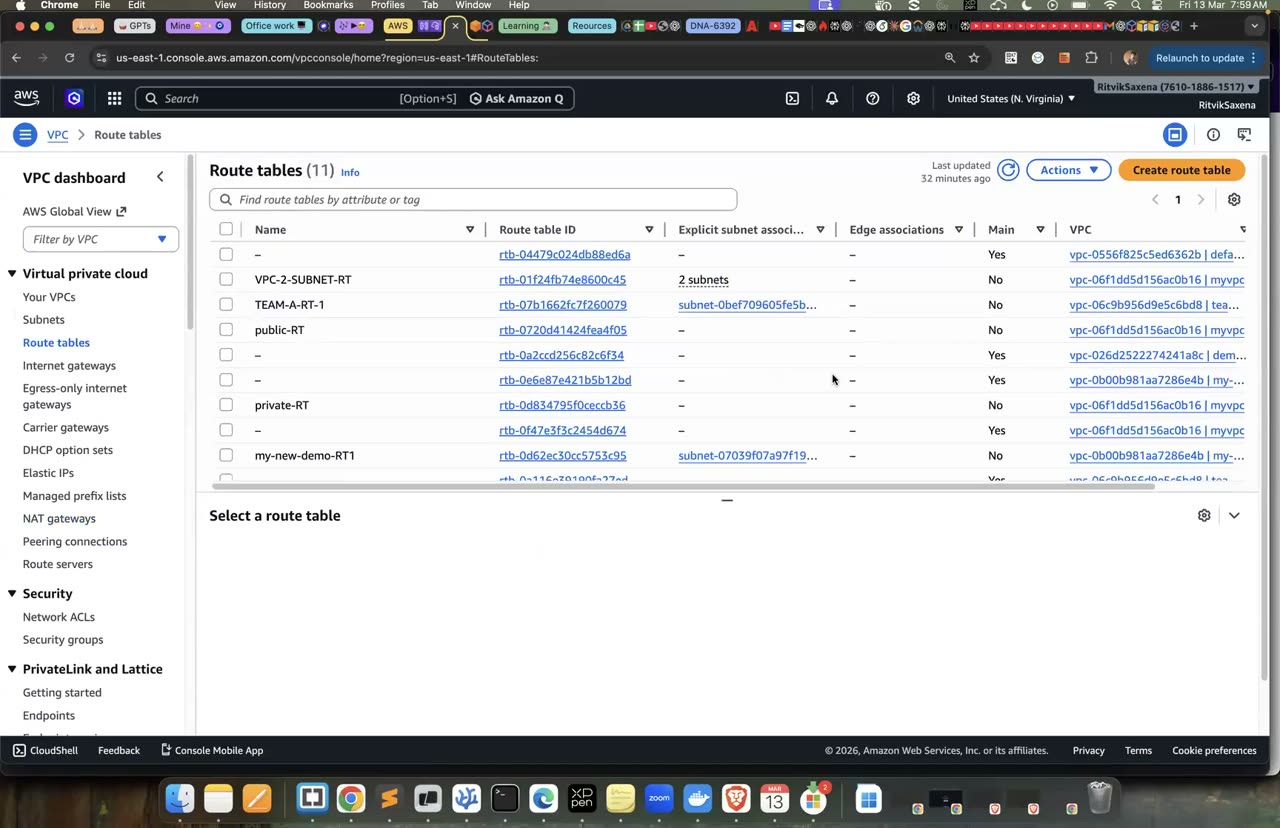
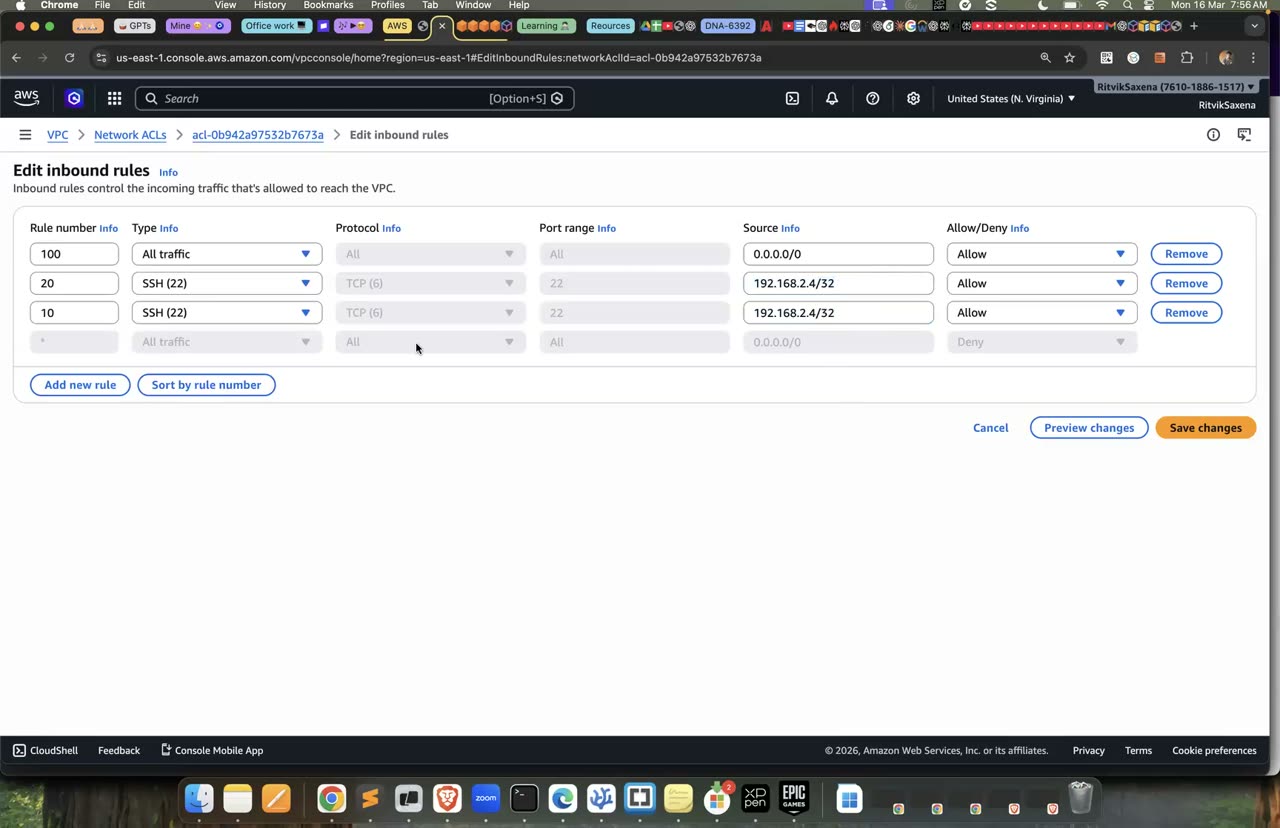
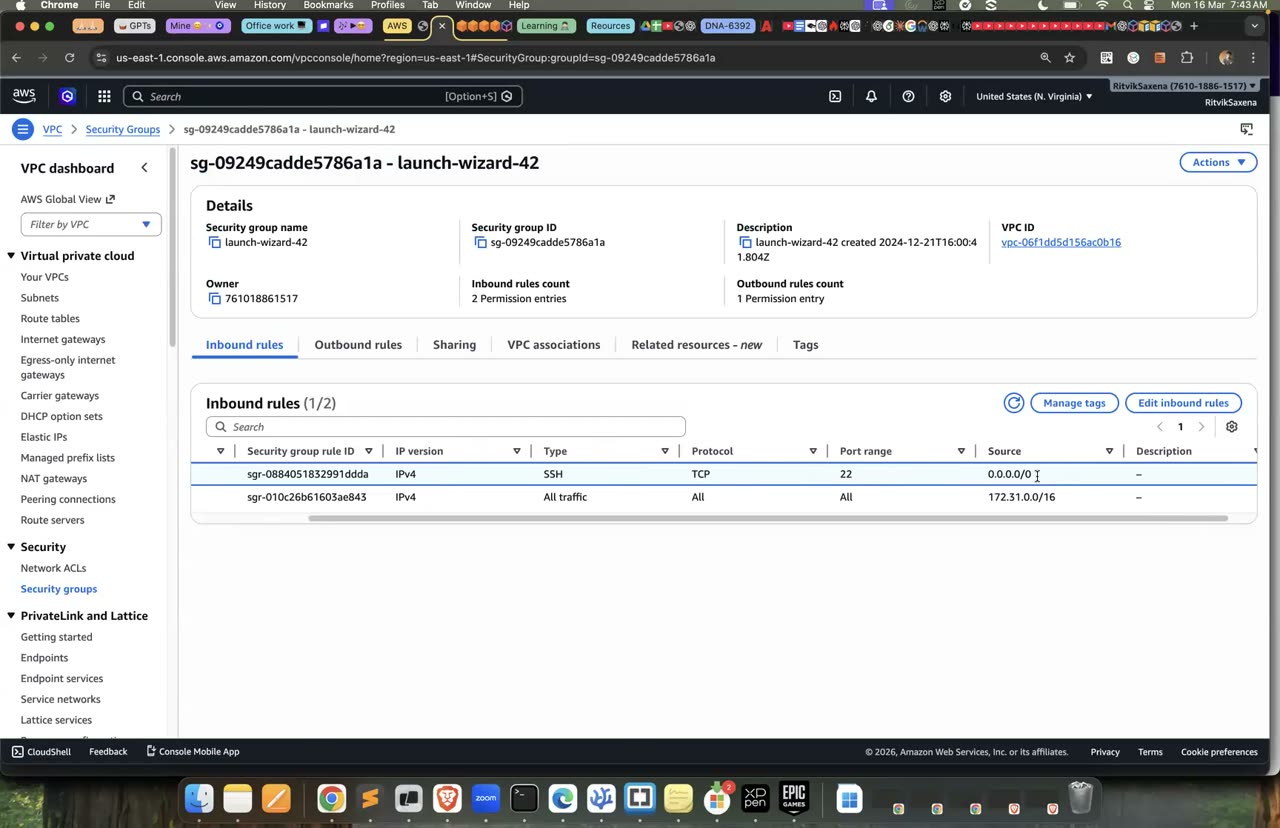
Route table, NACL aur SG rules ka wahi console jahan is scenario ke faults chhupe hain — Reachability Analyzer course mein nahi tha, isliye woh screen nahi hai.
- Browser mein
http://<web public IP>/khulna chahiye aur "App reachable: OK" dikhna chahiye. - Har galti (fault) ke liye teen cheezein likhni hain: symptom kya tha, use kaise pakda (kaunse tool ya saboot se), aur fix kya kiya.
- Fixes mein least privilege bana rehna chahiye. Jaise, app ko 0.0.0.0/0 se khol dena "fix" nahi maana jaayega.
- Bonus: web server pe Session Manager bhi kaam karna chahiye.
Template yahan se download karo: broken-network.yaml. Yeh site ke folder mein deepdive/scenarios/broken-network.yaml pe bhi hai. Is template ko Lab 1 wala deepdive-ec2-role chahiye.
Neeche ki commands stack banati hain aur uske poora banne ka intezaar karti hain. Phir stack ke outputs ki table dikhayi jaati hai, aur ek loop har output (VPC, IGW, instances, route table, NACL aur SGs ke IDs) ko usi naam ke environment variable mein daal deta hai:
export AWS_DEFAULT_REGION=us-east-1
mkdir -p ~/deepdive/scn9 && cd ~/deepdive/scn9      # yaml file yahan rakho
aws cloudformation create-stack --stack-name broken-network --template-body file://broken-network.yaml
aws cloudformation wait stack-create-complete --stack-name broken-network
aws cloudformation describe-stacks --stack-name broken-network --query 'Stacks[0].Outputs' --output table
for k in VpcId IgwId WebInstanceId AppInstanceId AppPrivateIp PublicRouteTableId PublicNaclId WebSgId AppSgId; do
  export $k=$(aws cloudformation describe-stacks --stack-name broken-network \
    --query "Stacks[0].Outputs[?OutputKey=='$k'].OutputValue" --output text)
done
echo $WebInstanceId $AppInstanceId- Stack CREATE_COMPLETE ho gaya, aur saare outputs variables mein aa gaye.
- Reachability Analyzer (VPC console → Network Analysis) source se destination tak ka raasta check karta hai aur batata hai ki kaunsa component traffic rok raha hai. CLI mein iske liye
create-network-insights-pathaurstart-network-insights-analysisuse hote hain. Har analysis ka lagbhag $0.10 lagta hai. Dono directions check karo, kyunki reply ka raasta bhi maayne rakhta hai. - Har hop pe yeh checklist chalao: public IP hai ya nahi? Route table sahi hai? NACL ka inbound aur outbound sahi hai (NACL stateless hota hai)? SG sahi hai? Process us port pe sun raha hai?
- Kuch settings sirf naye resources pe lagti hain, pehle se bane resources pe nahi.
- Kam se kam 5 galtiyan hain, aur ek bonus galti Session Manager se judi hai.
Neeche ka analyze function source, destination aur port lekar Reachability Analyzer ka ek path banata hai aur uska analysis shuru karta hai. Analysis khatam hone tak har 5 second mein status check hota hai. Phir function batata hai ki raasta mila ya nahi (PathFound), aur agar nahi mila toh kaunse component ne kis wajah (explanation code) se roka. Function teen raaston pe chalaya jaata hai: internet se web tak, web se internet tak (reply aur bahar jaane ka raasta), aur web se app tak.
analyze() {  # source destination port
  local P A
  P=$(aws ec2 create-network-insights-path --source $1 --destination $2 --protocol tcp --destination-port $3 \
      --query NetworkInsightsPath.NetworkInsightsPathId --output text)
  A=$(aws ec2 start-network-insights-analysis --network-insights-path-id $P \
      --query NetworkInsightsAnalysis.NetworkInsightsAnalysisId --output text)
  until [ "$(aws ec2 describe-network-insights-analyses --network-insights-analysis-ids $A --query 'NetworkInsightsAnalyses[0].Status' --output text)" != running ]; do sleep 5; done
  aws ec2 describe-network-insights-analyses --network-insights-analysis-ids $A \
    --query 'NetworkInsightsAnalyses[0].{PathFound:NetworkPathFound,Why:Explanations[].{Code:ExplanationCode,Component:Component.Id}}' --output json
}
analyze $IgwId $WebInstanceId 80          # internet → web
analyze $WebInstanceId $IgwId 443         # web → internet (return/outbound path)
analyze $WebInstanceId $AppInstanceId 8080  # web → app
Yahi analyses console mein bhi kholo. Wahan graphical raaste mein har component (IGW, route table, NACL, SG aur ENI) hara ya laal dikhta hai. Ek galti theek karo, analysis dobara chalao, aur phir agli galti pe jao. Har finding apne notes mein likhte jao.
- Teeno raaston ka pehla nateeja "PathFound: false" aaya, aur tumne explanation codes note kar liye.
Faults + fixes (pehle khud dhoondo!)
Symptom: web se IGW tak ka raasta fail hota hai, aur explanation route table ki taraf ishaara karta hai. Iska matlab hai ki "public" subnet asal mein public hai hi nahi.
Fix: yeh command public route table mein "0.0.0.0/0 internet gateway se" wala route jodti hai:
aws ec2 create-route --route-table-id $PublicRouteTableId --destination-cidr-block 0.0.0.0/0 --gateway-id $IgwId- Public route table kholo → Routes tab → Edit routes → Add route → destination
0.0.0.0/0, target Internet Gateway chuno → Save.
Symptom: instance ka Public IPv4 khaali hai. Subnet mein MapPublicIpOnLaunch: false tha, aur ise ab true karne se pehle se chal rahe instance ko IP nahi milega.
Fix: yeh commands ek Elastic IP leti hain, use web instance se jodti hain, aur us IP ko WEB_IP mein rakh ke print karti hain:
EIP_ALLOC=$(aws ec2 allocate-address --query AllocationId --output text)
aws ec2 associate-address --instance-id $WebInstanceId --allocation-id $EIP_ALLOC
WEB_IP=$(aws ec2 describe-addresses --allocation-ids $EIP_ALLOC --query 'Addresses[0].PublicIp' --output text); echo $WEB_IP- EC2 → Elastic IPs → Allocate Elastic IP address → Allocate.
- Naye IP ko select karo → Actions → Associate Elastic IP address → resource type Instance, web instance chuno → Associate.
Symptom: IGW se web ke port 80 tak ka analysis security group pe ruk jaata hai.
Fix: pehli command web SG se galat rule (port 8080) hatati hai, aur doosri sahi rule (port 80) jodti hai:
aws ec2 revoke-security-group-ingress --group-id $WebSgId --protocol tcp --port 8080 --cidr 0.0.0.0/0
aws ec2 authorize-security-group-ingress --group-id $WebSgId --protocol tcp --port 80 --cidr 0.0.0.0/0- web-sg kholo → Inbound rules → Edit → 8080 wala row Delete karo, Add rule se HTTP (80) source 0.0.0.0/0 jodo → Save.
Symptom: inbound mein sab allowed dikhta hai, phir bhi browser timeout ho jaata hai. NACL stateless hota hai, isliye client ko reply bhejne ke liye (web ke port 80 se client ke ephemeral port tak) alag outbound rule chahiye. Public NACL ke outbound mein sirf VPC ki taraf port 8080 allowed tha.
Fix: yeh command NACL ke outbound mein rule number 110 jodti hai, jo ephemeral ports (1024–65535) pe har jagah jaane wale reply allow karta hai:
aws ec2 create-network-acl-entry --network-acl-id $PublicNaclId --egress --rule-number 110 \
--protocol tcp --port-range From=1024,To=65535 --cidr-block 0.0.0.0/0 --rule-action allow- Network ACLs → public NACL kholo → Outbound rules → Edit → Add new rule: rule number 110, type Custom TCP, port range 1024-65535, destination 0.0.0.0/0, action Allow → Save.
Symptom: web se app ke port 8080 tak ka analysis app ke SG pe fail hota hai, aur page pe "App unreachable: FAIL timed out" dikhta hai.
Fix: pehli command app SG se galat CIDR wala rule hatati hai. Doosri command port 8080 sirf web SG ke liye kholti hai, jo least privilege ke hisaab se sahi fix hai:
aws ec2 revoke-security-group-ingress --group-id $AppSgId --protocol tcp --port 8080 --cidr 10.99.0.0/16
aws ec2 authorize-security-group-ingress --group-id $AppSgId --protocol tcp --port 8080 --source-group $WebSgId- app-sg kholo → Inbound rules → Edit → 10.99.0.0/16 wala row Delete, Add rule se Custom TCP 8080, source Custom → dropdown se
web-sgchuno → Save.
Symptom: sab kuch theek karne ke baad bhi web "SSM: not connected" dikhata hai. Agent ko AWS APIs tak bahar jaane wala HTTPS (port 443) chahiye, lekin NACL ke outbound mein 443 allowed nahi hai (sirf 8080 aur ephemeral ports hain). Web se IGW ke port 443 tak ka analysis NACL pe rukta hai.
Fix: yeh command NACL ke outbound mein rule number 120 jodti hai, jo port 443 pe bahar jaana allow karta hai:
aws ec2 create-network-acl-entry --network-acl-id $PublicNaclId --egress --rule-number 120 \
  --protocol tcp --port-range From=443,To=443 --cidr-block 0.0.0.0/0 --rule-action allow
Agent ko dobara connect hone mein 1–5 minute lag sakte hain. Agar phir bhi connect na ho, toh instance ko reboot kar do.
✓ Verification tests
Pehli command web page laati hai, jisme "App reachable: OK" dikhna chahiye. Baaki do commands wahi analyses dobara chalati hain, jo ab paas hone chahiye:
curl -s http://$WEB_IP/          # <h1>Web tier OK</h1><p>App reachable: OK {"service": "app", "status": "ok"}</p>
analyze $IgwId $WebInstanceId 80
analyze $WebInstanceId $AppInstanceId 8080- Browser ya curl mein "App reachable: OK" dikha.
- Dono analyses mein
PathFound: trueaaya. - Tumhare notes mein har galti ka symptom, saboot aur fix likha hai.
- (Bonus) Web server pe Session Manager connect ho gaya.
Hamesha ek baar mein ek hop check karo, is kram mein: DNS, phir public IP, phir route (dono directions), phir NACL (inbound aur outbound), phir SG, phir OS ka firewall, aur aakhir mein yeh ki process port pe sun raha hai ya nahi. Symptom se layer pehchano. Timeout ka matlab hai network ke raaste (route, NACL ya SG) mein problem hai. Connection refused ka matlab hai host pe us port pe koi nahi sun raha. DNS error ka matlab hai naam resolve nahi ho raha. Iske liye teen tarah ke tools hain: Reachability Analyzer (configuration ke level pe raasta dekhta hai), VPC Flow Logs (asli packets ka ACCEPT ya REJECT dikhata hai), aur Session Manager ke saath curl ya ss -tlnp (host ke level pe).
Ab ulta karo. Is template ki ek copy mein apni 3 nayi galtiyan daalo aur use kisi dost ko do. Kuch ideas: app ke private subnet ko galat route table se jod dena, VPC ke DNS hostnames band kar dena, ya web service ko port 81 pe chala dena. Apne fix ke notes se ek "network troubleshooting runbook" bhi banao.
Yeh commands pehle Elastic IP ko instance se alag karke chhod deti hain, kyunki woh stack ke bahar banaya gaya tha. Phir stack delete hota hai aur uske poori tarah hatne ka intezaar kiya jaata hai:
aws ec2 disassociate-address --association-id $(aws ec2 describe-addresses --allocation-ids $EIP_ALLOC --query 'Addresses[0].AssociationId' --output text)
aws ec2 release-address --allocation-id $EIP_ALLOC
aws cloudformation delete-stack --stack-name broken-network
aws cloudformation wait stack-delete-complete --stack-name broken-network
# Reachability Analyzer paths: VPC console → Network Analysis → Reachability Analyzer → delete (free to keep, lekin saaf rakho)
Haath se banaye gaye routes, NACL entries aur SG rules stack ke resources ke saath hi delete ho jaate hain. Agar stack delete DELETE_FAILED ho jaaye (jaise EIP abhi bhi juda ho), toh upar ke steps dobara karke delete phir se try karo.